
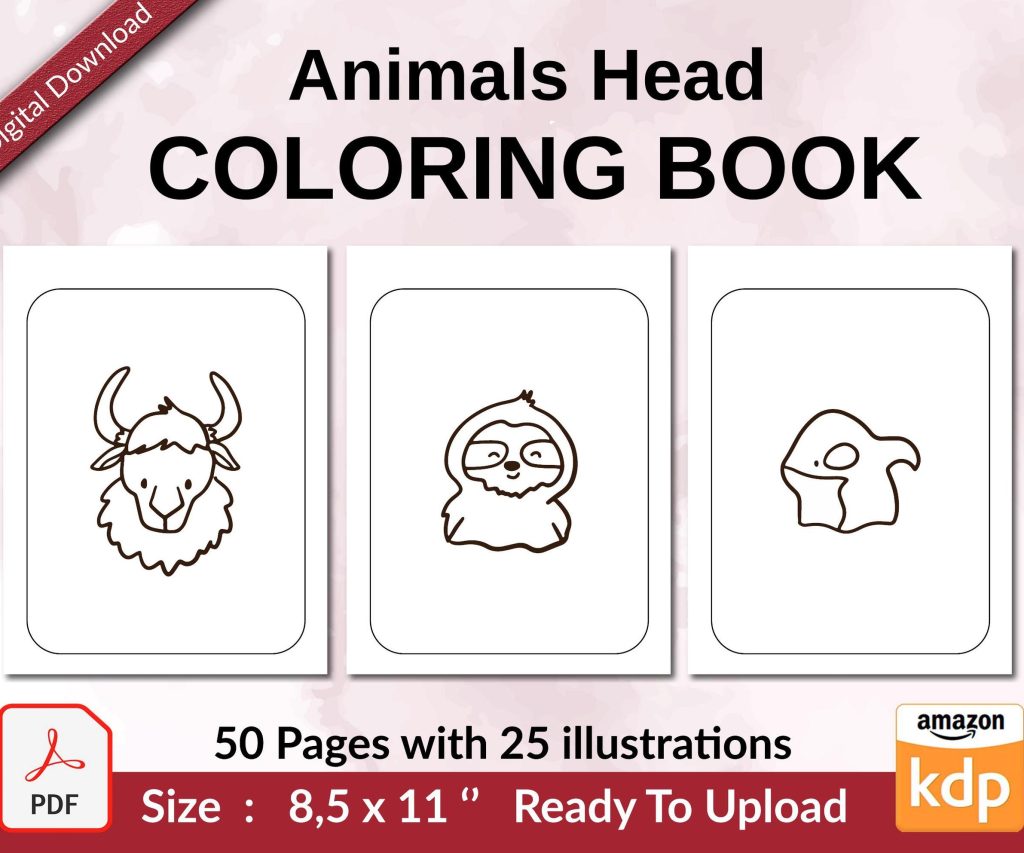
 Coloring Animals Head Book for Kids, Perfect for ages 2-4, 4-8 | 8.5x11 PDF
 Subtotal: $0.00
Amazon KDP guide, KDP book publishing
KP Publishing Amazon: Kindle Publishing Overview
06
May
May
okay so here’s the deal with kp publishing on amazon
First thing you gotta understand is that KDP (Kindle Direct Publishing, not KP but everyone searches for it that way) is basically Amazon’s platform for self-publishing. I’ve been doing this since like 2017 and honestly it’s changed so much but also… not really? The core stuff is the same.
So you start by going to kdp.amazon.com and setting up your account. Super straightforward, links to your regular Amazon account. They’re gonna ask for tax info right away which is annoying but just get it done. You’ll need either your SSN if you’re in the US or they’ll have you fill out some international tax forms. Takes like 10 minutes, maybe less if you have all your info handy.
the two main things you can publish
You’ve got ebooks and paperbacks, and now they added hardcover too but honestly I haven’t messed with that much. Ebooks are where most people start because there’s literally zero upfront cost. No printing, no inventory, nothing. You upload a file, set a price, and you’re done.
Paperbacks use their print-on-demand system. Someone orders your book, Amazon prints it and ships it. You never touch physical inventory which is wild when you think about it. I remember back in the day you had to order like 500 copies minimum and hope they sold.
creating your first book
So on the KDP dashboard you’ll see a big button that says “Create” and that’s where everything starts. You’ll need to choose between Kindle eBook or Paperback. Let’s say you’re doing an ebook first because it’s easier.
The title and subtitle thing trips people up. Your title is searchable so don’t just make it cute, make it descriptive. Like if you wrote a book about keto meal prep, don’t call it “My Food Journey” – call it “Keto Meal Prep: 30 Days of Low-Carb Recipes” or whatever. Amazon‘s algorithm needs to know what your book is about.
Oh and another thing, the subtitle field is your friend. You get like 200 characters there to pack in more keywords and description. Use all of it.
categories and keywords are huge
You can pick two categories when you upload but here’s the trick – you can email KDP support after publishing and ask them to add you to up to 10 categories total. I do this with every single book. Just send them your ASIN and a list of category paths you want. They usually do it within 24 hours.
Keywords are those 7 boxes where you can enter search terms. Don’t waste them on words already in your title. Like if your title is “Keto Cookbook” don’t put “keto” or “cookbook” in your keywords. Use them for related terms people might search – “low carb recipes,” “ketogenic diet,” “sugar free desserts,” whatever makes sense.
I spent like three hours last Tuesday researching keywords for a planner I was uploading and my cat kept walking across my keyboard. Ended up with some weird keyword like “2025 plannnnner” that I had to go back and fix.
manuscript formatting is where people mess up
Your manuscript needs to be either a DOC, DOCX, or preferably EPUB file. PDFs work but they’re not reflowable so the text doesn’t resize well on different devices. For fiction or any text-heavy book, use DOCX and keep the formatting super simple.
Here’s what works: Times New Roman or Georgia font, 12pt, normal margins, chapter headings as actual heading styles (not just bold text). Page breaks between chapters – use actual page breaks, not just hitting enter a bunch of times.
For non-fiction with images, you gotta be more careful. Images should be at least 300 DPI and placed inline with the text. I usually go with JPG format, keeps the file size reasonable. Amazon has a 650 MB limit for ebook files but honestly if you’re hitting that you’ve got way too many images or they’re not compressed.
the cover situation
You can use KDP’s Cover Creator tool which is free and actually not terrible for simple books. I’ve used it for some low-content books and they turned out fine. But for anything you want to actually sell well, hire a designer or use Canva if you’ve got design skills.
Ebook covers need to be at least 1000 pixels on the shortest side. I always do 1600×2400 because it looks sharp on all devices. File size under 50 MB. Save it as JPG, not PNG – way smaller file size and Amazon converts everything anyway.
wait I forgot to mention – your cover shows up as a tiny thumbnail in search results so make sure the title is readable when it’s small. I see so many books with fancy script fonts that you can’t read at thumbnail size. Total waste.
pricing strategy is kinda an art
For ebooks, you’ve got two royalty options: 35% or 70%. The 70% option has rules though. Your book has to be priced between $2.99 and $9.99, and there are delivery costs (like $0.15 per MB usually). For most books under 50 MB, the 70% royalty makes way more sense.
I usually price new ebooks at $4.99. It’s the sweet spot where you’re making decent royalty ($3.50ish per sale) but not pricing yourself out of impulse buys. You can always run promotions or change the price later.
Paperbacks are different because there’s a printing cost. Amazon calculates it based on page count and whether it’s black and white or color. A 200-page black and white paperback costs like $3 to print. So if you price it at $12.99, you’re making maybe $2-3 per sale depending on the marketplace.
kdp select vs going wide
Okay so this is gonna sound weird but I go back and forth on this. KDP Select means your ebook is exclusive to Amazon for 90 days. In exchange, you get access to KU (Kindle Unlimited) where readers can borrow your book and you get paid per page read. Plus you can run free promotions and Countdown Deals.
Going wide means you also publish on Apple Books, Kobo, Google Play, whatever. More potential reach but way more work managing everything. For your first book, honestly, just do KDP Select. See if you can make money on the biggest platform first.
I make probably 40% of my income from KU page reads. It’s wild because sometimes a book will barely sell any copies but rack up thousands of page reads. Last month I had this gratitude journal that sold 12 copies but had 8,000 pages read. That’s like $40 just from borrows.
the publishing process itself
Once you’ve filled out all the fields and uploaded your manuscript and cover, you hit publish and… wait. Usually takes 24-72 hours for Amazon to review. Sometimes it’s fast, like 6 hours. Sometimes they come back with issues.
Common rejection reasons: cover image quality is too low, manuscript has formatting problems, content violates their guidelines (lots of rules about public domain content, can’t just republish stuff that’s already free). If you get rejected, don’t panic. They tell you what’s wrong, you fix it, resubmit.
oh and another thing – once your book is live, it can take a few days to show up in all search results and categories. The Amazon system needs time to index everything. Don’t freak out if you can’t find your book by searching right away.
low content vs ebooks
I do both but they’re totally different strategies. Low content is stuff like journals, planners, notebooks, logbooks – mostly blank pages with some formatting. These are usually paperback only because who wants a digital blank journal?
The margins are tighter on low content because printing costs eat into profits, but you can publish a ton of them. I’ve got like 150 low content books up. Some sell one copy a month, some sell 5-10 per day. It’s a volume game.
Ebooks need actual content obviously. Could be fiction, non-fiction, how-to guides, whatever. These take more time to create but can command higher prices and the profit margins are way better since there’s no printing cost.
marketing is the hard part honestly
Publishing the book is easy. Getting people to buy it is the challenge. Amazon’s algorithm rewards books that sell, so you need those initial sales to get momentum. I usually tell people to line up at least 10 friends or family who’ll buy it the first day it launches.
Amazon ads are built right into KDP. You can set up automatic campaigns where Amazon shows your book to people searching for related terms. Start with like $5/day budget and see what happens. Sometimes they work great, sometimes you just burn through money.
Social media helps but don’t expect miracles. I’ve got a small Instagram for my books and it drives maybe 5% of my sales. The other 95% come from Amazon’s internal discovery – people searching, also-boughts, recommendation emails Amazon sends.
reports and getting paid
The KDP dashboard shows your sales in near real-time, which is both awesome and addicting. I check it way too much, like multiple times a day even though I know the numbers don’t change that fast. Can’t help it.
You get paid about 60 days after the end of the month. So sales from January get paid out around late March. Amazon holds it back to account for returns, which do happen. Not often with ebooks but paperbacks get returned sometimes.
Payments go via direct deposit if you set it up, or they can mail a check but that takes forever. Minimum threshold is $100 for direct deposit, $10 for checks I think? Something like that.
things I wish I knew starting out
Book descriptions support basic HTML which means you can use bold, italics, bullet points to make them more readable. Don’t just dump a wall of text. Break it up, use formatting, make it scannable.
Your author name doesn’t have to be your real name. You can use a pen name, and you should probably use the same one across multiple books in the same genre to build author recognition.
Amazon’s “Look Inside” feature shows the first 10% of your book. Make sure those first pages are solid – good formatting, no typos, engaging content. That’s what convinces people to buy.
You can update your book anytime. New cover, revised content, whatever. Just upload the new files. Takes another review period but your existing sales history and reviews stay intact.
the technical stuff nobody explains
ISBNs are free for ebooks – Amazon assigns one automatically. For paperbacks you can use Amazon’s free ISBN or buy your own. If you use theirs, you can only sell that edition on Amazon. If you buy your own, you can use the same ISBN to sell elsewhere too.
Trim sizes for paperbacks – start with 6×9 inches, it’s the most common and keeps printing costs reasonable. 8.5×11 is good for workbooks or activity books but costs more to print.
Bleed settings matter if your cover or interior has images that go to the edge of the page. Amazon has templates you can download that show exactly where the safe zones are. Use them, seriously.
The preview tool in KDP is actually pretty good. Before you publish, download the preview file and check it on your actual Kindle or in the Kindle app. Catches formatting issues you might miss.
Anyway that’s like the core overview. There’s obviously way more to learn as you go but that should get you started without feeling totally lost. Just pick a simple project for your first book, maybe something you’re actually interested in, and work through the process. You’ll figure out the rest as you go.
DISCOVER OUR FREE BEST SELLING PRODUCTS
Editable Canva Lined Journal: Express Your Thoughts – KDP Template
Lined Pages Journal 120 pages Ready to Upload PDF Commercial Use KDP Template 6×9 8.5×11 5×8 for Notebooks, Diaries, Low Content
Lined Pages Journal 120 pages Ready to Upload PDF Commercial Use KDP Template 6×9 8.5×11 5×8 for Notebooks, Diaries, Low Content
Cute Dogs Coloring Book for Kids | Activity Book | KDP Ready-To-Upload
Daily Planner Diary : Diary Planners for Everyday Productivity, 120 pages, 6×9 Size | Amazon KDP Interior
Wolf Coloring KDP interior For Adults, Used as Low Content Book, PDF Template Ready To Upload COMMERCIAL Use 8.5×11"
Coloring Animals Head Book for Kids, Perfect for ages 2-4, 4-8 | 8.5×11 PDF
Printable Blank Comic Book Pages PDF : Create Your Own Comics – 3 Available Sizes
Notes KDP interior Ready To Upload, Sizes 8.5×11 6×9 5×8 inch PDF FILE Used as Amazon KDP Paperback Low Content Book, journal, Notebook, Planner, COMMERCIAL Use
Black Lined Journal: 120 Pages of Black Lined Paper Perfect for Journaling, KDP Notebook Template – 6×9
Student Planner Journal 120 pages Ready to Upload PDF Commercial Use KDP Template 6×9" 8.5×11" for Low Content book
Recipe Journal Template – Editable Recipe Book Template, 120 Pages – Amazon KDP Interior