-
×
 Student Planner Journal 120 pages Ready to Upload PDF Commercial Use KDP Template 6x9" 8.5x11" for Low Content book
1 × $0.00
Student Planner Journal 120 pages Ready to Upload PDF Commercial Use KDP Template 6x9" 8.5x11" for Low Content book
1 × $0.00
Subtotal: $0.00

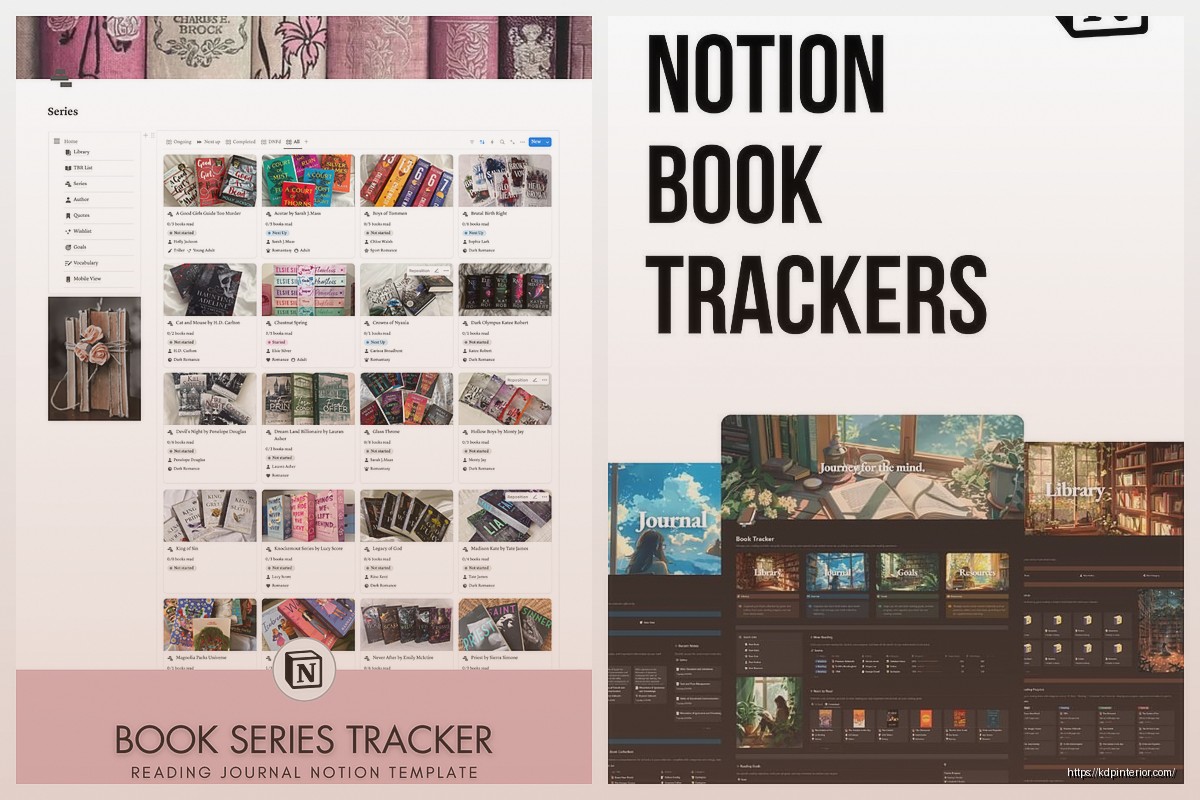
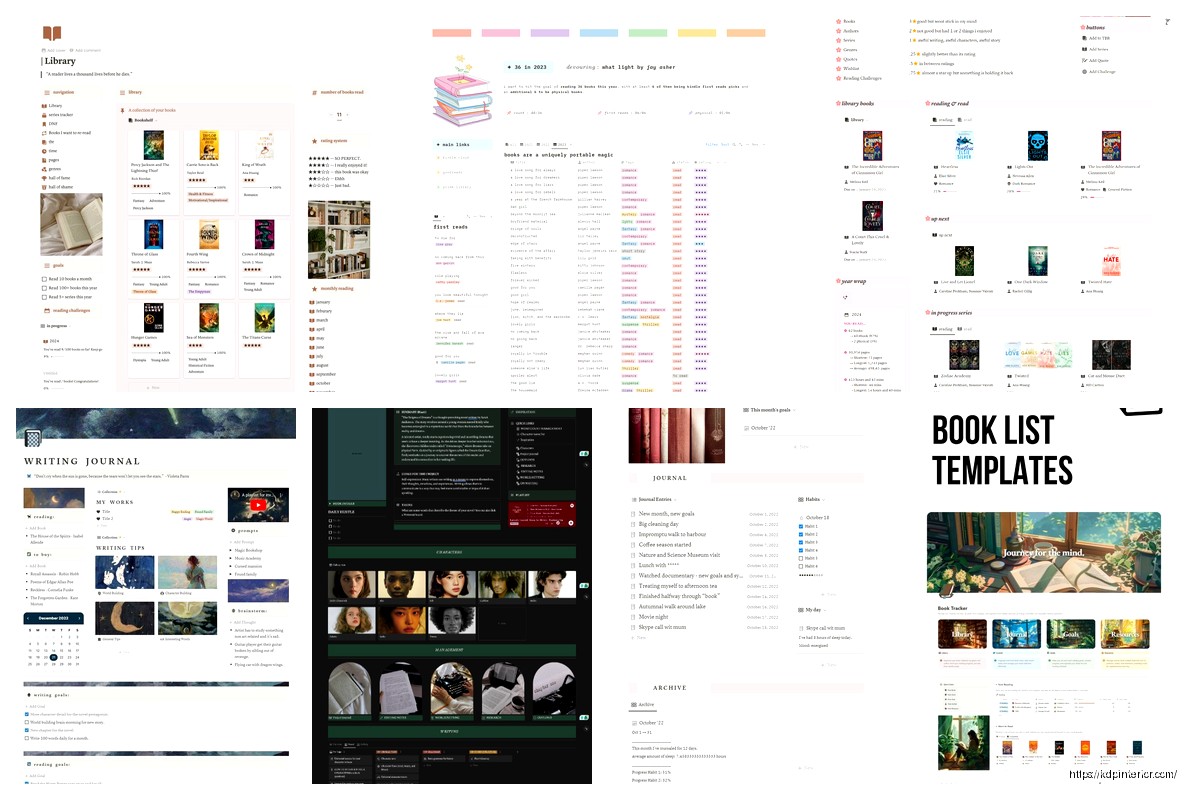
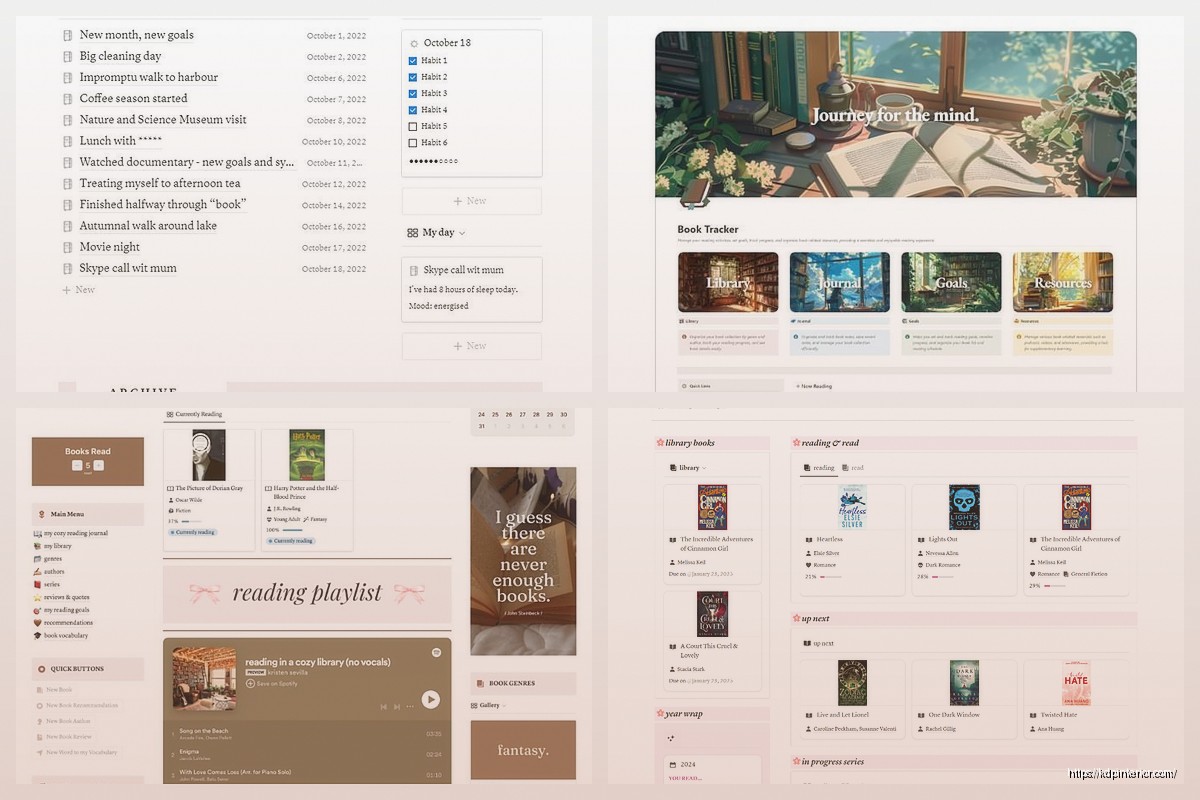
Okay so I’ve been messing around with Notion reading trackers for like the past three weeks because honestly my Goodreads situation was getting embarrassing and here’s what actually works.
First thing you gotta do is create a new database. Not a page with a database inside it, just straight up database. Click the slash command and type “table” and pick “Table – Inline.” I know everyone says to use gallery view but trust me, start with table view because you can actually see what you’re doing.
Your columns should be super simple at first. Like don’t go crazy adding 47 properties because you’ll never fill them out. I learned this the hard way after creating this monster template last year that I used exactly twice. Start with:
The multi-select thing for genre is actually important because I tried using single select and it was so limiting. Like where do you put a sci-fi romance? Exactly.
So for the Status property, you want these specific options and I’m gonna explain why each one matters. “To Read” is obvious, that’s your TBR pile that will inevitably grow to 400 books and make you feel guilty. “Currently Reading” should be limited to like 3-5 books max otherwise you’re lying to yourself about your reading habits.
“Finished” is straightforward but here’s what I do differently – I have a separate status called “Paused” because sometimes you’re not DNF-ing a book, you just need a break from that 800-page fantasy tome. And yeah, “DNF” (did not finish) needs its own category because there’s no shame in admitting a book wasn’t for you.
Oh and another thing, you can color-code these statuses. Click the three dots next to any status option and pick colors. I use green for Finished, blue for Currently Reading, gray for To Read, orange for Paused, and red for DNF. Makes scanning your database so much easier.
Wait I forgot to mention the most important part. Inside your database, you want to create a template for new entries. Click the dropdown arrow next to “New” in your database and select “New template.” This is gonna save you so much time.
In your template, set up sections you want to fill out for every book. Mine looks like this:
I have a toggle list called “My Thoughts” where I dump random observations while reading. Like literally mid-book thoughts. Another toggle for “Quotes” because I used to screenshot everything and now I have 2000 screenshots I’ll never look at again.
Then a “Review” section where I write actual thoughts after finishing. This doesn’t have to be fancy. Sometimes mine is literally “loved the magic system, hated the romance subplot, 4 stars.”
Add properties for:
This is gonna sound weird but I also add a checkbox property called “Would Reread” because my memory is terrible and future me needs to know if it’s worth revisiting.
Okay so the default table view is fine but you’re gonna want multiple views of the same database. Click “Add a view” at the top of your database.
Currently Reading View: Filter by Status = Currently Reading. I keep this view open in a pinned tab literally always. Sort by Date Started so you remember which book you abandoned three weeks ago.
Finished This Year View: Filter by Date Finished is this year. Sort by Date Finished descending so newest books show first. This is super satisfying to scroll through and also helpful for those “what did I even read this year” moments.
By Genre View: Switch to board view and group by Genre. This shows you visually what genres you’re gravitating toward. I discovered I read way more fantasy than I thought and basically no contemporary fiction.
TBR Priority View: Okay this one requires an extra property. Add a “Priority” select property with options like High, Medium, Low. Then create a view filtered by Status = To Read, sorted by Priority. Game changer for decision paralysis.
So I was watching that new Netflix show last night (the one with the time travel thing) and realized I could track my reading goals right in Notion instead of using Goodreads. Here’s how:
Create a new page above or below your database called “2024 Reading Stats” or whatever year it is. Add a linked database that references your main book database. Filter it to show only books where Date Finished is this year.
Now here’s the cool part. At the top of this page, add some text and formulas:
Books Read This Year: [you’ll manually count this or use a formula] Goal: 52 books
Average Rating: [calculate this manually or get fancy with formulas]
For the formula stuff, you can add a rollup property in your stats view that counts total books, but honestly I just manually count because I’m lazy and formulas in Notion sometimes make my brain hurt.
I also created a separate database (linked to the main one) that tracks books by month. It’s literally just a table with columns for each month and rows showing which books I finished. Super visual, super satisfying. You can do this with a timeline view too but I found that overly complicated.
After using this system for a few months, I added some properties that turned out to be super valuable:
Mood/Vibe: Multi-select with options like cozy, dark, funny, emotional, fast-paced, slow-burn. When you’re trying to pick your next read, filtering by mood is actually more helpful than filtering by genre sometimes.
Content Warnings: Text property where I note any potentially triggering content. Future me appreciates this when recommending books to friends.
Series Info: Text property where I note if it’s book 1 of 3 or whatever. Notion doesn’t have great series tracking built-in so this is manual but helpful.
Reread? Checkbox for books I’ve read before. I kept accidentally adding books to my TBR that I’d already read and it was embarrassing.
When you click into a book entry, you’ve got this whole page to work with. Don’t waste it. Here’s my structure:
I use a quote block at the top for a one-sentence summary. Helps me remember what the book was actually about six months later.
Then I have sections with toggle headings:
– Plot Summary (just bullet points, nothing fancy)
– Characters I Loved/Hated
– Themes and Messages
– Writing Style Notes
– Quotes That Hit Different
Oh and I embed my Goodreads review if I wrote one, just to have everything in one place.
The Notion mobile app is… fine. Not great, but fine. I mostly use it to update my Status when I start or finish a book. The quick add feature is helpful – you can tap the plus button and select your books database template.
What I do is keep a separate “Quick Capture” page in Notion where I jot down book recommendations people mention. Then once a week I properly add them to my TBR database. Trying to fill out the full template on mobile while someone’s talking to you about a book is gonna make you look rude.
You can connect your Notion to other apps if you want to get fancy. I use Zapier (the free tier) to automatically add books from a specific email label to my TBR. Like when Book of the Month sends recommendations, it auto-adds them.
Some people connect their Goodreads via third-party tools but honestly the manual entry keeps me more intentional about what I’m adding. Plus Goodreads’ API is a mess.
Okay so I initially tried to track every single reading session with timestamps. Like “read pages 45-89 on Tuesday at 7pm for 45 minutes” level of detail. Lasted exactly four days before I gave up. Too much data entry, not enough actual reading.
I also tried using relation properties to connect books by the same author into little webs. Sounded cool in theory but was way too complicated to maintain and I never actually used it.
And cover images – everyone puts book covers in their databases and it looks gorgeous in screenshots but it’s so much work. I add them occasionally if I’m bored but it’s not essential.
If all of this sounds like too much, here’s the stripped-down version: database with Title, Author, Status, Rating, Date Finished. That’s literally it. Everything else is optional. I know people who just use this basic setup and they’re perfectly happy.
The biggest mistake people make is creating this beautiful elaborate system and then never updating it. Set a reminder to update your tracker. I do mine every Sunday morning with coffee – takes maybe 10 minutes to add any new books, update statuses, write quick notes.
Also don’t beat yourself up about leaving fields empty. Not every book needs a full review. Sometimes “meh, it was fine” is a perfectly acceptable review.
One last thing – duplicate your database before making major changes. I learned this after accidentally deleting a property that had months of data. Notion’s version history saved me but it was stressful.
The whole point of this is to enhance your reading life, not create another chore. If you find yourself avoiding updating your tracker, simplify it. Remove properties you never fill out. Switch to a view that’s less overwhelming. My cat just knocked over my water bottle so I gotta go, but yeah that’s basically the whole setup. Start simple, add complexity only if you actually use it, and don’t let perfect be the enemy of done.
DISCOVER OUR FREE BEST SELLING PRODUCTS
Editable Canva Lined Journal: Express Your Thoughts – KDP Template
Lined Pages Journal 120 pages Ready to Upload PDF Commercial Use KDP Template 6×9 8.5×11 5×8 for Notebooks, Diaries, Low Content
Lined Pages Journal 120 pages Ready to Upload PDF Commercial Use KDP Template 6×9 8.5×11 5×8 for Notebooks, Diaries, Low Content
Cute Dogs Coloring Book for Kids | Activity Book | KDP Ready-To-Upload
Daily Planner Diary : Diary Planners for Everyday Productivity, 120 pages, 6×9 Size | Amazon KDP Interior
Wolf Coloring KDP interior For Adults, Used as Low Content Book, PDF Template Ready To Upload COMMERCIAL Use 8.5×11"
Coloring Animals Head Book for Kids, Perfect for ages 2-4, 4-8 | 8.5×11 PDF
Printable Blank Comic Book Pages PDF : Create Your Own Comics – 3 Available Sizes
Notes KDP interior Ready To Upload, Sizes 8.5×11 6×9 5×8 inch PDF FILE Used as Amazon KDP Paperback Low Content Book, journal, Notebook, Planner, COMMERCIAL Use
Black Lined Journal: 120 Pages of Black Lined Paper Perfect for Journaling, KDP Notebook Template – 6×9
Student Planner Journal 120 pages Ready to Upload PDF Commercial Use KDP Template 6×9" 8.5×11" for Low Content book
Recipe Journal Template – Editable Recipe Book Template, 120 Pages – Amazon KDP Interior