
 Editable Canva Lined Journal: Express Your Thoughts - KDP Template
 Subtotal: $0.00
Amazon KDP guide, KDP book publishing
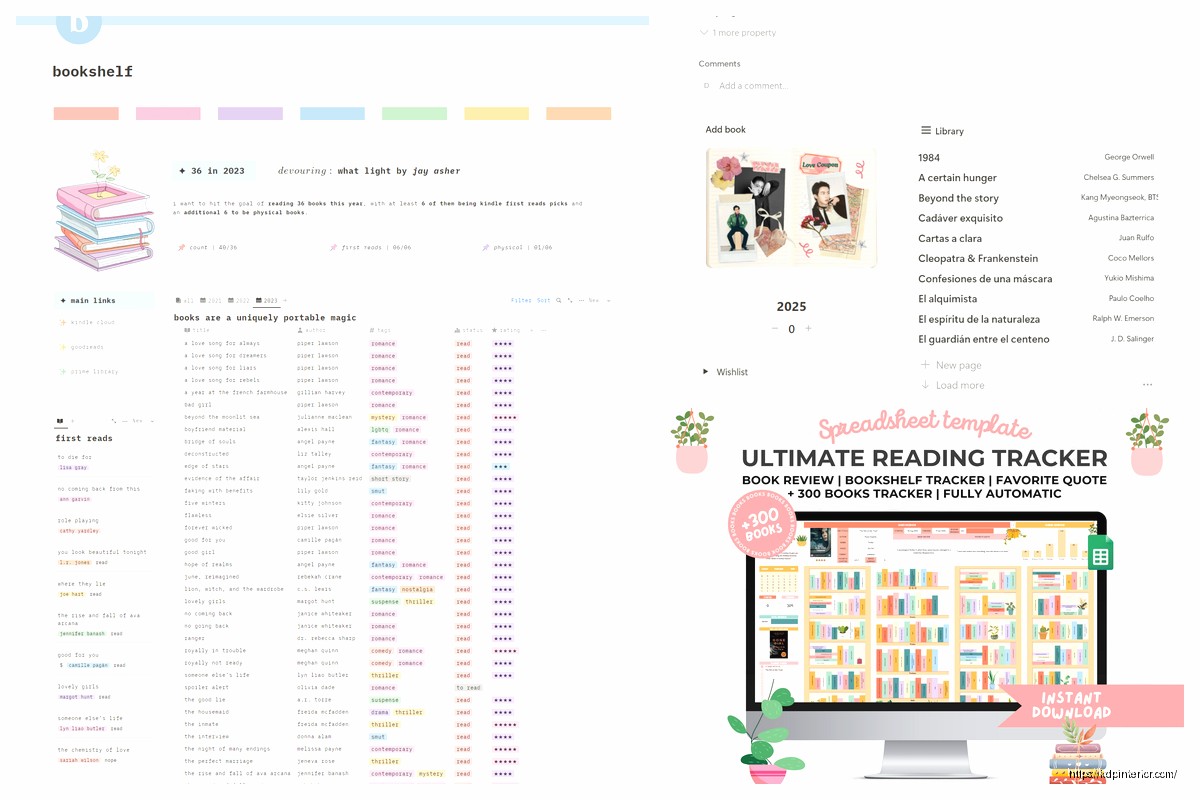
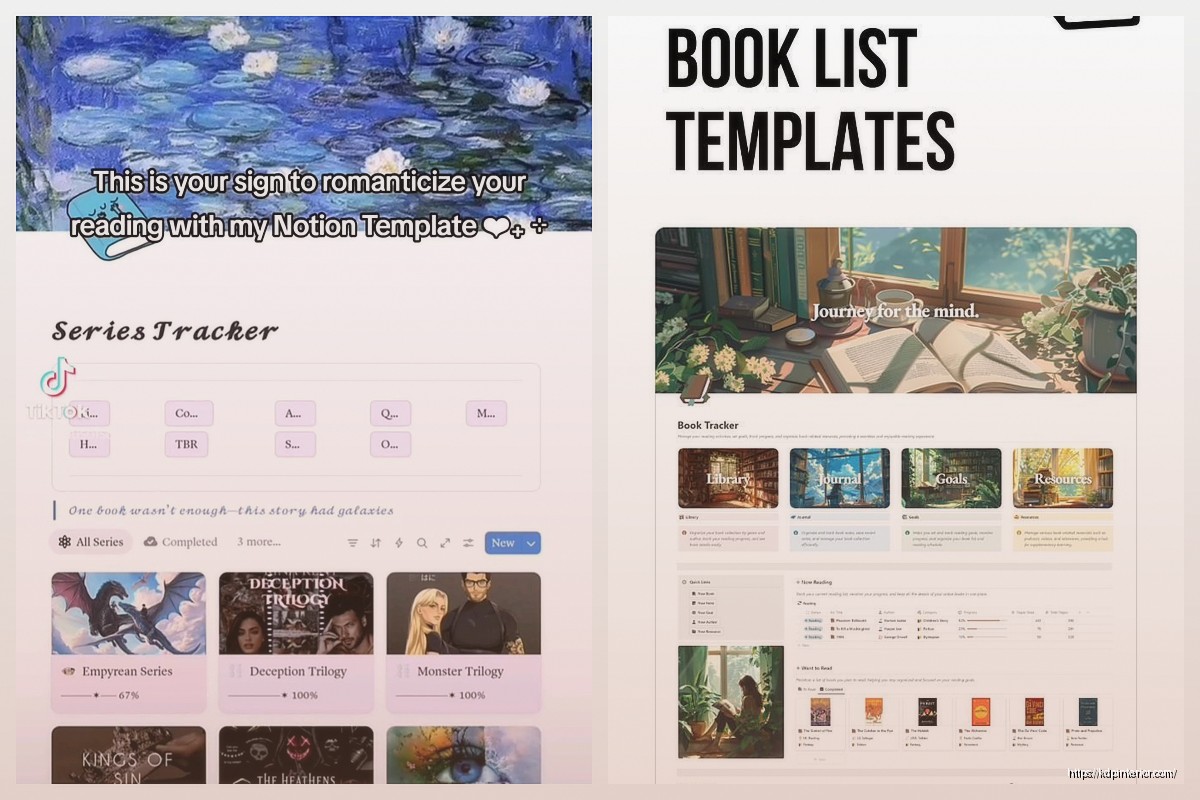
Notion Book Tracker: Digital Reading Log
17
Mar
Mar
Okay so I literally just rebuilt my entire Notion reading tracker last week because my old one was a mess and I’m gonna walk you through exactly how I set it up this time.
Starting With The Database Structure
First thing you need is a database, not just a page with bullet points. Click the slash command and type “table” – pick the full page database option because you’re gonna want room to expand this thing. I learned this the hard way after trying to cram everything into an inline database and… yeah that lasted about three days.
Your columns should be:
- Title (this is already there)
- Author (text property)
- Status (select property)
- Rating (select property)
- Genre (multi-select because books can be multiple genres)
- Date Started (date property)
- Date Finished (date property)
- Pages (number property)
- Format (select – physical, ebook, audiobook)
The status column is where most people get creative but keep it simple. I use: Want to Read, Currently Reading, Finished, and DNF (did not finish). Don’t make like 15 different status options because you’ll never use half of them.
Setting Up Views That Actually Work
This is where Notion gets powerful and also where I see people give up because they don’t realize you can have multiple views of the same database.
Click “Add a view” at the top of your database. I run four views:
Currently Reading view – filter where Status is “Currently Reading” and sort by Date Started. This shows me what I’m actively working through right now. I was watching The Last of Us while setting this up and kept getting distracted but basically you just click the filter button, select Status, and set it to “Currently Reading.”
2024 Reading Log view – this one’s a table filtered by Date Finished in 2024, sorted newest to oldest. Change the year obviously. This gives you that satisfying scrollable list of everything you crushed this year.
Want to Read view – filtered to show only books with Want to Read status. I sort this by Genre so I can pick based on my mood. Sometimes I want mystery, sometimes I need something lighter.
By Rating view – I actually use a gallery view for this one instead of a table. Filter to show only Finished books, group by Rating. It creates these visual columns of 5-star books, 4-star books, etc. Super satisfying to see your favorites grouped together.
Oh and another thing – you can create a Board view grouped by Status that looks like a Kanban board if that’s your style. I tried it but went back to tables because I like seeing more info at a glance.
Adding The Fun Stuff With Formulas
Formulas sound intimidating but they’re basically just calculations. Add a new property, select “Formula” as the type.
For reading pace, create a formula column called “Days to Finish”:
dateBetween(prop(“Date Finished”), prop(“Date Started”), “days”)
This shows you how many days it took to finish each book. Some of mine are embarrassingly long because I started a book, forgot about it for three months, then picked it back up.
Another useful one is pages per day:
prop(“Pages”) / prop(“Days to Finish”)
Name this column “Pages/Day” and it’ll calculate your reading speed for each book. Mine varies wildly from like 15 pages per day for dense stuff to 200+ when I’m binging something I can’t put down.
Wait I forgot to mention – you gotta add these as new properties by clicking the + button at the end of your property list in the database. Select Formula, give it a name, paste the formula.
The Reading Notes Section
Here’s what makes Notion better than Goodreads or whatever – you can actually write detailed notes inside each book entry.
When you click on any book title, it opens up as its own page. This is where I add:
- A quick summary in my own words
- Favorite quotes (I just paste them as bullet points)
- My actual thoughts – why I rated it what I rated it
- Characters worth remembering if it’s a series
I use headings for organization. Type /heading and pick Heading 2 for each section. Keeps it clean without being too formal.
This is gonna sound weird but I also embed the book cover image at the top of each entry. You can just drag and drop an image or paste a URL. Makes it feel more like an actual book journal and helps me remember books faster when I’m scrolling through.
Templates For Faster Entry
If you’re adding books regularly you need templates. Click the dropdown arrow next to “New” in your database and select “New template.”
Create a template with your standard headings already in place:
Book Title Template
Favorite Quotes:
My Thoughts:
Characters/Notes:
Now when you add a new book, you can select this template and boom – structure is already there. Just fill in the blanks.
I actually have two templates – one for fiction and one for non-fiction because I track different things. For non-fiction I add an “Action Items” section for things I wanna implement.
Reading Goals And Progress Tracking
Okay so this part is optional but it’s motivating if you’re into goals. At the top of your main reading tracker page (above the database), add a heading that says “2024 Reading Goal” or whatever year.
Underneath, create a linked database view of your main reading log. Click /linked and select your database. Filter this view to show Date Finished in 2024.
Add a text block above it that says something like “Goal: 52 books” and then just manually update it as you go. Yeah Notion doesn’t auto-calculate how many database entries you have displayed (annoying), but you can see the count at the top of the database view.
Actually wait – you CAN do this with a formula in a separate database but honestly it’s complicated and I just count manually. My cat jumped on my keyboard three times while trying to set that up so I gave up.
Mobile App Workflow
The Notion mobile app is how I actually use this tracker most because I log books right after finishing them, usually from my couch or bed.
Download the app, sign in with the same account. Your reading tracker will sync automatically. The mobile interface is pretty similar – tap the database, tap the + button to add a new entry.
Pro tip: use the share extension on your phone. If you’re on Amazon or Goodreads looking at a book you wanna read, hit share and select Notion. It’ll create a new database entry with the URL already attached. Then you just fill in the details later.
Connecting Related Databases
This is advanced but if you’re also tracking other stuff in Notion it’s powerful. I have a separate database for book recommendations from friends. It’s got columns for who recommended it, why they recommended it, and priority level.
Then in my main reading tracker, I added a Relation property that links to the recommendations database. So when I finish a book that someone recommended, I can link it back to that recommendation entry. Helps me remember to tell people “hey I finally read that book you suggested!”
To set this up: add new property, select Relation, choose your other database, done. Then you can link entries between the two databases.
Tags And Organization Beyond Genre
I added a multi-select property called “Tags” for things like:
- Book club pick
- Award winner
- Reread
- Own physical copy
- Series
Multi-select lets you add multiple tags to one book which is way more flexible than single select. You can then filter views by these tags. Like I have a view that shows only books I own physically so I know what’s actually on my shelf versus what I borrowed or read digitally.
Dealing With Series
If you read a lot of series this gets tricky. I tried a bunch of methods and here’s what works: create a separate property called “Series” (text property) and just type the series name.
Then you can sort your database by Series name alphabetically and all books in the same series group together. I also add the book number in the title like “Book Title (Series #2)” so I know the order.
Some people create a whole separate database for series with relations to individual books but that’s overkill unless you’re reading like Brandon Sanderson’s entire cosmere or something.
Backing Up Your Data
Real quick – go to Settings & Members, then Settings, scroll down to Export content. Do this every few months and download your whole workspace. Notion is reliable but I’ve had databases glitch before and it’s devastating to lose reading data.
The export gives you a zip file with everything in Markdown format. You probably won’t ever need it but better safe than sorry.
Customization Ideas I’ve Seen Work
Some people add a “Borrowed From” property to track which friend has their books. Smart if you lend stuff out.
A “Purchase Link” URL property is useful if you wanna buy books you loved as gifts for people.
I saw someone add a “Mood” multi-select with options like uplifting, dark, thought-provoking, fun. Then they filter by mood when choosing their next read.
Another person tracks “Time of Day Read” because they read different genres at different times. Morning vs evening vs commute reading. That’s probably too granular for me but hey, if it works for them.
You can also add a Files property to attach your actual highlights export if you read on Kindle. I tried this but it felt like too much maintenance.
The whole point is making it work for YOUR reading habits, not copying someone else’s system exactly. Start simple with the basics I outlined and add complexity only when you actually need it. My first version had like 6 columns and now I’m up to 15 but I added them gradually as I realized what info I actually wanted to track.
DISCOVER OUR FREE BEST SELLING PRODUCTS
Editable Canva Lined Journal: Express Your Thoughts – KDP Template
Lined Pages Journal 120 pages Ready to Upload PDF Commercial Use KDP Template 6×9 8.5×11 5×8 for Notebooks, Diaries, Low Content
Lined Pages Journal 120 pages Ready to Upload PDF Commercial Use KDP Template 6×9 8.5×11 5×8 for Notebooks, Diaries, Low Content
Cute Dogs Coloring Book for Kids | Activity Book | KDP Ready-To-Upload
Daily Planner Diary : Diary Planners for Everyday Productivity, 120 pages, 6×9 Size | Amazon KDP Interior
Wolf Coloring KDP interior For Adults, Used as Low Content Book, PDF Template Ready To Upload COMMERCIAL Use 8.5×11"
Coloring Animals Head Book for Kids, Perfect for ages 2-4, 4-8 | 8.5×11 PDF
Printable Blank Comic Book Pages PDF : Create Your Own Comics – 3 Available Sizes
Notes KDP interior Ready To Upload, Sizes 8.5×11 6×9 5×8 inch PDF FILE Used as Amazon KDP Paperback Low Content Book, journal, Notebook, Planner, COMMERCIAL Use
Black Lined Journal: 120 Pages of Black Lined Paper Perfect for Journaling, KDP Notebook Template – 6×9
Student Planner Journal 120 pages Ready to Upload PDF Commercial Use KDP Template 6×9" 8.5×11" for Low Content book
Recipe Journal Template – Editable Recipe Book Template, 120 Pages – Amazon KDP Interior