-
×
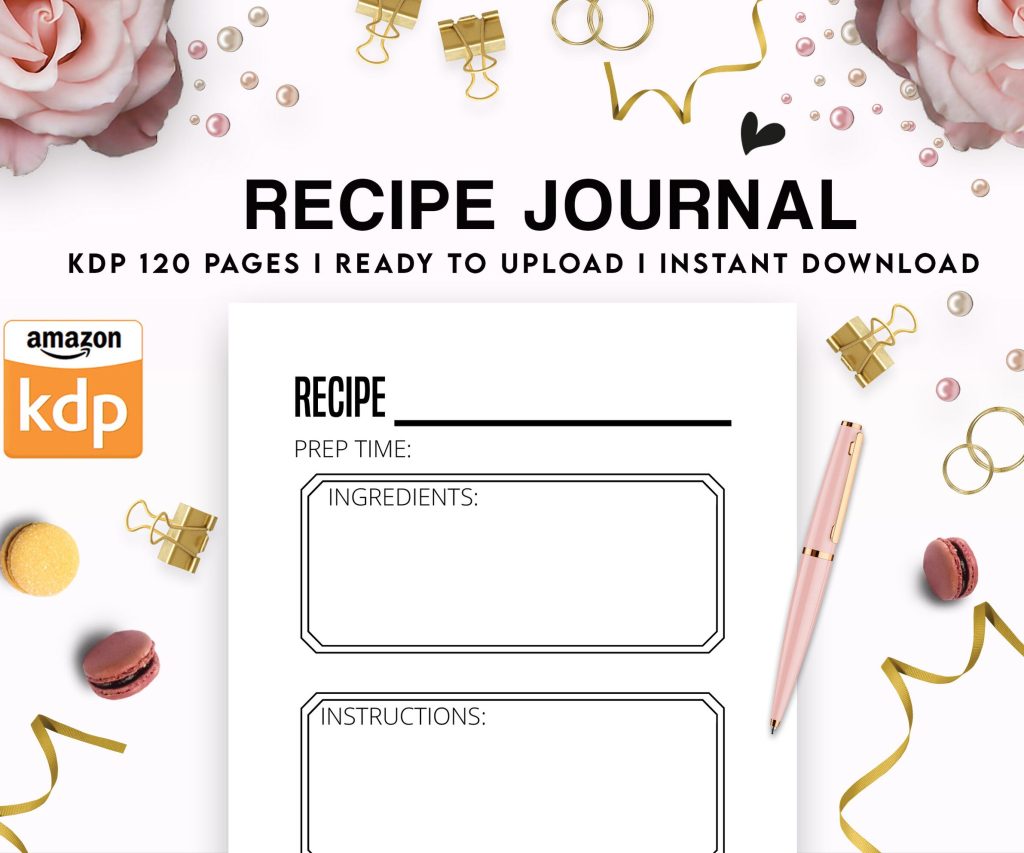 Recipe Journal Template - Editable Recipe Book Template, 120 Pages - Amazon KDP Interior
1 × $0.00
Recipe Journal Template - Editable Recipe Book Template, 120 Pages - Amazon KDP Interior
1 × $0.00
Subtotal: $0.00
 Recipe Journal Template - Editable Recipe Book Template, 120 Pages - Amazon KDP Interior
1 × $0.00
Recipe Journal Template - Editable Recipe Book Template, 120 Pages - Amazon KDP Interior
1 × $0.00 Subtotal: $0.00
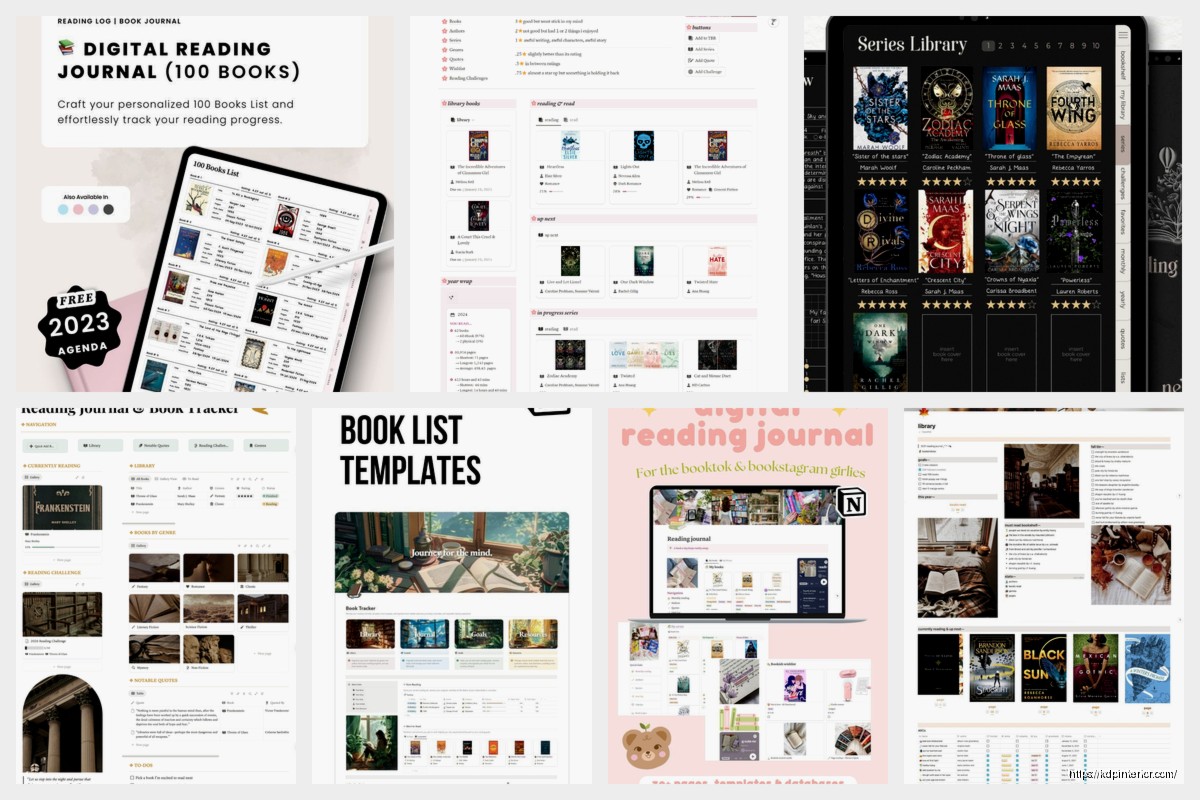
Okay so I’ve been using Notion for my reading journal for like two years now and honestly it’s the best system I’ve built for keeping track of books. Way better than Goodreads for actual useful notes.
The thing you gotta understand first is Notion databases are gonna be your friend here. I know they look complicated but they’re basically just fancy spreadsheets that can do cool stuff.
Start by creating a new page in Notion. Hit the slash command and type “table” – pick “Table – Full page.” This is gonna be your master reading list.
Here’s the columns I use and honestly they’ve evolved over time but these are solid:
The trick is not going overboard at first. I added like 15 properties when I started and it was too much maintenance. You can always add more later.
So here’s where it gets good. Each book title in your database is actually its own page. Click into any book and you’ve got this blank space to write whatever you want.
I structure mine like this and it’s worked really well:
Create a toggle list (type /toggle) for “Quick Notes” – this is where I dump thoughts while reading. Sometimes it’s just “chapter 3 – the plot twist with Sarah was wild” or “writing style reminds me of Sanderson but faster paced.” Just stream of consciousness stuff.
Then I have another section called “Detailed Review” that I fill out after finishing. I don’t use a template exactly but I usually cover:
Oh and another thing – I add a “Key Takeaways” section for non-fiction. Like actual bullet points of stuff I want to remember. This has been super valuable when I’m trying to recall something from a business book I read six months ago.
This is where Notion really shines over like a Google Sheet or whatever. You can create multiple views of the same database.
Click “Add a view” at the top of your database. I’ve got:
Currently Reading view – filtered to only show Status = “Currently Reading” and I sort it by Date Started. Usually only 2-3 books here because I try not to read too many at once (doesn’t always work lol).
Finished This Year view – Filter where Status = “Finished” and Date Finished is this year. Then I sort by Date Finished descending so newest is at top. At the end of the year I can see everything I read and it feels pretty satisfying tbh.
By Genre view – I use a Board view for this one instead of a table. Group by Genre and you get these nice columns of all your fantasy books, all your sci-fi, all your business books, whatever. Makes it easy to see if you’re reading too much of one thing.
5-Star Books view – Just a filter for Rating = 5 stars. These are books I wanna recommend to people or potentially reread.
Wait I forgot to mention – you can also create a Gallery view which shows book covers if you add them. I add cover images by just googling the book, right-clicking the cover, copying the image, and pasting it as the page icon. Takes like 5 seconds per book.
Okay so funny story, I tried using a separate goals tracker for like a year and never updated it. What actually works is just adding a Linked Database at the top of your main reading journal page.
Create a new database (separate from your books one) called “Reading Goals” or whatever. Properties:
For the “Books Read” formula, you’re gonna link this to your main books database using a rollup. It counts how many books you’ve marked as finished for that year. The formula gets a bit technical but basically you’re counting entries where Status = Finished and Date Finished is within that year.
Actually you know what, the formulas in Notion can be annoying to figure out. I literally just asked ChatGPT to write them for me and then pasted them in. Worked perfectly.
This is gonna sound weird but one of my favorite features is having a template button for adding new books super fast.
In your database, click the dropdown arrow next to “New” and select “New template.” Set it up with your default structure – maybe you want certain headings to always appear, or you want the Status to default to “Want to Read.”
I have two templates – one called “Fiction” and one called “Non-Fiction” because I take notes differently for each. Fiction gets more emotional reaction stuff, non-fiction gets more structured takeaways.
To use it, just click the template name instead of “New” and boom, your page is already structured.
This is something I added maybe 6 months ago and it’s been great. Add a “Related Books” property to your database – make it a Relation property that connects to the same database (yeah, it connects to itself).
So like if I’m reading a sequel, I can link it to the first book. Or if I read a book that reminds me of another one, I link them. Creates this cool web of connections over time.
My cat just jumped on my keyboard sorry – anyway yeah the relations thing is super useful for series especially.
If you’re into data (I am because of my KDP work), you can create a separate dashboard page that pulls in stats from your reading database.
I have a page called “2024 Reading Stats” with linked databases showing:
You can get fancy with formulas to calculate stuff like average reading speed (pages divided by days between start and finish date) but honestly I don’t usually look at that.
Oh wait I should explain the quote database thing I mentioned earlier. I have a completely separate database just for quotes from books. Properties are:
When I’m reading and I see a quote I love, I add it here and link it to the book. Then later I can filter by category and see all my favorite inspirational quotes or all the funny ones. It’s extra work but for books I really love, it’s worth it.
The Notion mobile app is pretty good for this actually. I keep the “Currently Reading” view bookmarked so I can pull it up quick and add notes while I’m reading in bed or whatever.
The quick capture works well on mobile too. Just open the database, hit the + button, pick your template, and you’re good to go. I’ve added books to my Want to Read list while browsing in bookstores just by pulling up my phone.
There’s no direct integration which is annoying but here’s what I do – I still use Goodreads socially because that’s where my friends are, but I export my Goodreads data once a year (they have a CSV export) and then import it into Notion to fill in any gaps.
It’s not perfect and there’s some manual cleanup involved but it means I’ve got a complete record. The import process in Notion is… okay so you go to the database menu (three dots), select “Merge with CSV,” and then map the columns. Takes maybe 10 minutes for a year’s worth of books.
Real talk – the system only works if you actually use it. I got into the habit of updating my journal right after finishing a book, like within 24 hours. If I wait longer I forget details or lose motivation.
For currently reading books, I update the Quick Notes section every few chapters or whenever something strikes me. Doesn’t have to be formal, just whatever I’m thinking.
The Date Started and Date Finished fields are important to fill out because that’s what makes all your filtered views and stats work properly. I’m usually pretty good about this but sometimes I forget the exact start date and just estimate.
Some other properties people add that I don’t personally use but might work for you:
You can also get creative with the page content. Some people add mood boards with images, or they embed YouTube videos of author interviews, or link out to other reviews they found helpful.
The beauty of Notion is it’s super flexible so you can really make it your own. Just don’t overcomplicate it at the start – add stuff as you realize you need it.
Honestly the biggest thing is just starting simple and building up. My first version of this was literally just Title, Author, Status, and Rating. Everything else came later as I figured out what I actually wanted to track.
And yeah that’s basically my whole setup. It’s become this thing I actually enjoy updating which makes it sustainable long-term. Way better than my previous system which was… notes scattered across random notebooks and my phone that I never looked at again.
DISCOVER OUR FREE BEST SELLING PRODUCTS
Editable Canva Lined Journal: Express Your Thoughts – KDP Template
Lined Pages Journal 120 pages Ready to Upload PDF Commercial Use KDP Template 6×9 8.5×11 5×8 for Notebooks, Diaries, Low Content
Lined Pages Journal 120 pages Ready to Upload PDF Commercial Use KDP Template 6×9 8.5×11 5×8 for Notebooks, Diaries, Low Content
Cute Dogs Coloring Book for Kids | Activity Book | KDP Ready-To-Upload
Daily Planner Diary : Diary Planners for Everyday Productivity, 120 pages, 6×9 Size | Amazon KDP Interior
Wolf Coloring KDP interior For Adults, Used as Low Content Book, PDF Template Ready To Upload COMMERCIAL Use 8.5×11"
Coloring Animals Head Book for Kids, Perfect for ages 2-4, 4-8 | 8.5×11 PDF
Printable Blank Comic Book Pages PDF : Create Your Own Comics – 3 Available Sizes
Notes KDP interior Ready To Upload, Sizes 8.5×11 6×9 5×8 inch PDF FILE Used as Amazon KDP Paperback Low Content Book, journal, Notebook, Planner, COMMERCIAL Use
Black Lined Journal: 120 Pages of Black Lined Paper Perfect for Journaling, KDP Notebook Template – 6×9
Student Planner Journal 120 pages Ready to Upload PDF Commercial Use KDP Template 6×9" 8.5×11" for Low Content book
Recipe Journal Template – Editable Recipe Book Template, 120 Pages – Amazon KDP Interior