-
×
 Student Planner Journal 120 pages Ready to Upload PDF Commercial Use KDP Template 6x9" 8.5x11" for Low Content book
1 × $0.00
Student Planner Journal 120 pages Ready to Upload PDF Commercial Use KDP Template 6x9" 8.5x11" for Low Content book
1 × $0.00
Subtotal: $0.00

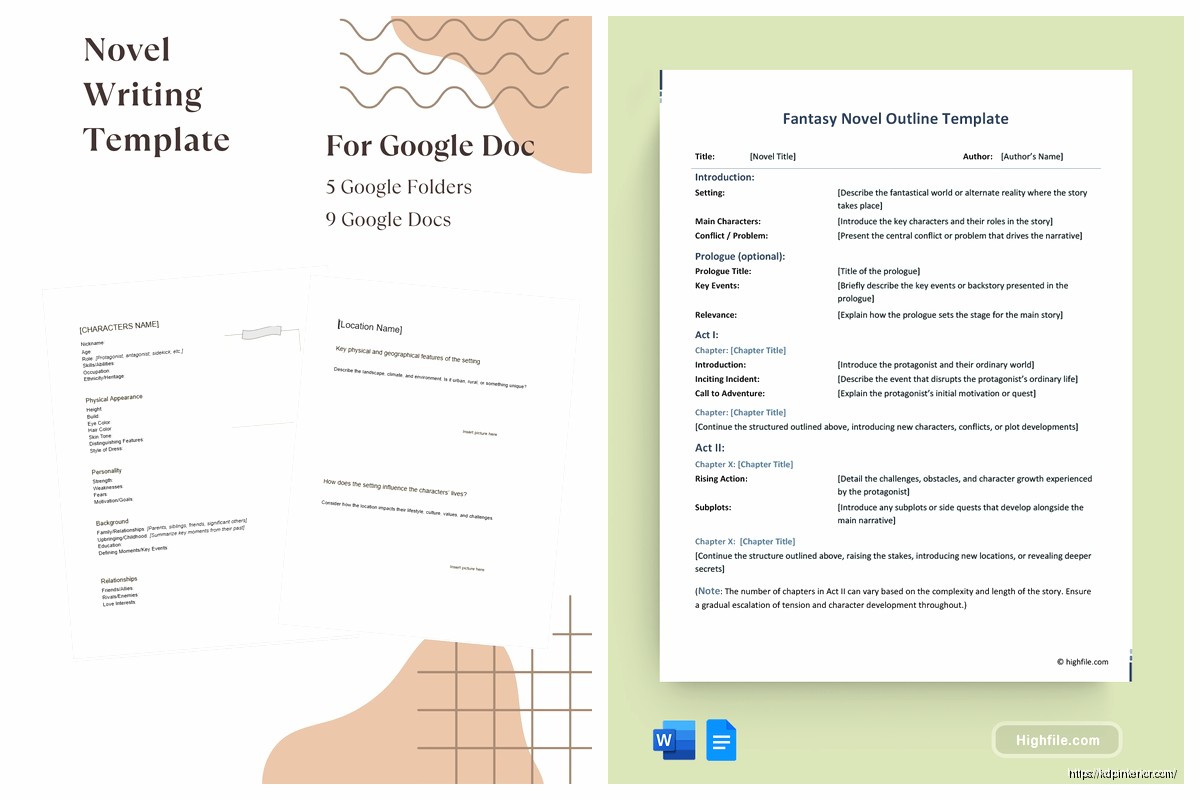
Okay so I’ve been using Google Docs for novel outlines for like the past three years and honestly it’s probably the best free option out there for fiction planning. Like I tried Scrivener and a bunch of other stuff but always came back to Docs because it’s just… there. You know?
First thing you gotta do is set up a master template. I usually start with a basic structure that I can copy for each new project. Go to docs.google.com and create a new doc, then immediately save it as “Novel Outline Template – MASTER” or something so you don’t accidentally write in it later.
Here’s how I structure mine and you can totally modify this but this is what works after outlining like 30+ novels:
Start with your header sections. I use Heading 1 for acts, Heading 2 for chapters, and Heading 3 for scenes. This is gonna sound weird but the formatting styles in Google Docs are actually super useful because you can create a document outline in the left sidebar that lets you jump around.
To see that outline view, click View > Show document outline. Game changer. My dog was literally barking at a squirrel while I discovered this feature and I almost missed it because I was so distracted.
Your basic structure should look like:
Under each act, I break it down into major plot points. For Act One you want your inciting incident, your first plot point, introduction of major characters. Act Two gets the midpoint, rising complications, all that fun stuff. Act Three has your climax and resolution.
Oh and another thing – I always put a character section at the top of my outline. Like before the actual plot stuff. Create a table for this, it’s cleaner. Insert > Table, then make it maybe 4 columns.
The columns I use: Character Name | Role | Key Traits | Arc Notes
This way when you’re outlining chapter 17 and you’re like “wait what was Sarah’s motivation again” you just scroll up. I used to keep this in a separate doc and it was a nightmare jumping between files.
For each major character I’ll write maybe 2-3 sentences about their arc. Supporting characters get one sentence. Background characters don’t even go in here unless they matter.
Here’s where it gets detailed and honestly where most people give up but don’t. Each scene in your outline should have:
I format mine like this: “Chapter 3, Scene 2 – Marcus POV – Coffee shop downtown – Marcus confronts his brother about the missing money, realizes his brother is lying about something bigger, tense/suspicious”
That’s literally all you need. Some people write paragraphs for each scene and honestly that’s just procrastination. You’re gonna change half of it when you actually write anyway.
Okay so funny story, I was watching The Bear season 2 while setting up an outline last month and accidentally discovered the voice typing feature. Tools > Voice typing. You can literally talk through your plot points while pacing around your room. I felt ridiculous doing it but it’s actually faster for brainstorming.
Comments are super useful too. If you’re outlining and you think “hmm not sure about this plot point” just highlight it and add a comment (Ctrl+Alt+M). I use comments for:
The version history is clutch. File > Version history > See version history. I’ve saved myself so many times when I deleted a whole section and then realized I actually needed it. Google Docs saves everything automatically.
Wait I forgot to mention – use highlighting for different plot threads. I assign each subplot or theme a color. Like:
When you’re done outlining, you can scan through and see if any color is missing for too long. If you don’t see any green highlights for 8 chapters straight, maybe your romance subplot needs work.
At the bottom of my template I keep a chapter summary section. It’s basically a quick reference guide. Each chapter gets one sentence. That’s it.
Chapter 1: Introduction to protagonist’s ordinary world and hint at inciting incident
Chapter 2: Inciting incident occurs, protagonist’s life disrupted
Chapter 3: Protagonist refuses the call to adventure
This helps when you’re writing and you need to remember what happened 10 chapters ago without scrolling through all your detailed scene notes.
Your template should honestly change based on what you’re writing. For romance I add specific beat sheets – meet cute, first kiss, black moment, all that. For mystery you need clue tracking, red herrings, revelation points.
Mystery template additions:
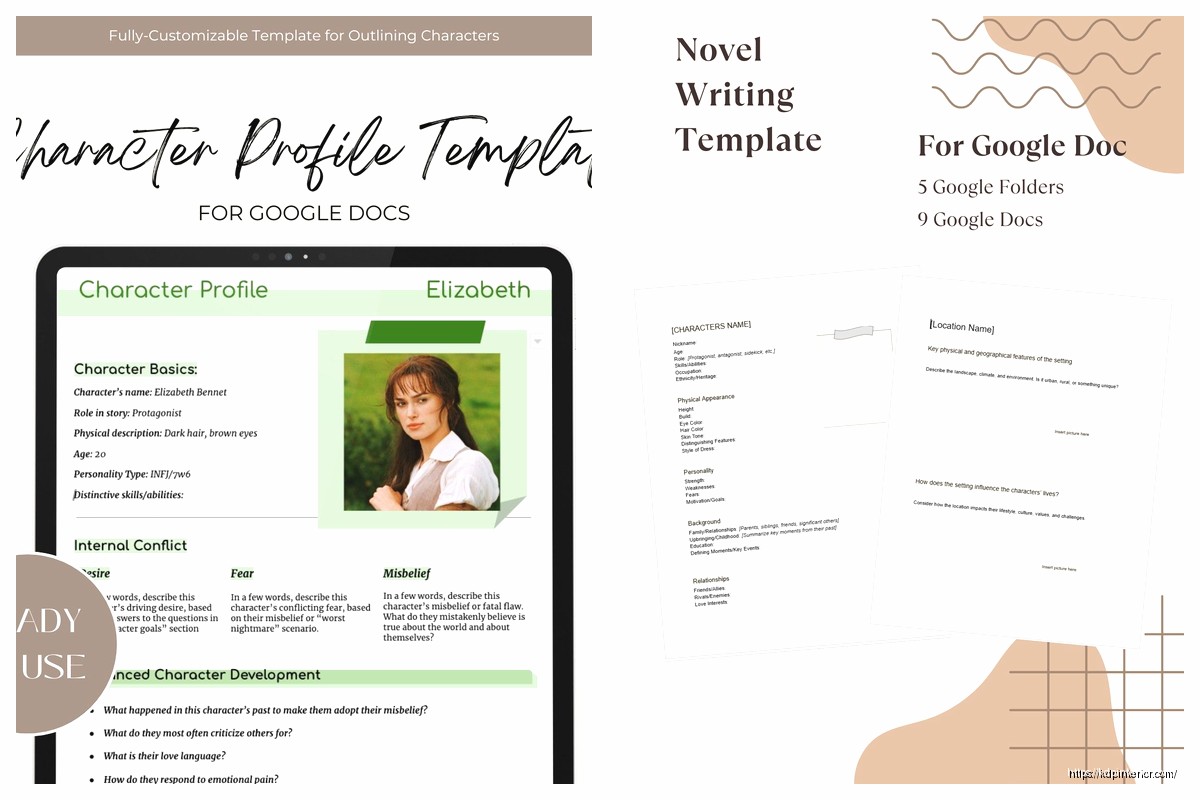
Romance template additions:
Fantasy needs worldbuilding sections. I usually create a separate doc for extensive worldbuilding but keep key details in the outline – magic system rules, important locations, cultural stuff that affects the plot.
If you’re co-writing or working with an editor, the Share button is obvious but the suggesting mode is amazing. Top right, click the pencil icon and switch to “Suggesting” instead of “Editing.” Now any changes you make show up as suggestions that can be accepted or rejected.
I use this when I’m revising my own outlines too. Like if I’m not sure about deleting a scene, I suggest the deletion. Then I can review all suggestions later with fresh eyes.
Don’t just have one template. I’ve got probably five different ones:
Make a folder in your Google Drive called “Novel Templates” and keep them all there. When starting a new project, right-click the template you want and “Make a copy.”
Under each chapter heading I put a target word count. Tools > Word count shows you current count, but I manually track targets.
Chapter 1 – Target: 3000 words
Chapter 2 – Target: 3500 words
This helps me know if I’m planning enough content. If your outline says you’ve got 30 chapters at 3000 words each, that’s 90k words. Perfect for most commercial fiction.
Always include a research section at the bottom. Just bullet points of stuff you need to look up:
Add links when you find good sources. Google Docs makes links easy – just Ctrl+K and paste the URL.
Download the Google Docs app. You can outline on your phone during lunch breaks or whatever. I’ve outlined entire chapters waiting in line at the DMV.
For offline access, open your outline on your computer, click File > Make available offline. Now you can work without internet and it’ll sync when you’re back online.
When you’re ready to write, don’t write in your outline doc. Make a copy and rename it “Novel Title – Draft 1” or whatever. Keep your outline pristine so you can reference it.
Some people use the outline as a skeleton and write between the outline points. I delete each scene note as I finish writing that scene. Whatever works.
Use bookmarks for quick navigation. Highlight a section, Insert > Bookmark. Then you can link to that bookmark from anywhere in the doc. Useful for long outlines where you’re constantly referencing earlier plot points.
Create a table of contents. Put your cursor where you want it, Insert > Table of contents. It auto-generates based on your heading styles. Updates automatically when you change headings.
Page breaks between acts or major sections keep things clean. Insert > Break > Page break.
Don’t over-outline. I’ve seen people spend six months on a 50-page outline and never write the actual book. Your outline should take maybe a week or two max.
Don’t make it too rigid. Leave room for discovery writing. I usually outline major plot points but leave character dialogue and specific descriptions for the actual writing phase.
Don’t forget to back up. Google Docs auto-saves but I still download a copy every few weeks as a Word doc or PDF. File > Download. Just in case Google decides to have a bad day.
If you’re more of a pantser, your outline can be super basic. Just major plot points and character arcs. Maybe 2-3 pages total.
Plotters will want everything detailed. I’m talking scene-by-scene descriptions, dialogue snippets, emotional beats, the works. My plotter outlines run 15-20 pages.
There’s no right way. I’ve published books from both types of outlines and they both worked.
The key is just having something in Google Docs that you can access anywhere, share if needed, and modify easily. I’ve tried fancy software and honestly Docs beats most of it for pure outlining functionality.
One last thing – name your docs clearly. “Novel Outline – Project Title – Date” so you can find it later. I’ve got like 200 docs and the ones with vague names are impossible to locate.
DISCOVER OUR FREE BEST SELLING PRODUCTS
Editable Canva Lined Journal: Express Your Thoughts – KDP Template
Lined Pages Journal 120 pages Ready to Upload PDF Commercial Use KDP Template 6×9 8.5×11 5×8 for Notebooks, Diaries, Low Content
Lined Pages Journal 120 pages Ready to Upload PDF Commercial Use KDP Template 6×9 8.5×11 5×8 for Notebooks, Diaries, Low Content
Cute Dogs Coloring Book for Kids | Activity Book | KDP Ready-To-Upload
Daily Planner Diary : Diary Planners for Everyday Productivity, 120 pages, 6×9 Size | Amazon KDP Interior
Wolf Coloring KDP interior For Adults, Used as Low Content Book, PDF Template Ready To Upload COMMERCIAL Use 8.5×11"
Coloring Animals Head Book for Kids, Perfect for ages 2-4, 4-8 | 8.5×11 PDF
Printable Blank Comic Book Pages PDF : Create Your Own Comics – 3 Available Sizes
Notes KDP interior Ready To Upload, Sizes 8.5×11 6×9 5×8 inch PDF FILE Used as Amazon KDP Paperback Low Content Book, journal, Notebook, Planner, COMMERCIAL Use
Black Lined Journal: 120 Pages of Black Lined Paper Perfect for Journaling, KDP Notebook Template – 6×9
Student Planner Journal 120 pages Ready to Upload PDF Commercial Use KDP Template 6×9" 8.5×11" for Low Content book
Recipe Journal Template – Editable Recipe Book Template, 120 Pages – Amazon KDP Interior