
-
×
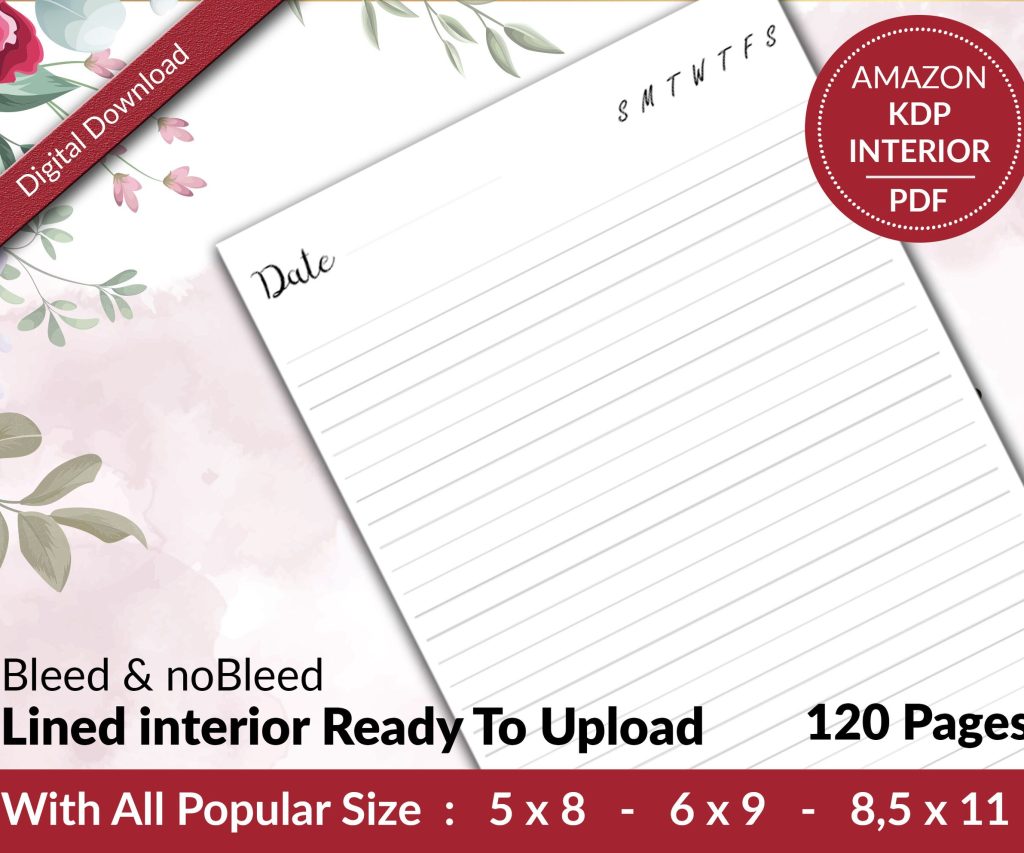 Lined Pages Journal 120 pages Ready to Upload PDF Commercial Use KDP Template 6x9 8.5x11 5x8 for Notebooks, Diaries, Low Content
1 × $0.00
Lined Pages Journal 120 pages Ready to Upload PDF Commercial Use KDP Template 6x9 8.5x11 5x8 for Notebooks, Diaries, Low Content
1 × $0.00
Subtotal: $0.00
Okay so Pages book templates are actually way more useful than most people realize, and I just spent like three weeks diving into this because one of my clients wanted to move away from Word completely…
The thing with Pages is Apple bundles it free with every Mac, and honestly? The book templates are surprisingly solid for certain types of low-content books. Not everything, but lemme break down what actually works.
So Pages comes with built-in book templates – you open Pages, click “New Document,” and there’s literally a whole section called “Books.” You’ll see options like Novel, Recipe Book, Photo Book, etc. These are pre-formatted with margins, headers, page numbers already set up.
Here’s what I found works best: the Novel template is your workhorse. Even if you’re not writing novels. I use it for journals, planners, basically anything text-heavy. It’s got proper margins (around 0.75 inches which is KDP-friendly), chapter break pages, and the formatting doesn’t completely fall apart when you export.
The Recipe Book template is decent for cookbooks obviously, but I’ve also hacked it for travel journals and memory books. It’s got this two-column layout option that actually looks pretty professional.
Pages saves in .pages format natively, which is useless for KDP. You gotta export. The formats you actually care about:
To export: File > Export To > then pick your poison. For KDP print books, always go PDF. Make sure you select “Best” quality in the export options, not “Good” – I learned this the hard way when a client’s images came out grainy.
When you’re exporting to PDF for KDP, click “Show Details” in that export window. This is where it gets important:
Set Image Quality to “Best” – yeah it makes bigger files but KDP can handle it and your interiors won’t look like garbage. I had this planner with subtle gray lines once and used “Good” quality… the lines basically disappeared in print.
Uncheck “Require password to open” because duh, but I’ve seen people forget this and then wonder why KDP rejects the file.
Leave “Encrypt document” unchecked for the same reason.
Okay so here’s where Pages gets interesting. You can modify these templates and save your own versions, which is huge for productivity once you’ve got a style you like.
Say you’re making lined journals. Open that Novel template, delete all the placeholder text, insert your lined pages (more on this in a sec), set your exact trim size, then File > Save as Template. Name it something like “6×9 Lined Journal Master” and boom – it’s in your template library forever.
I’ve got like 15 custom templates saved now. One for each common book size, different line styles, dot grid, you name it.
Pages doesn’t have preset KDP trim sizes which is annoying. You gotta set them manually. Go to Document tab in the sidebar (if you don’t see the sidebar, click that toolbar button that looks like a paintbrush).
Under Document, click the Paper Size dropdown. Choose “Manage Custom Sizes” and add your KDP dimensions:
One thing – Pages measures in inches by default if your system is set to US, but double-check because I’ve had it randomly switch to centimeters after an OS update and that was a fun discovery when I uploaded a book that was suddenly the wrong size.
KDP wants specific margins, especially that inside margin (the gutter) needs to be bigger for thicker books. Pages calls these “Document Margins.”
For a 6×9 book under 150 pages, I usually do:
Bleed is trickier. Pages doesn’t have automatic bleed settings like InDesign. If you need full-bleed images (like coloring books), you gotta make your page size slightly bigger – add 0.125 inches to each side. So a 6×9 becomes 6.25×9.25 in your document setup. Then when you export, those extra bits get trimmed by KDP.
Actually wait I should mention – for most low-content books you don’t need bleed. Journals, planners, notebooks… the content doesn’t touch the edges anyway. Only worry about bleed for coloring books, photo books, or covers.
This is where Pages both shines and frustrates me. For lined journals or dot grid pages, you’ve got a few options:
Option 1: Insert shapes manually
Use the Shape tool to draw lines, then copy-paste them down the page. Tedious but gives you control. Hold Option while dragging to duplicate shapes quickly. My dog literally interrupted me doing this once and I lost like 30 minutes of work because I forgot to save… always save.
Option 2: Import images of lines
Create your lined/grid page in another program (I use Canva or even just Photoshop), export as PNG, then insert as a full-page image in Pages. Lock the image so it doesn’t move around. This is actually my go-to method now.
Option 3: Master objects
Pages has this feature where you can set objects to appear on every page. Not quite as robust as InDesign’s master pages but it works. Format > Advanced > Move Object to Section Master. Then that element appears on all pages in that section.
Sections in Pages are super useful once you understand them. They let you have different headers, footers, and page numbering in different parts of your book.
Like if you’re making a planner with monthly sections – each month can be its own section with different header text. Or a journal with different page styles (lined, blank, dot grid) – each style is a section.
To add a section break: Insert > Section Break. Then you can format each section independently.
Oh and another thing – page numbers. You can restart numbering at each section or continue from the previous section. I usually hide page numbers entirely in low-content books (journals don’t need them) but if you want them: Insert > Page Number, then format however.
Most low-content books don’t need headers/footers, but if you’re doing something like a planner with dates, they’re useful.
View > Show Header and Footer, then just type in those areas. You can make them different for left/right pages (facing pages) which looks more professional. Check “Facing pages are different” in the Document settings.
For prompts journals or guided books, I sometimes put the prompt text in the header so it’s on every page. Saves space and looks cleaner than putting it in the body.
Pages handles images pretty well. Just drag and drop them in. But here’s the settings that matter:
Click the image, then in the sidebar go to Arrange tab. Set “Text Wrap” to “None” if you want the image to be its own element (like a full-page coloring page). Set it to “Around” if you want text flowing around it.
For coloring books specifically – import high-res PNG or PDF files of your line art. Don’t use JPG because the compression can make lines look fuzzy when printed. I learned this around year two of publishing, had to redo like 12 books.
Lock images after placing them so you don’t accidentally move them while working. Right-click > Lock.
KDP prints in either black and white or color (full color interior costs way more). Pages defaults to RGB color which is fine, but technically CMYK is better for print. Pages doesn’t really do CMYK conversion well though, so just… export your PDF and hope for the best honestly.
For black and white books, make sure everything is actually black (#000000) not dark gray. Sometimes shapes or text default to 90% black and it prints lighter than you’d expect.
Alright so you’ve built your book, now you gotta get it out of Pages without breaking everything.
File > Export To > PDF. Click “Show Details” again because those settings don’t save between exports for some reason.
Export it, then IMMEDIATELY open that PDF in Preview or Adobe Reader and flip through every single page. I cannot stress this enough. Pages sometimes does weird things during export – shifts images slightly, drops a page number, whatever. Better to catch it before uploading to KDP.
I usually export to a “KDP Ready” folder on my desktop so I know which files are final versions vs works in progress.
Since you asked how I actually do this day-to-day… here’s my process:
Start with a template (either built-in or one of my custom ones). Set the trim size and margins. If it’s a repetitive book like a journal, I create one perfect page, then duplicate it 100-120 times. Pages lets you duplicate pages pretty easily – just Option+drag the page thumbnail in the sidebar.
For books with varying content (like prompt journals), I’ll create a few master pages – one for lined prompts, one for blank space, one for whatever – then arrange them in the order I want. Copy-paste page by page.
Add any front matter (title page, copyright, maybe a “this book belongs to” page). Then back matter if needed (most low-content books don’t need it but sometimes I add a “leave a review” page).
Export to PDF. Check it. Upload to KDP. Check the previewer there too because sometimes KDP’s system shows things differently than your local PDF viewer.
Pages sometimes adds extra blank pages during export. No idea why. If your KDP previewer shows random blanks, go back to Pages and check if you accidentally hit Enter a bunch of times at the end of the document.
Fonts can be problematic. Stick to system fonts or ones you know are embedded properly. I had a book rejected once because Pages didn’t embed a custom font I downloaded, and KDP’s system substituted it with something ugly.
Image resolution – if you’re placing images, use at least 300 DPI. Pages doesn’t always warn you when an image is too low-res, then it prints blurry. Check the file info before placing images.
File size can get huge with image-heavy books. KDP has a 650 MB limit I think? If you’re hitting that, try reducing image resolution slightly or compressing the PDF with Preview’s “Reduce File Size” filter (though that can degrade quality).
Real talk – Pages isn’t ideal for everything. Complex layouts with lots of precise positioning? Use Affinity Publisher or InDesign. Books with tons of images that need perfect alignment? Not Pages.
But for straightforward journals, lined notebooks, simple planners, prompt books, logbooks… Pages is honestly fine. And it’s free. And it’s gonna be on your Mac anyway.
I still use other software for certain projects – Vellum for ebooks, Canva for covers, BookBolt for research – but Pages handles probably 40% of my interiors now. That’s up from like 5% a few years ago once I figured out these workflows.
The key is setting up those custom templates so you’re not starting from scratch every time. That’s the real time-saver. Build it once, use it forever.
DISCOVER OUR FREE BEST SELLING PRODUCTS
Editable Canva Lined Journal: Express Your Thoughts – KDP Template
Lined Pages Journal 120 pages Ready to Upload PDF Commercial Use KDP Template 6×9 8.5×11 5×8 for Notebooks, Diaries, Low Content
Lined Pages Journal 120 pages Ready to Upload PDF Commercial Use KDP Template 6×9 8.5×11 5×8 for Notebooks, Diaries, Low Content
Cute Dogs Coloring Book for Kids | Activity Book | KDP Ready-To-Upload
Daily Planner Diary : Diary Planners for Everyday Productivity, 120 pages, 6×9 Size | Amazon KDP Interior
Wolf Coloring KDP interior For Adults, Used as Low Content Book, PDF Template Ready To Upload COMMERCIAL Use 8.5×11"
Coloring Animals Head Book for Kids, Perfect for ages 2-4, 4-8 | 8.5×11 PDF
Printable Blank Comic Book Pages PDF : Create Your Own Comics – 3 Available Sizes
Notes KDP interior Ready To Upload, Sizes 8.5×11 6×9 5×8 inch PDF FILE Used as Amazon KDP Paperback Low Content Book, journal, Notebook, Planner, COMMERCIAL Use
Black Lined Journal: 120 Pages of Black Lined Paper Perfect for Journaling, KDP Notebook Template – 6×9
Student Planner Journal 120 pages Ready to Upload PDF Commercial Use KDP Template 6×9" 8.5×11" for Low Content book
Recipe Journal Template – Editable Recipe Book Template, 120 Pages – Amazon KDP Interior