-
×
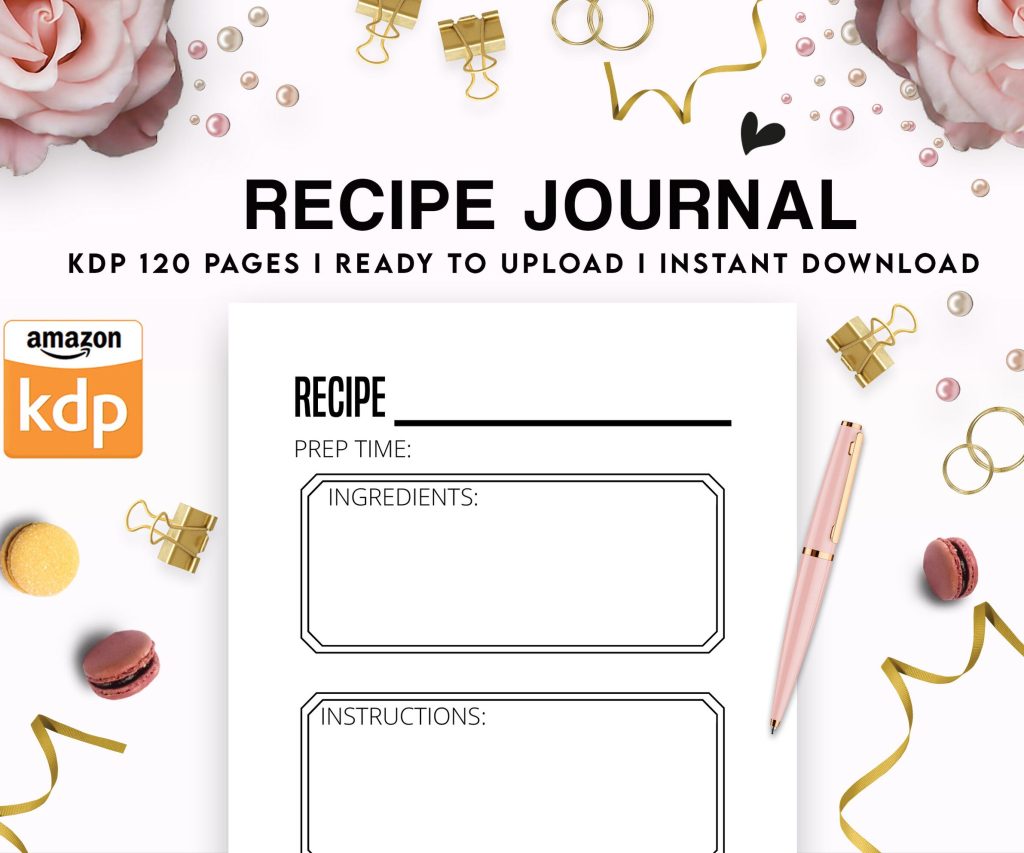 Recipe Journal Template - Editable Recipe Book Template, 120 Pages - Amazon KDP Interior
1 × $0.00
Recipe Journal Template - Editable Recipe Book Template, 120 Pages - Amazon KDP Interior
1 × $0.00
Subtotal: $0.00
 Recipe Journal Template - Editable Recipe Book Template, 120 Pages - Amazon KDP Interior
1 × $0.00
Recipe Journal Template - Editable Recipe Book Template, 120 Pages - Amazon KDP Interior
1 × $0.00 Subtotal: $0.00
Okay so I just downloaded like fifteen different book templates last week because someone in my mastermind asked about this and honestly the quality is all over the place. Here’s what you actually need to know about printable book templates if you’re trying to DIY this whole publishing thing.
First off, most people download a template and don’t even check if it matches Amazon KDP’s trim sizes. I did this for my first three books and had to redo everything. KDP has specific sizes – 6×9, 8.5×11, 5×8, whatever – and your template needs to match exactly or you’re gonna have bleed issues and weird margins.
The bleed is this extra 0.125 inches around all edges that gets trimmed off during printing. So if you’re working with a 6×9 book, your actual template canvas should be 6.25×9.25 inches. Most free templates I’ve found online don’t account for this properly and you end up with content getting cut off.
Creative Fabrica has a membership thing for like $9/month and honestly it’s worth it just for the templates. They’ve got hundreds of book interiors – journals, planners, notebooks, activity books. The quality varies but you can preview everything before downloading.
Etsy is hit or miss. I bought this $12 template bundle last month that had like 50 “ready to publish” interiors and maybe 10 were actually usable. The rest had weird formatting or the margins were off. But there are some sellers who really know their stuff – look for ones that specifically mention they’ve tested their templates on KDP.
Canva has free book templates now but they’re pretty basic. Good if you’re doing something simple like a lined notebook or blank recipe book. The pro version has more options and honestly for $13/month it’s cheaper than buying individual templates.
BookBolt has templates built into their software if you’re already using it for research. I use BookBolt for keyword stuff anyway so having the templates there is convenient. They’re formatted correctly for KDP which saves time.
Oh and Google Docs actually has some book templates but they’re more for traditional publishing layouts. I tried using one for a kids’ activity book and it was a nightmare getting the spacing right.
This is gonna sound weird but I always test print a few pages at home before uploading anything to KDP. Saved me so many times. You’ll catch things like text being too close to the gutter (that’s the inside margin where the book binds) or images that look fine on screen but print too dark.
Your margins matter way more than you think. KDP requires minimum margins based on page count:
Outside, top, and bottom margins should be at least 0.25 inches but I usually go 0.5 to be safe.
Most templates come in PDF, Word, or PowerPoint formats. Sometimes Photoshop or InDesign if they’re fancy.
PDF templates are usually the easiest to work with. You can edit them in Adobe Acrobat if you have it, or use free stuff like PDF-XChange Editor. I’ve used the free version for months and it works fine for adding text or simple edits.
Word templates are good for text-heavy books but formatting can get wonky when you export to PDF. Make sure you’re using Word’s built-in PDF export and check “high quality” in the settings. I learned this after my first book printed with blurry text because I used some random PDF converter.
PowerPoint templates are actually great for activity books and planners. Easier to move elements around than Word. My dog was barking at something while I was working on a PowerPoint template last week and I accidentally duplicated like 40 slides, so maybe lock your layers or whatever.
For journals, notebooks, planners – honestly you might be better off creating your own template once and reusing it. I have a master 6×9 lined journal template I made in PowerPoint that I’ve used for probably 30 different books. Just change the cover and boom, new product.
The lined page setup I use is 24 lines per page with 0.35 inch spacing. Tested this a bunch and it’s what most commercial journals use. The lines are 0.5pt weight in light gray (RGB 200, 200, 200).
Wait I forgot to mention – if you’re doing dot grid pages, the standard spacing is 0.2 inches between dots. I see a lot of templates with random spacing and it looks unprofessional.
Okay so you downloaded a template, now what. First thing I do is open it and check every single page. I’ve bought templates where page 47 randomly had different margins than the rest. Quality control is not always a thing apparently.
If you’re using Canva, you can import PDF templates and add elements from their library. But be careful with licensing – some template sellers don’t allow you to mix their stuff with stock graphics. Read the license agreements. I know it’s boring but I’ve seen people get their books taken down over this.
For public domain stuff like vintage illustrations or classic patterns, Project Gutenberg and Rawpixel have tons of free resources. I use these to customize templates all the time.
This is important – make sure any fonts used in your template are licensed for commercial use. If the template uses a custom font and you don’t have it installed, your software might substitute it with something else and everything will look different.
I always embed fonts when I create the final PDF. In Word this is under Save Options. In PowerPoint it’s under Save settings. This way the font travels with the file.
Some safe fonts that are free for commercial use:
KDP accepts PDFs with 300 DPI minimum for images. If your template has graphics or patterns, check the resolution. Right-click the image, check properties. If it’s 72 DPI it’ll look pixelated when printed.
I upscale low-res images using Topaz Gigapixel sometimes but honestly if an image is too low quality just replace it. There’s no magic fix that makes a terrible image print well.
Black and white interiors should use 100% black (K=100 in CMYK or RGB 0,0,0). Not dark gray. I’ve seen templates that use 95% black and it prints kinda muddy looking.
Always order a proof copy before publishing. I don’t care how perfect it looks on screen. I’ve had books where the margins looked fine digitally but when it printed, text was too close to the edge. KDP’s previewer is helpful but not 100% accurate.
The proof copy costs like $3-5 plus shipping. Just do it. I skipped this once trying to save time and launched a planner with pages that were slightly off-center. Had to unpublish and fix it.
I keep all my templates in Dropbox organized by category – journals, planners, activity books, etc. Each template gets its own folder with the original files, my edited version, and the final PDF I uploaded to KDP.
This sounds overly organized but when you have 200+ books it’s the only way to stay sane. I need to find a specific template from six months ago? It’s right there.
Also keep notes about what worked. I have a Google Doc where I track which templates sold well, which ones had formatting issues, which ones were easy to customize. Sounds nerdy but it saves so much time.
Problem: Template pages are different sizes when you open them
Fix: Check your software settings. Sometimes it auto-scales to fit the window and it looks wrong. Make sure you’re viewing at 100%.
Problem: Text boxes won’t move or edit
Fix: The template might be locked. In PDF editors look for a lock icon. In PowerPoint check if the objects are grouped.
Problem: Colors look different when printed
Fix: Your template might be in RGB instead of CMYK. KDP accepts both but CMYK is more accurate for print. Convert using Adobe Acrobat or online converters.
Once you get comfortable with basic templates you can start mixing and matching elements. I take the cover from one template, interior pages from another, add my own graphics. Just make sure everything stays within margin requirements.
Creating master pages or templates in InDesign is next level but honestly overkill for most low-content books. I only use InDesign for text-heavy books or if I’m doing something really custom.
Oh and another thing – some people sell PLR (Private Label Rights) book templates where you can resell them or modify them however you want. These are different from regular templates where you can only use them for your own books. PLR stuff is usually more expensive but gives you more flexibility.
Free templates are fine for testing niches or if you’re just starting out. But if you find a profitable niche, investing in a premium template ($15-50) can make your book stand out. I’ve had books using custom templates outsell similar books with obvious free templates.
That said, I’ve also had books using free Canva templates make thousands of dollars. It’s more about the niche and keywords than the template quality sometimes. Don’t overthink it.
Read the license for any template you buy. Most allow unlimited use for your own books but not reselling the template itself. Some restrict you to a certain number of books. Commercial licenses usually cost more but let you do whatever.
If you’re hiring someone on Fiverr to create a template, make sure you get commercial rights in writing. I’ve heard stories of people getting copyright claims because the designer used unlicensed elements.
Anyway that’s basically everything I’ve learned from using probably a hundred different templates over the years. Start with free options, test everything, and invest in better templates once you know what you’re doing. The template itself matters less than proper formatting and knowing your niche honestly.
DISCOVER OUR FREE BEST SELLING PRODUCTS
Editable Canva Lined Journal: Express Your Thoughts – KDP Template
Lined Pages Journal 120 pages Ready to Upload PDF Commercial Use KDP Template 6×9 8.5×11 5×8 for Notebooks, Diaries, Low Content
Lined Pages Journal 120 pages Ready to Upload PDF Commercial Use KDP Template 6×9 8.5×11 5×8 for Notebooks, Diaries, Low Content
Cute Dogs Coloring Book for Kids | Activity Book | KDP Ready-To-Upload
Daily Planner Diary : Diary Planners for Everyday Productivity, 120 pages, 6×9 Size | Amazon KDP Interior
Wolf Coloring KDP interior For Adults, Used as Low Content Book, PDF Template Ready To Upload COMMERCIAL Use 8.5×11"
Coloring Animals Head Book for Kids, Perfect for ages 2-4, 4-8 | 8.5×11 PDF
Printable Blank Comic Book Pages PDF : Create Your Own Comics – 3 Available Sizes
Notes KDP interior Ready To Upload, Sizes 8.5×11 6×9 5×8 inch PDF FILE Used as Amazon KDP Paperback Low Content Book, journal, Notebook, Planner, COMMERCIAL Use
Black Lined Journal: 120 Pages of Black Lined Paper Perfect for Journaling, KDP Notebook Template – 6×9
Student Planner Journal 120 pages Ready to Upload PDF Commercial Use KDP Template 6×9" 8.5×11" for Low Content book
Recipe Journal Template – Editable Recipe Book Template, 120 Pages – Amazon KDP Interior