Okay so here’s exactly how I published my first book with literally zero dollars
Look, I’m gonna be straight with you because I just walked someone through this exact process last week while my cat kept walking across my keyboard. You absolutely can publish on Amazon without spending anything, and I’ve done it like 40+ times at this point.
First thing – forget what you’ve heard about needing to hire designers or editors or whatever. That comes later if you want, but for your first book? Nah. You’re using free tools and that’s it.
The actual writing part nobody talks about
You need to write your book in a program that won’t screw up your formatting. I use Google Docs for everything because it’s free and I can access it anywhere. Microsoft Word works too if you already have it, but don’t buy it just for this.
Here’s the thing though – and this is gonna sound weird but – you need to format as you write. Don’t just dump text and think you’ll fix it later. Use actual heading styles (Heading 1, Heading 2) for your chapters. Keep your font simple, like Arial or Times New Roman. Amazon‘s conversion software freaks out with fancy fonts.
I usually write in 12pt font, left-aligned, and I don’t get cute with spacing or indents. Just keep it clean. My early books looked like crap inside because I tried to do too much fancy formatting and KDP’s converter just… murdered it.
Cover design when you’re broke
Okay so funny story – my first three book covers were made in Canva‘s free version and they made like $8k total. They weren’t winning design awards but they worked.
Canva free gives you enough to make a decent cover. The dimensions you need are:
- eBook: 2560 x 1600 pixels minimum (I usually do 1600 x 2560 for that portrait look)
- Paperback: depends on your page count but use Amazon’s cover calculator – it’s free on KDP
Wait I forgot to mention – you can also use Amazon’s Cover Creator tool directly in KDP. It’s basic as hell, like really basic, but it’s free and it’s right there. I’ve used it for low-content books where the cover doesn’t need to be fancy. Works fine for journals, notebooks, that kind of stuff.
For Canva, just search “book cover” in templates and customize one. Change the colors, swap the title, use free images from their library. Don’t overthink this part. Your first cover doesn’t need to be perfect, it needs to exist so you can publish and learn the system.
The ISBN thing everyone gets confused about
You don’t need to buy an ISBN. Amazon gives you a free one. Done. That’s it.
People get all weird about this and start researching ISBN agencies and spending $125 or whatever they charge now. For your first book, just use Amazon’s free ISBN. The only downside is it ties that edition to Amazon, but so what? You’re publishing on Amazon.
If you wanna publish the same book on other platforms later, you can get a different ISBN for those versions. But for zero-investment? Amazon’s free one works perfectly fine.
Actually uploading to KDP
This is where people panic but it’s honestly pretty straightforward. Go to kdp.amazon.com and make an account – completely free obviously.
Click “Create New Title” and you’ll see two options: Kindle eBook or Paperback. Start with eBook because it’s simpler and has no printing costs to worry about.
The form asks for:
- Book title and subtitle
- Author name (use your real name or a pen name, doesn’t matter)
- Description (this is your back cover copy basically)
- Keywords (7 of them – use actual phrases people search)
- Categories (pick 2 that fit your book)
Oh and another thing – the description field accepts HTML, so you can bold text with tags and stuff. I usually bold my main benefit statements or key phrases. Makes it stand out more on your book page.
Uploading your actual files
For the manuscript, you can upload your Google Doc as a .docx file or convert it to PDF. I prefer .docx because KDP handles it better usually. Just download from Google Docs as .docx and upload it.
Amazon will convert it and let you preview it. Do NOT skip the preview. Click through every page. I’ve caught so many formatting issues in preview that would’ve looked terrible if I’d just published without checking.
For your cover, upload as JPG or PNG. I use JPG usually because the file size is smaller and it uploads faster.
Pricing strategy when you’re starting
Here’s what I do and what I tell everyone – price your eBook between $2.99 and $9.99 to get the 70% royalty rate. Below $2.99 you only get 35% which is kinda terrible.
My sweet spot for most books is $4.99 or $5.99. That’s low enough that people impulse buy it but high enough that you make decent money per sale. At $4.99 with 70% royalty, you make about $3.50 per sale after Amazon takes their cut and delivery fees.
Wait I should mention delivery fees – Amazon charges a tiny fee based on file size for delivery to Kindles. It’s usually like $0.06 to $0.15 per book. Nothing crazy but it comes out of your royalty.
For paperbacks, you gotta cover printing costs. Amazon calculates this based on page count and trim size. A 200-page paperback costs like $3-4 to print, so if you price it at $12.99, you might make $2-3 per sale. The calculator shows you exact numbers before you publish.
The publishing button
After you fill everything out and upload your files, you literally just click “Publish Your Kindle eBook” and that’s it. You’re done. No fees, no charges, nothing.
It takes like 24-72 hours for your book to go live usually. Sometimes faster – my last one went live in like 8 hours.
Free tools I actually use all the time
Since we’re talking zero investment, here’s my actual toolkit:
- Google Docs – writing and basic formatting
- Canva Free – covers and graphics
- Amazon KDP Cover Calculator – getting paperback dimensions right
- KDP Previewer – checking how your book looks before publishing
- Grammarly Free – catching typos (the free version is enough honestly)
I used only these tools for my first like 30 books. Didn’t spend a dime on software or tools.
The formatting mistakes I made so you don’t have to
Okay so my client canceled yesterday so I spent a few hours going through my old books and wow, the formatting on my first ones was rough. Here’s what I learned the hard way:
Don’t use tabs for indentation. KDP hates tabs. Use first-line indent from your word processor’s paragraph settings instead. Or just don’t indent at all and add space between paragraphs – that’s actually the modern ebook style anyway.
Don’t manually add page breaks except between chapters. Let the text flow naturally. Amazon’s converter handles page breaks automatically for different devices.
Don’t use headers and footers with page numbers in your ebook manuscript. Ebooks don’t have page numbers like that – they’re dynamic based on device and font size. Page numbers just look weird and broken.
For paperbacks you can add page numbers, but even then I usually don’t bother unless it’s like a workbook or reference book where people need them.
What about marketing with no budget
This is gonna sound obvious but – social media is free. I posted about my first book in relevant Facebook groups (not spammy, just like “hey I wrote this thing”) and got my first few sales.
Amazon’s algorithms need sales velocity to show your book to more people, so even like 5 sales in the first week helps. Tell your friends, post on Twitter or wherever you hang out online, join Reddit communities related to your topic and participate genuinely.
The KDP Select program is free to join and gets you 5 days of free promotion every 90 days. You can run a free promotion to get downloads and reviews. More reviews = more credibility = more sales later at full price.
I usually do a free promo right at launch to get that initial momentum going. You can schedule it right from your KDP dashboard.
Low-content books are even easier
Oh wait, if you’re not even wanting to write a full book, low-content is where I made most of my money with zero investment. Journals, planners, notebooks, logbooks – these don’t require writing content, just designing interior pages.
You can make interior pages in Canva free or even Google Docs. Just create lined pages or whatever template you want, repeat it 100-120 times, export as PDF. That’s your manuscript.
I made a simple gratitude journal in like 3 hours using Canva free. Just designed one page with prompts and lines, duplicated it a bunch, done. That journal has made like $600 over two years. Not life-changing but pretty good for 3 hours of work and zero dollars spent.
The actual timeline from zero to published
If you’re starting right now with nothing, here’s realistically how long each part takes:
- Writing a short book (10-15k words): 5-10 hours if you know your topic
- Formatting in Google Docs: 1-2 hours
- Making a cover in Canva: 1-2 hours (more if you’re picky like me)
- Filling out KDP form and uploading: 30 minutes
- Amazon review and publishing: 24-72 hours
So you could go from idea to published book in a weekend basically. I’ve done it. Was it my best book? No. But it was published and making money, which is more than most people who “want to write a book someday” ever do.
The key is just starting and not letting the process intimidate you. KDP’s interface literally walks you through every step. If you get stuck, their help documentation is actually pretty good, or just Google your specific question – someone’s answered it already.
You don’t need a business license to start, you don’t need an LLC, you just need a bank account for royalty deposits and a tax form filled out in KDP (W9 if you’re in the US, tax interview for other countries). All free, all online, all built into the setup process.

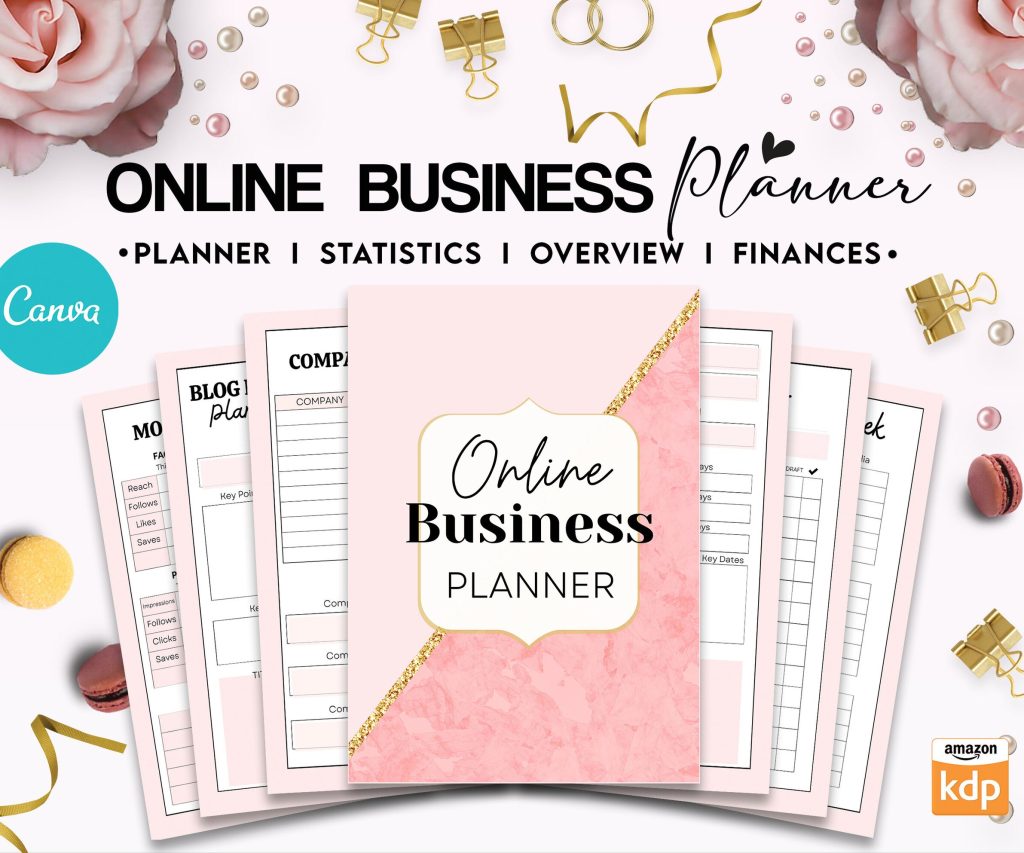 Online Business Planner: 28 Editable Templates to manage your Online Business
1 × $9.99
Online Business Planner: 28 Editable Templates to manage your Online Business
1 × $9.99 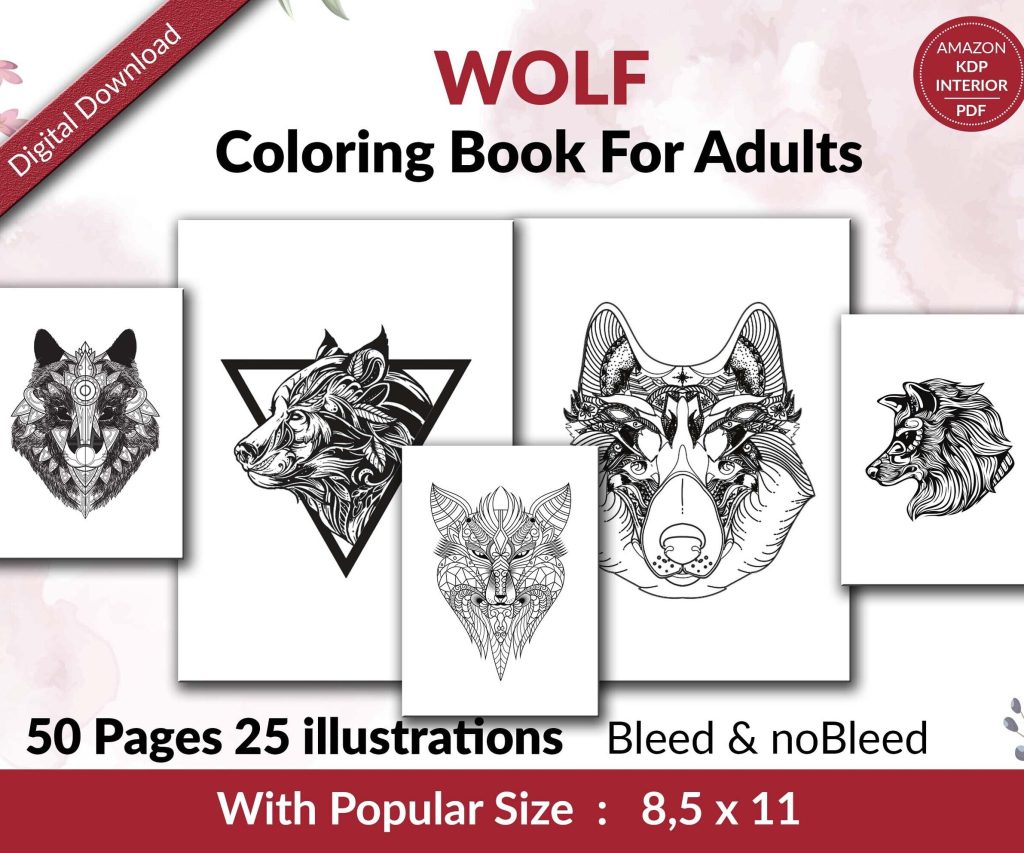 Wolf Coloring KDP interior For Adults, Used as Low Content Book, PDF Template Ready To Upload COMMERCIAL Use 8.5x11"
1 × $0.00
Wolf Coloring KDP interior For Adults, Used as Low Content Book, PDF Template Ready To Upload COMMERCIAL Use 8.5x11"
1 × $0.00 
DISCOVER OUR FREE BEST SELLING PRODUCTS
Editable Canva Lined Journal: Express Your Thoughts – KDP Template
Lined Pages Journal 120 pages Ready to Upload PDF Commercial Use KDP Template 6×9 8.5×11 5×8 for Notebooks, Diaries, Low Content
Lined Pages Journal 120 pages Ready to Upload PDF Commercial Use KDP Template 6×9 8.5×11 5×8 for Notebooks, Diaries, Low Content
Cute Dogs Coloring Book for Kids | Activity Book | KDP Ready-To-Upload
Daily Planner Diary : Diary Planners for Everyday Productivity, 120 pages, 6×9 Size | Amazon KDP Interior
Wolf Coloring KDP interior For Adults, Used as Low Content Book, PDF Template Ready To Upload COMMERCIAL Use 8.5×11"
Coloring Animals Head Book for Kids, Perfect for ages 2-4, 4-8 | 8.5×11 PDF
Printable Blank Comic Book Pages PDF : Create Your Own Comics – 3 Available Sizes
Notes KDP interior Ready To Upload, Sizes 8.5×11 6×9 5×8 inch PDF FILE Used as Amazon KDP Paperback Low Content Book, journal, Notebook, Planner, COMMERCIAL Use
Black Lined Journal: 120 Pages of Black Lined Paper Perfect for Journaling, KDP Notebook Template – 6×9
Student Planner Journal 120 pages Ready to Upload PDF Commercial Use KDP Template 6×9" 8.5×11" for Low Content book
Recipe Journal Template – Editable Recipe Book Template, 120 Pages – Amazon KDP Interior