
-
×
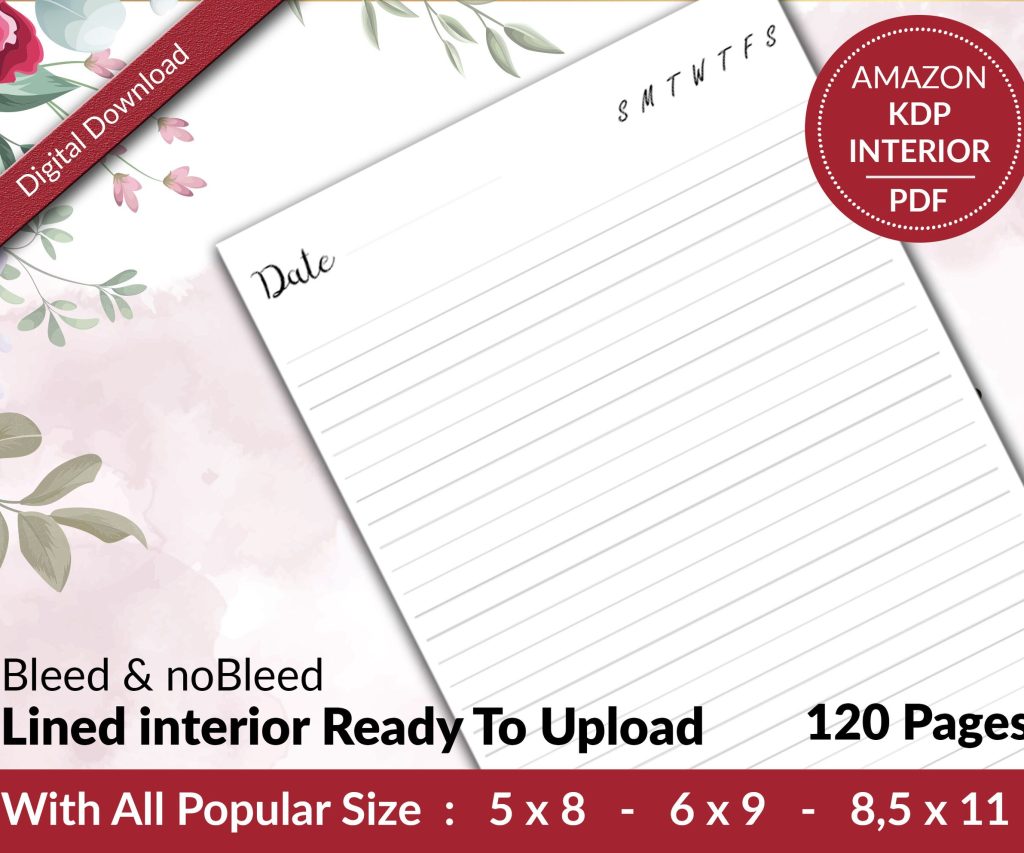 Lined Pages Journal 120 pages Ready to Upload PDF Commercial Use KDP Template 6x9 8.5x11 5x8 for Notebooks, Diaries, Low Content
1 × $0.00
Lined Pages Journal 120 pages Ready to Upload PDF Commercial Use KDP Template 6x9 8.5x11 5x8 for Notebooks, Diaries, Low Content
1 × $0.00
Subtotal: $0.00
Okay so here’s the deal with publishing on Amazon completely free, and I mean actually zero dollars out of pocket because I’ve done this literally hundreds of times and people still don’t believe me when I say it costs nothing.
First thing, you need a KDP account which is free. Go to kdp.amazon.com and sign up with your regular Amazon account. They’re gonna ask for tax information and banking details for when you actually make money, but there’s no fee to register. I remember sitting at my desk at like 11pm one night back in 2017 just… filling this out while watching some random Netflix documentary about cheese, and thinking “this can’t be this simple” but it is.
The tax interview freaks people out but just answer honestly. If you’re in the US you’ll do a W-9, if you’re international there’s a W-8BEN. Takes maybe 10 minutes max.
So this is where most people immediately think they need to buy software or hire someone, but nah. You’ve got options that are completely free and honestly pretty decent.
If you’re doing an ebook (fiction, non-fiction, whatever), you can literally write it in:
I still use Google Docs for probably 60% of my books because it auto-saves and I can work from anywhere. My cat stepped on my laptop last month and closed like three tabs but Google Docs? Already saved. Anyway.
The formatting doesn’t need to be fancy. Amazon‘s system converts everything anyway. Just use chapter headings, keep it clean, maybe add a table of contents if it’s non-fiction. KDP has a free guide on formatting but honestly just look at books similar to yours and copy that structure.
This is actually easier in some ways. Notebooks, journals, planners, logbooks… all that stuff. You need to create the interior pages and a cover, but here’s how to do it free:
Canva Free Version – okay so I resisted Canva for like two years because I was stubborn about learning “real” design software, but once I tried it I felt like an idiot for waiting. You can create entire book interiors there. They have templates, or you can start from scratch.
For a basic lined notebook interior, you literally just:
I made a 120-page lined journal in Canva in maybe 45 minutes last week while testing a new niche. Just put on some music and repetitively copy-paste pages.
Google Slides – weird right? But actually super effective for simple interiors. Set your slide size to your book dimensions, design one page, duplicate it. Works great for simple stuff like gratitude journals or basic planners.
LibreOffice Draw – this is more powerful than people realize. Free, works on Windows/Mac/Linux, and you can create pretty complex layouts. The learning curve is steeper than Canva but it’s completely free forever, no limitations.
Covers are where people panic and immediately run to Fiverr, but wait. You can 100% make professional-looking covers for free if you’re willing to spend time instead of money.
Canva again – their free version has enough elements and fonts to make solid covers. You need to know your book’s dimensions including the spine width, which KDP calculates for you based on your page count and paper type. There’s a cover calculator right in your KDP dashboard.
Here’s what I do:
For images, use Canva’s free library or grab stuff from:
All free for commercial use. Just check the license to be safe, but generally you’re good to go.
One thing though – and this tripped me up early on – make sure your cover looks good as a tiny thumbnail. Amazon shows your book at like 100 pixels wide sometimes, so if you’ve got tiny text or complex details, nobody can see it. I learned this the hard way with a planner cover that looked gorgeous full-size but was completely unreadable as a thumbnail. Made like 3 sales in a month, redid the cover with bigger, bolder text and it started actually selling.
The free fonts on Canva are honestly fine for most projects. Some of my best-selling books use super basic fonts like Montserrat or Playfair Display. You don’t need to buy font licenses when you’re starting with zero budget.
Just avoid the really overused ones that scream “amateur” – you know the ones. Comic Sans obviously, but also like… Papyrus, Curlz, that kind of thing.
KDP accepts PDF files for both ebooks and paperbacks, which makes life easier. For ebooks you can also upload Word docs or ePub files, but PDF works fine.
For paperbacks specifically, you gotta make sure your PDF is set up correctly:
When you export from Canva or Google Docs or whatever, choose “PDF Print” not “PDF Standard” if given the option. Higher quality.
Oh and another thing – page count matters for pricing. Amazon has minimum list prices based on page count and marketplace. A 50-page book has a lower minimum price than a 200-page book because printing costs more. The KDP pricing calculator shows you all this before you publish.
Okay so you’ve got your interior PDF and your cover PDF (or you’re using the Cover Creator tool on KDP which is also free but kinda limited). Now you’re in the KDP dashboard ready to upload.
The process is pretty straightforward but I’ll walk through it:
You’ll enter:
For the description, use HTML formatting to make it look professional. Bold text, bullet points, short paragraphs. I usually spend like an hour on descriptions because that’s free marketing right there. Look at bestselling books in your category and see how they structure their descriptions.
Keywords are tricky and honestly I’m still learning new strategies after 7 years, but basic rule: think about what someone would type into Amazon search to find your book. Don’t waste keywords on words already in your title. Use all the character space you’re allowed.
This is where you upload your actual files. You’ll choose:
Amazon will process your files and show you a previewer. Actually look through this previewer. I can’t tell you how many times I’ve caught weird formatting issues or typos during this step. Click through every single page if you can. It’s tedious but way better than publishing with an error.
They also show you a “file quality alert” section. Yellow warnings are usually okay to ignore (like “margins are below recommended” if you did that intentionally), but red errors mean you gotta fix something before you can publish.
For territories, most people choose “all territories” for maximum distribution. Unless you have a specific reason to limit it, just go worldwide.
Pricing is where it gets interesting. Amazon shows you the printing cost (for paperbacks) based on page count and specs. Your royalty is the list price minus the printing cost minus Amazon’s cut.
For paperbacks sold on Amazon.com, you get 60% of (list price minus printing cost). For expanded distribution channels you get 40% but honestly I barely make anything from expanded distribution so sometimes I don’t even enable it.
There’s a minimum and maximum list price. The minimum is based on printing costs – you can’t sell a book for less than what it costs to print plus Amazon’s minimum cut. The maximum is $250 which… you’re probably not gonna hit unless you’re doing a massive hardcover textbook or something.
Pricing strategy is its own whole thing, but for free publishing purposes just know that you can price it however you want within those boundaries. I usually check what similar books are selling for and price mine competitively. Sometimes a dollar lower to be more attractive, sometimes the same if my cover and description are better.
If you’re doing an ebook instead of or in addition to paperback, the process is basically the same but easier because no print costs to worry about.
Upload your manuscript (Word doc, PDF, or ePub), create a cover (just the front cover, no spine or back needed), and set your pricing.
For ebooks you choose between two royalty options:
Most people do 70% if their book fits in that price range because duh, more money. The delivery cost is usually just a few cents unless you have a massive file with tons of images.
You can enroll in KDP Select which makes your ebook exclusive to Amazon for 90 days but gets you into Kindle Unlimited where you earn money from page reads. Or you can skip KDP Select and publish your ebook on other platforms too like Apple Books, Kobo, whatever. For zero-budget publishing, KDP Select is fine and the KU page reads can actually add up.
After you hit “publish” Amazon reviews your book. This usually takes 24-72 hours. For me it’s usually less than 24 hours but I’ve had some take the full 72, no idea why. They’re checking for content quality issues, making sure it’s not copyrighted material, that kind of thing.
You’ll get an email when it’s live. Then it shows up on Amazon and… that’s it. You published a book for literally zero dollars.
I see the same mistakes over and over, so lemme just rapid-fire these:
Wrong trim size – they upload a 6×9 interior with an 8.5×11 cover template or vice versa. Double-check your dimensions match everywhere.
Bleed issues – if you have images or colors going to the edge of the page, you need bleed. If you don’t, you might get white lines on the edges after trimming. Set up your document with bleed from the start.
Margins too small – especially the gutter (inside margin). If it’s too tight, text disappears into the spine. KDP has minimum requirements, follow them. Actually had a client last month who didn’t and their entire first printing batch had unreadable inner margins. Had to recall and reupload. Nightmare.
Low-resolution images – if you’re using images, they need to be at least 300 DPI for print. 72 DPI looks fine on screen but prints blurry. Canva exports at 300 DPI if you choose the right settings, so you’re good there.
Not proofreading – I know you’re doing this free and maybe you don’t wanna pay for an editor (totally fair), but at least run it through Grammarly free version or have a friend read it. Typos in the book description or first page kill sales.
Terrible covers – look, I get it, you’re not a designer. But spend time on the cover. It’s the single most important factor in whether someone clicks on your book. Study bestsellers in your category. What colors do they use? What fonts? What imagery? You can learn design principles for free on YouTube and then apply them in Canva.
Publishing for free is one thing, but you want it to actually sell right? Here’s the stuff that doesn’t cost money but makes a huge difference:
I mentioned this earlier but it’s worth expanding on. Your book description is sales copy. It needs to hook readers immediately.
Formula I use:
Use HTML formatting: bold text for emphasis, bullet points for features, short paragraphs for readability. All free, all makes your book look more professional.
You get 7 keyword slots. Use all of them. Max out the character count (I think it’s like 50 characters per slot or something).
Free keyword research methods:
Don’t stuff keywords that are already in your title or subtitle. It’s redundant and wastes space. Use the keyword slots for additional terms you want to rank for.
You can choose 2 categories when you publish, but you can actually get your book into up to 10 categories by contacting KDP support after publishing. It’s free, you just gotta email them with the category paths you want.
Choose less competitive categories when you’re starting. Yeah, “Self-Help” sounds great but there are 800,000 books in that category. Maybe go for something more specific like “Self-Help > Journaling” or whatever niche actually fits your book. Smaller pond, easier to become a bestseller, that orange banner helps with sales.
I got a book to #1 in a tiny category once (it was like “Crafts & Hobbies > Model Trains > Scenery”) and even though the category was tiny, that “#1 Bestseller” tag helped it rank better in Amazon’s algorithm overall. Sales picked up across the board.
Okay so your book is live, now what? You can’t just sit there and hope people find it. But you also have zero budget, so here’s what actually works without spending money:
Social media – yeah yeah, everyone says this, but it’s free and it works if you’re consistent. You don’t need to be on every platform. Pick one, maybe two. If your book is visual (like a planner or journal), Instagram or Pinterest. If it’s non-fiction advice, maybe Twitter or LinkedIn. Fiction? Probably TikTok honestly, BookTok is huge right now.
Just post regularly about your book, the topic, related content. Don’t just spam “buy my book” over and over. Provide value, tell stories, show behind-the-scenes stuff. I literally post on Twitter like “just published another notebook design, here’s what I learned about color psychology” and people engage with that more than “here’s my book link.”
DISCOVER OUR FREE BEST SELLING PRODUCTS
Editable Canva Lined Journal: Express Your Thoughts – KDP Template
Lined Pages Journal 120 pages Ready to Upload PDF Commercial Use KDP Template 6×9 8.5×11 5×8 for Notebooks, Diaries, Low Content
Lined Pages Journal 120 pages Ready to Upload PDF Commercial Use KDP Template 6×9 8.5×11 5×8 for Notebooks, Diaries, Low Content
Cute Dogs Coloring Book for Kids | Activity Book | KDP Ready-To-Upload
Daily Planner Diary : Diary Planners for Everyday Productivity, 120 pages, 6×9 Size | Amazon KDP Interior
Wolf Coloring KDP interior For Adults, Used as Low Content Book, PDF Template Ready To Upload COMMERCIAL Use 8.5×11"
Coloring Animals Head Book for Kids, Perfect for ages 2-4, 4-8 | 8.5×11 PDF
Printable Blank Comic Book Pages PDF : Create Your Own Comics – 3 Available Sizes
Notes KDP interior Ready To Upload, Sizes 8.5×11 6×9 5×8 inch PDF FILE Used as Amazon KDP Paperback Low Content Book, journal, Notebook, Planner, COMMERCIAL Use
Black Lined Journal: 120 Pages of Black Lined Paper Perfect for Journaling, KDP Notebook Template – 6×9
Student Planner Journal 120 pages Ready to Upload PDF Commercial Use KDP Template 6×9" 8.5×11" for Low Content book
Recipe Journal Template – Editable Recipe Book Template, 120 Pages – Amazon KDP Interior