-
×
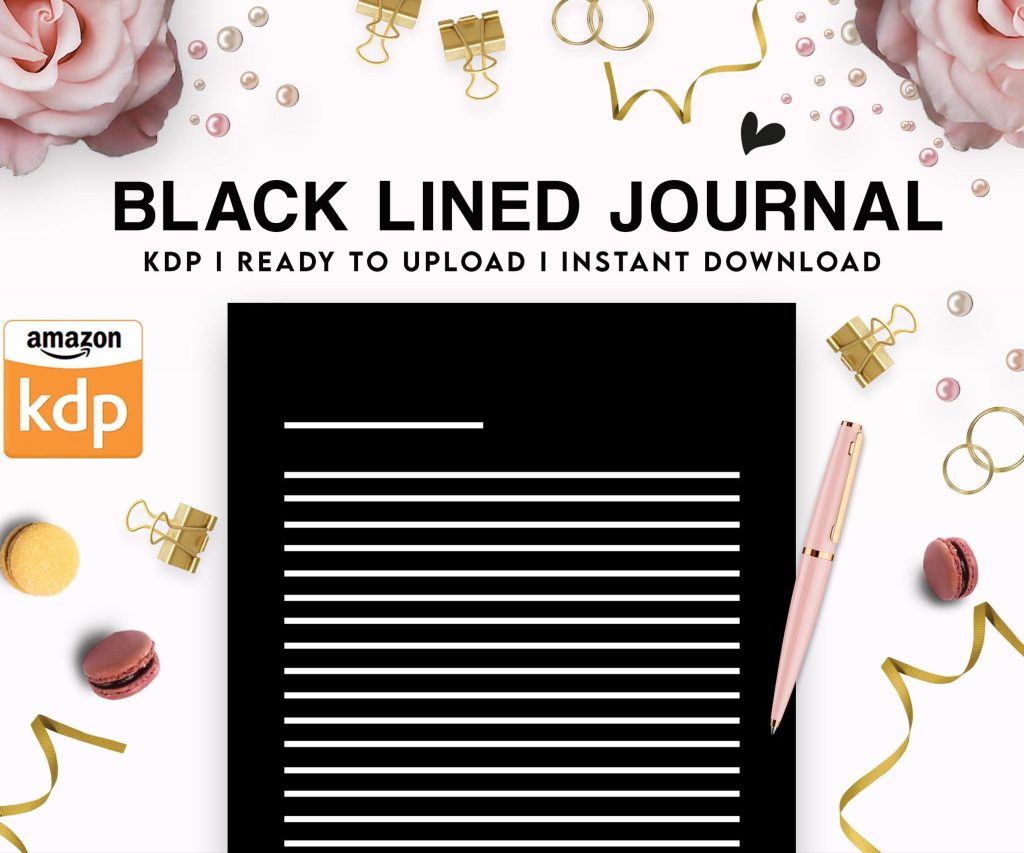 Black Lined Journal: 120 Pages of Black Lined Paper Perfect for Journaling, KDP Notebook Template - 6×9
1 × $0.00
Black Lined Journal: 120 Pages of Black Lined Paper Perfect for Journaling, KDP Notebook Template - 6×9
1 × $0.00
Subtotal: $0.00
 Black Lined Journal: 120 Pages of Black Lined Paper Perfect for Journaling, KDP Notebook Template - 6×9
1 × $0.00
Black Lined Journal: 120 Pages of Black Lined Paper Perfect for Journaling, KDP Notebook Template - 6×9
1 × $0.00 Subtotal: $0.00
So I literally just walked someone through this last week while my cat kept walking across my keyboard, and honestly the process is way simpler than people make it out to be. You just need to check off like 10 things and you’re golden.
Look I know this sounds obvious but you’d be shocked how many people try to upload a Word doc that’s a mess. Here’s what I mean by “ready” – your book needs to be formatted properly. For ebooks that means chapter headings are actually formatted as headings (use Heading 1 or Heading 2 in Word), not just big bold text. Amazon’s converter freaks out otherwise.
Page breaks between chapters. Gotta use actual page breaks (Insert > Page Break in Word) not just hitting Enter a bunch of times. Trust me on this one.
For print books it’s more involved – you need margins set up correctly, bleed if you’re doing images to the edge, page numbers in the right spots. I usually tell people to just grab a template from Amazon’s website because trying to figure out margins for a 6×9 trim size at 2am is not fun.
Go to kdp.amazon.com and make an account. You’ll need your tax info ready – either a SSN if you’re in the US or you’ll fill out a W-8BEN if you’re international. The tax interview seems scary but just answer honestly. Amazon needs this to pay you and report to the IRS.
Bank info too – they do direct deposit which is way better than waiting for checks.
Okay so this is where you’re actually creating your book listing. Click the big “Create” button and choose Kindle eBook or Paperback (or both, I always do both).
Your book title needs to be exactly what’s on your cover and manuscript. Don’t get creative here – Amazon‘s picky about this matching perfectly.
Subtitle is optional but I use it for keywords basically. Like if my book is “Garden Planning” my subtitle might be “A Complete Guide for Beginners to Grow Vegetables and Herbs at Home” – see how I stuffed some search terms in there?
Description is where you sell the book. Use HTML here – yeah they let you use basic formatting. I always do:
Categories – you get two main categories but you can email KDP support after publishing and ask for up to 10 total. Do this every time. More categories = more ways people find your book.
Keywords – you get 7 boxes. Don’t waste them on single words. Use phrases people actually search. “self help books for women” not just “self help” you know?
For ebooks you don’t need an ISBN at all. Amazon assigns an ASIN automatically.
For paperbacks you can either buy your own ISBN (like $125 for one or $295 for 10 from Bowker if you’re in the US) or use Amazon’s free ISBN. The catch with the free one is that Amazon is listed as the publisher and you can only sell that edition on Amazon. If you wanna sell on like IngramSpark or your own website later, you need your own ISBN.
I used free ISBNs for my first 50 books honestly. Saved the money and reinvested in covers.
oh and another thing – your cover needs to be the exact dimensions Amazon specifies. For ebooks it’s like 2560 x 1600 pixels minimum. For paperbacks it depends on your page count because the spine width changes.
Amazon has a cover calculator tool that tells you the exact dimensions. Your designer needs those specs or your cover will get rejected. Mine got rejected 3 times on my first book because I didn’t account for spine width properly.
Upload your manuscript – for ebooks use .doc or .docx (don’t use PDF unless you really know what you’re doing). For paperbacks PDF only and it needs to be high quality, 300 DPI for any images.
The previewer tool is actually pretty good now. Use it. Click through every page of your book. I’ve caught typos on the copyright page, weird spacing issues, all sorts of stuff in the previewer that would’ve been embarrassing.
So here’s where I probably differ from other people gonna tell you to price at 99 cents or whatever. For ebooks between $2.99 and $9.99 you get 70% royalty (minus delivery fees which are tiny). Under $2.99 or over $9.99 you only get 35% royalty.
Do the math. A $2.99 book gets you about $2.04 per sale. A $0.99 book gets you $0.35. You need to sell 6x as many copies at 99 cents to make the same money.
I price most of my stuff at $4.99 or $5.99 for ebooks. Paperbacks I usually do $11.99 to $16.99 depending on page count because printing costs eat into your royalty.
Amazon shows you the royalty calculator right there on the pricing page – play with the numbers and see what works.
this is gonna sound weird but I almost always set up a pre-order now instead of just publishing immediately. You can set a pre-order up to 90 days out (or 180 days if your account is in good standing).
Why? Because all those pre-order sales count toward your first week rankings. Amazon’s algorithm loves a strong launch day. My client canceled on me last month so I spent like 3 hours comparing the ranking differences between books I launched with pre-orders vs without and the pre-order ones consistently ranked better in their categories.
You can change your price during pre-order too which is handy for testing.
When you’re setting up your ebook you’ll see an option to enroll in KDP Select. This makes your book exclusive to Amazon for 90 days – you can’t sell it anywhere else, not even on your own website.
What you get: access to Kindle Unlimited (people can read it “free” and you get paid per page read), countdown deals, free book promos, and supposedly better visibility in Amazon’s algorithm.
I do Select for like 80% of my books because KU pages read often make me more than sales do. But if you’re planning a wide distribution strategy (selling on Apple Books, Kobo, Google Play, etc) then skip Select.
You can always try Select for 90 days and then opt out if it’s not working.
wait I forgot to mention – before you hit publish, get some review copies out there. Amazon TOS says you can’t pay for reviews or incentivize them but you CAN give away free copies and ask people to leave honest reviews if they want to.
I usually have 5-10 people read it before launch. Friends, family, people in my niche Facebook groups, whatever. Reviews matter SO much for conversions especially in the first few weeks.
For ebooks just gift them through Amazon. For paperbacks you can order author copies (at printing cost, super cheap) and mail them.
Takes like 24-72 hours for your book to go live usually. Ebooks are faster than paperbacks. You’ll get an email when it’s live.
First thing I do is check the listing – make sure everything looks right, description formatted correctly, Look Inside feature is showing the right pages. Sometimes Amazon’s converter does weird things.
Set up an Author Central account if you haven’t already – this is separate from KDP and it lets you add an author bio, link your books together, add editorial reviews, track your sales rank. Go to authorcentral.amazon.com
Update your book’s A+ Content if you’re able to – this is enhanced description stuff with images and better formatting. I think you need to have your own ISBN or be in Brand Registry for this though, it’s kinda confusing who qualifies.
Okay so your book is live, now what. This isn’t really about publishing but since you asked…
Post about it everywhere you have an audience. Email list, social media, that Discord server you’re in, whatever. Don’t be spammy but do actually tell people it exists.
Amazon ads – I usually wait until I have at least 5-10 reviews before running ads but automatic campaigns are pretty easy to set up. Start with like $5/day and see what happens.
Price promotions – if you’re in KDP Select you can run a Free Book Promo (5 days every 90 days) or Countdown Deal (7 days). These can boost your rankings temporarily. Outside of Select you can just… change your price whenever you want.
BookBub is the holy grail of promo sites but they’re selective about what they accept. There’s tons of smaller ones though – Robin Reads, Bargain Booksy, Fussy Librarian.
Join some author groups on Facebook or Reddit. The self publishing community is actually pretty helpful and you’ll learn tons from people who’ve done this way more than you have.
Not checking their listing after it goes live – I’ve seen books with covers that didn’t upload right, descriptions that lost all formatting, wrong categories assigned.
Giving up after two weeks because the book “isn’t selling” – it takes time. Amazon’s algorithm needs data. Most of my books didn’t really take off until month 3 or 4.
Not having an email list or any way to contact readers – you’re building on rented land with Amazon. Collect emails however you can (link in the back of your book to a free bonus or something).
Terrible covers made in Canva in 10 minutes – I’m sorry but you’re competing with traditionally published books that have $3000 covers. At minimum spend $50-100 on Fiverr for something decent.
Not writing the next book – one book is a product, multiple books is a business. Your best marketing tool is always your next book because Amazon links them together and shows “customers also bought” recommendations.
The whole process from setting up your account to having a live book can honestly be done in a day if your manuscript and cover are ready. I’ve done it while watching TV plenty of times. It’s really not that complicated once you do it once, you’ll be like “wait that’s it?” and yeah, that’s kinda it.
DISCOVER OUR FREE BEST SELLING PRODUCTS
Editable Canva Lined Journal: Express Your Thoughts – KDP Template
Lined Pages Journal 120 pages Ready to Upload PDF Commercial Use KDP Template 6×9 8.5×11 5×8 for Notebooks, Diaries, Low Content
Lined Pages Journal 120 pages Ready to Upload PDF Commercial Use KDP Template 6×9 8.5×11 5×8 for Notebooks, Diaries, Low Content
Cute Dogs Coloring Book for Kids | Activity Book | KDP Ready-To-Upload
Daily Planner Diary : Diary Planners for Everyday Productivity, 120 pages, 6×9 Size | Amazon KDP Interior
Wolf Coloring KDP interior For Adults, Used as Low Content Book, PDF Template Ready To Upload COMMERCIAL Use 8.5×11"
Coloring Animals Head Book for Kids, Perfect for ages 2-4, 4-8 | 8.5×11 PDF
Printable Blank Comic Book Pages PDF : Create Your Own Comics – 3 Available Sizes
Notes KDP interior Ready To Upload, Sizes 8.5×11 6×9 5×8 inch PDF FILE Used as Amazon KDP Paperback Low Content Book, journal, Notebook, Planner, COMMERCIAL Use
Black Lined Journal: 120 Pages of Black Lined Paper Perfect for Journaling, KDP Notebook Template – 6×9
Student Planner Journal 120 pages Ready to Upload PDF Commercial Use KDP Template 6×9" 8.5×11" for Low Content book
Recipe Journal Template – Editable Recipe Book Template, 120 Pages – Amazon KDP Interior