-
×
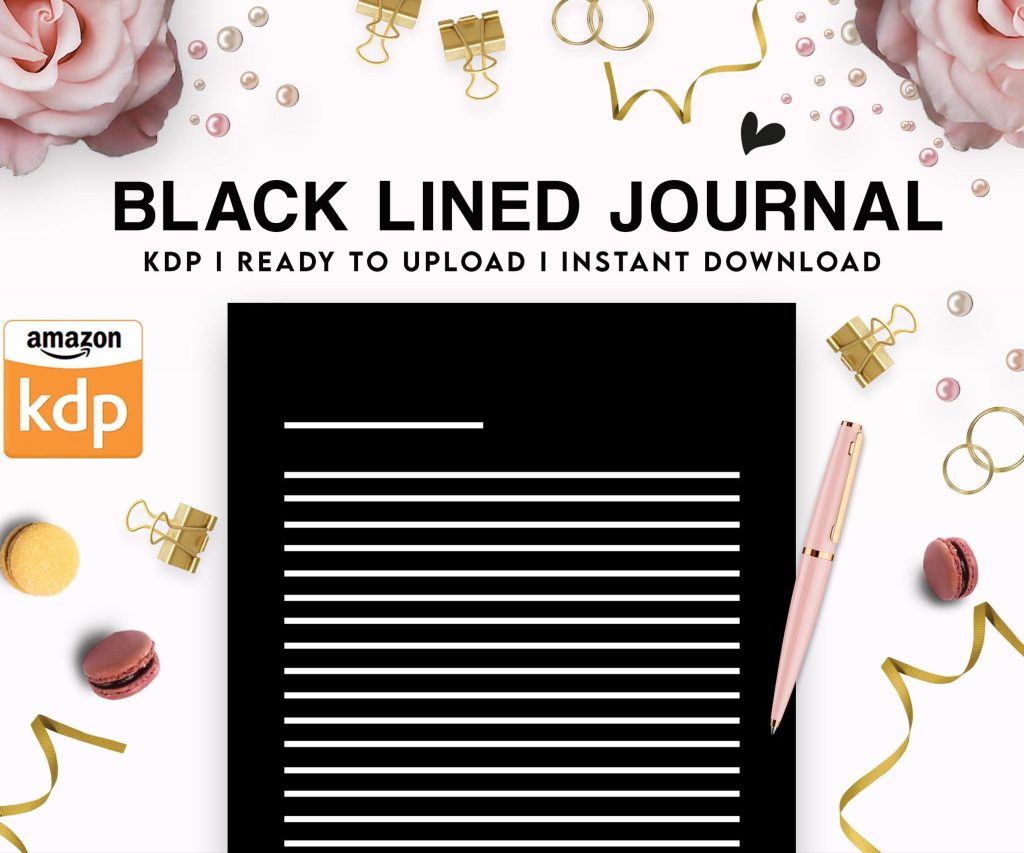 Black Lined Journal: 120 Pages of Black Lined Paper Perfect for Journaling, KDP Notebook Template - 6×9
1 × $0.00
Black Lined Journal: 120 Pages of Black Lined Paper Perfect for Journaling, KDP Notebook Template - 6×9
1 × $0.00
Subtotal: $0.00
 Black Lined Journal: 120 Pages of Black Lined Paper Perfect for Journaling, KDP Notebook Template - 6×9
1 × $0.00
Black Lined Journal: 120 Pages of Black Lined Paper Perfect for Journaling, KDP Notebook Template - 6×9
1 × $0.00 Subtotal: $0.00
Right so I literally just walked a client through this yesterday and they made their first sale within like 48 hours, so this is fresh in my head. Let me break down exactly what you need to do because honestly the whole process seems way more complicated than it actually is.
So first thing – and I see people mess this up constantly – you gotta format your manuscript properly before you even think about uploading. Amazon’s gonna reject it or make it look like garbage if you don’t.
For ebooks, you want a .doc or .docx file. Use styles in Word, not just making text bigger or bold manually. Like, actually use Heading 1, Heading 2, Normal text styles. This matters because KDP’s converter uses those to build your table of contents automatically.
Few things I always do:
Oh and another thing – if you’re doing print, you need a PDF. But hold on that for now because the setup is different and we’ll get there.
Okay so you gotta make a KDP account at kdp.amazon.com. Pretty straightforward, use your regular Amazon login or make a new one.
But here’s where it gets annoying – the tax interview. You need your SSN or EIN ready. Amazon makes you fill out either a W-9 (if you’re in the US) or W-8 (if you’re international). Just do it right the first time because fixing it later is a hassle and holds up your payments.
Put in your bank details for direct deposit. They pay like 60 days after the end of the month you made sales, so yeah, it’s slow at first.
wait I forgot to mention – set up your payment stuff BEFORE you publish because you can’t get paid without it and I’ve seen people freak out when they make sales but didn’t finish this part.
Click that yellow “+ Kindle eBook” or “+ Paperback” button. Now you’re in the details page.
Language and title are obvious. Your subtitle matters way more than you think for searchability, so don’t waste it on something poetic – use keywords people actually search for.
Categories are huge. You get to pick two, but you can email KDP support after publishing and ask for up to 10 total. I always do this. More categories = more chances to hit a bestseller list. Just email them like “hey can you add my book ASIN B0whatever to these categories” and list them out.
Keywords – you get seven boxes. Don’t stuff the same word in all of them. Think about what someone types into Amazon when they want a book like yours. Use tools like Publisher Rocket if you wanna get serious (I use it for all my books now), but you can also just… search Amazon and see what auto-completes.
this is gonna sound weird but I actually tested this last week with a client’s romance book – we used really specific long-tail keywords like “small town enemies to lovers romance” instead of just “romance” and it ranked way better. Super competitive niches need that specificity.
Manuscript upload section. Click browse, grab your .doc file for ebook.
Amazon processes it and gives you a previewer. DO NOT SKIP THIS. I don’t care if you’re tired or your dog is barking at the mailman (mine literally interrupted me three times yesterday while I was doing this for a client). Check every single chapter.
Look for:
If something looks wrong, don’t just publish anyway thinking it’ll be fine. It won’t. Fix your source file and re-upload.
For print books, you need a cover PDF and an interior PDF. The cover has to be exact dimensions – use KDP’s cover calculator or their cover creator tool if you’re not hiring a designer. Bleed and margins matter here, Amazon will reject it if it’s wrong.
Oh and you need an ISBN for paperback. KDP gives you one free, or you can buy your own if you want it in your name/company name. The free one works totally fine for most people though.
Rights – if you own all rights worldwide, check that box. Pretty much everyone does unless you’ve got a publisher involved.
Pricing is where it gets interesting. For ebooks, you’ve got two royalty options:
35% royalty: You can price $0.99–$200, deliver to all countries, no delivery fees. BUT you only get 35% of the list price.
70% royalty: You get 70% MINUS a small delivery fee (based on file size), but your price has to be $2.99–$9.99, and you gotta enroll in all KDP Select countries. Also Amazon can price-match if they find it cheaper elsewhere.
I usually do 70% for anything $2.99 and up. The delivery fee is like $0.06–$0.15 for most text-based books so whatever. My client canceled last month so I spent like three hours comparing the actual profit margins and unless your book is under $2.99, always take the 70% deal.
KDP Select is optional but worth considering for 90 days at least. You agree to make your ebook exclusive to Amazon, but you get:
I’ve made decent money from KU page reads, like an extra $500–$1,200/month on some books. But if you wanna sell on Apple, Nook, Kobo, etc., skip Select.
For print, royalty is based on production cost (printing) + your profit. Amazon shows you the calculation. Don’t price your paperback too low or you’ll make like $0.30 per sale, which feels bad even if you sell a bunch.
You can set a pre-order (up to 90 days out) or just publish immediately. Pre-orders are cool for building buzz if you’ve got an audience already. If you’re brand new, just publish now and start getting reviews.
Hit that yellow publish button. Amazon takes like 24–72 hours to review it. Usually it’s live within a day unless there’s an issue.
So your book is live, now what? Most people just… wait. Don’t do that.
Get your book link and start telling people. Even if it’s just your friends or your email list or social media. Those first few sales help with ranking.
Reviews matter SO much. Amazon’s algorithm loves them. Email people who bought it and politely ask for honest reviews. Don’t be pushy, just like “hey if you enjoyed it, a review would mean a lot.”
Run an Amazon ad if you’ve got like $5–$10/day to test. Automatic targeting is fine to start. I’ve gotten books to profitability within a few weeks just from cheap ads and tweaking keywords. Actually gonna write more about this later because ad strategy is its own whole thing.
Check your reports daily at first. Not because you’ll get rich overnight but because you’ll see what’s working. Which keywords, which categories, where your sales come from.
Oh and you can update your book anytime. New cover, fixed typos, better description – just go back into your bookshelf and edit. Takes another 24–72 hours to go live but it’s not a big deal.
One more thing – your book might not show up in search right away even after it’s live. Give it a few days for Amazon’s system to fully index it. I had a book once that didn’t show up for the exact title search for like three days and I almost panicked, but it sorted itself out.
okay so that’s basically it, the whole process from finished manuscript to actually being on Amazon. It’s really not as scary as it seems when you’re staring at that publish button for the first time
DISCOVER OUR FREE BEST SELLING PRODUCTS
Editable Canva Lined Journal: Express Your Thoughts – KDP Template
Lined Pages Journal 120 pages Ready to Upload PDF Commercial Use KDP Template 6×9 8.5×11 5×8 for Notebooks, Diaries, Low Content
Lined Pages Journal 120 pages Ready to Upload PDF Commercial Use KDP Template 6×9 8.5×11 5×8 for Notebooks, Diaries, Low Content
Cute Dogs Coloring Book for Kids | Activity Book | KDP Ready-To-Upload
Daily Planner Diary : Diary Planners for Everyday Productivity, 120 pages, 6×9 Size | Amazon KDP Interior
Wolf Coloring KDP interior For Adults, Used as Low Content Book, PDF Template Ready To Upload COMMERCIAL Use 8.5×11"
Coloring Animals Head Book for Kids, Perfect for ages 2-4, 4-8 | 8.5×11 PDF
Printable Blank Comic Book Pages PDF : Create Your Own Comics – 3 Available Sizes
Notes KDP interior Ready To Upload, Sizes 8.5×11 6×9 5×8 inch PDF FILE Used as Amazon KDP Paperback Low Content Book, journal, Notebook, Planner, COMMERCIAL Use
Black Lined Journal: 120 Pages of Black Lined Paper Perfect for Journaling, KDP Notebook Template – 6×9
Student Planner Journal 120 pages Ready to Upload PDF Commercial Use KDP Template 6×9" 8.5×11" for Low Content book
Recipe Journal Template – Editable Recipe Book Template, 120 Pages – Amazon KDP Interior