-
×
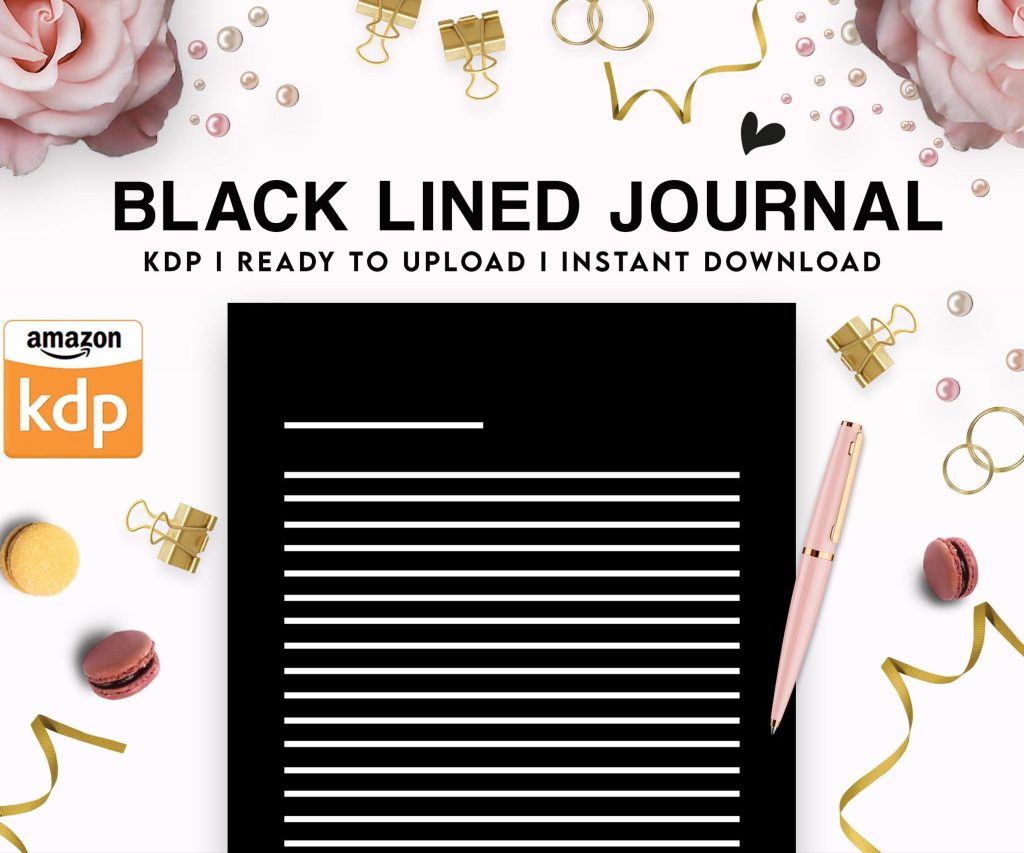 Black Lined Journal: 120 Pages of Black Lined Paper Perfect for Journaling, KDP Notebook Template - 6×9
1 × $0.00
Black Lined Journal: 120 Pages of Black Lined Paper Perfect for Journaling, KDP Notebook Template - 6×9
1 × $0.00
Subtotal: $0.00
 Black Lined Journal: 120 Pages of Black Lined Paper Perfect for Journaling, KDP Notebook Template - 6×9
1 × $0.00
Black Lined Journal: 120 Pages of Black Lined Paper Perfect for Journaling, KDP Notebook Template - 6×9
1 × $0.00 Subtotal: $0.00
First thing – you gotta have your manuscript ready, like actually finished. I can’t tell you how many people message me saying they wanna publish but they’re still “working on chapter 3” and look, Amazon doesn’t care about your process. You need a complete file. For ebooks that means a .doc or .docx file that’s properly formatted, and for print you need a PDF.
The formatting part is where everyone screws up initially. Your Word doc needs to be clean – I’m talking no extra spaces, consistent heading styles, page breaks between chapters not just hitting enter a bunch of times. Last week I was helping this romance author fix her manuscript and she had like 47 different font sizes because she kept manually changing things instead of using styles. Took us two hours to clean it up.
Go to kdp.amazon.com and create an account. You’ll need:
The tax interview thing freaks people out but it’s straightforward, just answer honestly. Amazon needs this because they’re paying you money and the IRS wants to know about it. I remember my first time doing this back in 2017, sat there for like 20 minutes being paranoid I was gonna mess it up somehow.
Click the big “+ Create” button and choose Kindle eBook or Paperback (or both, which is what I usually recommend). You’ll go through three main sections.
Language is obvious. Book title – don’t overthink this but also it matters for search. Your subtitle is actually super important for keywords. Like if you’re publishing a cookbook, your title might be “Easy Weeknight Dinners” but your subtitle should be “Quick 30-Minute Recipes for Busy Families Using Simple Ingredients” because that’s what people search for.
Series info – if this is book 1 of something, fill that in. Amazon‘s algorithms love series because people binge them.
Edition number – just put 1 unless you’re republishing.
Author name – use your real name or pen name, whatever. Just stay consistent. I’ve got books under three different names for different niches and you gotta remember which is which, trust me.
Contributors – if you have an editor or illustrator you wanna credit, add them here.
Description is your sales pitch. This needs HTML formatting if you want bold text or line breaks. People write these in Word then paste them in and wonder why everything runs together. You need <b> tags for bold and <br> for line breaks. Or just use Amazon’s rich text editor now, they finally made it not terrible.
You get to pick two categories initially but you can contact Amazon later to add up to 8 more. Choose the most specific categories you can – don’t just pick “Fiction” when you could pick “Fiction > Thrillers > Medical” because you’ll never rank in the broad categories anyway.
Seven keyword boxes – use all of them. These aren’t single words, they’re phrases. Think about what someone types into Amazon search. “cozy mystery with cats” not just “mystery” you know?
Oh and another thing, you can’t use trademarked terms here. Don’t put “Harry Potter fans will love” or Amazon will reject you. Found that out the hard way with a fantasy book in 2019.
This is where you upload your actual manuscript. For ebooks, upload your Word doc and Amazon converts it. But preview it carefully because the converter does weird stuff sometimes. I always check:
Use the online previewer to check on different devices. Your book might look fine on Kindle but wonky on phone or tablet.
For print books you need a PDF that meets their specs. Margins matter – you need bigger inside margins for binding. Amazon has templates you can download, use them. I spent my first year eyeballing it and ended up with text too close to the spine on like 30 books.
Cover upload – needs to be exactly the right dimensions. For ebooks that’s 2560 x 1600 pixels minimum. For print it depends on your page count because the spine width changes. Amazon has a cover calculator, it’s actually useful.
If your cover doesn’t meet specs they’ll tell you immediately. Either the file size is too big (needs to be under 50MB) or the dimensions are wrong or there’s weird transparency issues.
Amazon gives you a free ISBN or you can use your own. The free one ties the book to Amazon forever, which is fine if you’re only selling there. If you want to distribute to other places later, buy your own ISBN from Bowker (in the US anyway). They’re expensive though, like $125 for one or $295 for ten.
I use Amazon’s free ones for most books because honestly I’m not trying to get into Barnes & Noble or whatever. My client last month insisted on buying his own ISBN then never ended up using expanded distribution so he wasted that money.
KDP Select vs wide distribution – this is the big question. KDP Select means Amazon exclusive but you get bonuses like Kindle Unlimited royalties and free promo days. Wide means you can publish everywhere (Apple, Kobo, etc) but no KU money.
I usually start with KDP Select for 90 days to test the book, then decide. The KU money is real – some of my books make 70% of their income from page reads not sales.
You can pick 35% or 70% royalty. The 70% option requires pricing between $2.99-$9.99 and has delivery fees (usually like 15 cents). Under $2.99 you only get 35%.
Most indie authors price their first book at $2.99-$4.99. I’ve tested everything and honestly $3.99 is the sweet spot for fiction. Nonfiction can go higher, I’ve got business books at $9.99 doing fine.
Amazon sometimes runs countdown deals or free promos if you’re in KDP Select – these can spike your rankings like crazy. I did a free promo on a journal last month and it got 2,847 downloads, then when it went back to paid it kept selling because of the ranking boost.
Amazon calculates printing costs based on page count and trim size. You gotta price above that cost to make anything. A 200-page paperback costs like $3.65 to print, so if you price it at $9.99 you make about $2.50 per sale.
Don’t underprice print books thinking it’ll help – people assume cheap paperbacks are low quality. I keep mine at $11.99-$14.99 usually.
It takes like 24-72 hours for your ebook to go live, longer for print (up to 5 days sometimes). You can’t change the book content during review so make sure everything’s right.
Once it’s live you’ll get a product page with an ASIN (Amazon’s ID number). Save that, you need it for ads and tracking.
Wait I forgot to mention – you can pre-order books on Amazon. Set a future publish date and list the book early. This can help you build buzz but you HAVE to upload the final manuscript at least 3 days before launch or Amazon gets mad and might restrict your pre-order privileges.
Amazon reviews content for quality and guidelines. They’ll reject you if:
I had a book rejected once because the cover designer used a font that apparently looked too much like the Coca-Cola logo. Had to remake the whole cover.
I’ve got a checklist saved in Notion that I run through for every book:
The preview step is where you catch problems. I cannot stress this enough. Download the preview file and read at least the first few chapters on an actual Kindle device or app. My cat walked across my keyboard once while I was formatting and added a bunch of random characters in chapter 4 that I didn’t notice until after publishing. Had to update the file and wait for Amazon to push the new version.
You can update content anytime through your KDP dashboard. Changes to the manuscript take a few days to propagate. Cover changes are faster. You can also update your description, keywords, and price whenever you want – those changes are instant.
I update my book descriptions pretty often based on what seems to convert. Like if everyone’s mentioning they loved a specific thing in the reviews, I’ll add that to my description.
Oh and if you’re doing a series, add “Book 1 of [Series Name]” to your cover and description. Amazon’s series page feature helps but you gotta make it obvious this is part of something bigger.
The interior needs margins set up for binding. Left/right pages have different margin requirements. Headers and footers should probably have page numbers. First chapter shouldn’t start on the back of the title page – you need front matter (title page, copyright page, maybe dedication).
Bleed settings matter if you have images or colored backgrounds that go to the edge. Most print books don’t need bleed though.
Trim size – 6×9 is standard for most nonfiction and fiction. 5×8 is good for novels. 8.5×11 for workbooks and journals. Don’t get weird with custom sizes unless you have a reason.
Paper type – white or cream. Cream looks more professional for novels, white is better if you have images. This is all in the print book setup section.
You’ll do a digital proof or order a physical proof copy. I always order physical for the first book in a series or anything with complex formatting. It’s like $5 plus shipping and you catch issues you’d never see on screen.
There’s a checkbox for expanded distribution – this puts your book in bookstores and libraries theoretically. Your royalty drops to like 40% though. I turn it on anyway because occasionally someone buys through those channels and it’s basically passive.
Just don’t expect bookstores to actually stock your indie paperback. Expanded distribution mostly means it CAN be ordered, not that it will be.
This isn’t really part of publishing but you gotta do something or your book just sits there. Amazon’s algorithm rewards early velocity so:
Tell your email list if you have one. Post on social media obviously. Run a small Amazon ad campaign even if it’s just $5/day. Ask people to leave reviews (but not in a weird way that violates Amazon TOS).
The first 30 days matter a lot for ranking. If your book gets traction early, Amazon shows it to more people. If it launches to crickets, it’s harder to recover momentum later.
I usually schedule a promo for like day 3-5 after launch. Not day 1 because you want some organic reviews first. Something like a BookBub deal or a mention in a reader group.
Anyway that’s the whole process, it’s really not that complicated once you’ve done it twice. The first time takes forever because you’re figuring out all the fields and options. By book 10 you can set everything up in like 30 minutes. Just don’t rush it or you’ll miss something stupid and have to update the files later.
DISCOVER OUR FREE BEST SELLING PRODUCTS
Editable Canva Lined Journal: Express Your Thoughts – KDP Template
Lined Pages Journal 120 pages Ready to Upload PDF Commercial Use KDP Template 6×9 8.5×11 5×8 for Notebooks, Diaries, Low Content
Lined Pages Journal 120 pages Ready to Upload PDF Commercial Use KDP Template 6×9 8.5×11 5×8 for Notebooks, Diaries, Low Content
Cute Dogs Coloring Book for Kids | Activity Book | KDP Ready-To-Upload
Daily Planner Diary : Diary Planners for Everyday Productivity, 120 pages, 6×9 Size | Amazon KDP Interior
Wolf Coloring KDP interior For Adults, Used as Low Content Book, PDF Template Ready To Upload COMMERCIAL Use 8.5×11"
Coloring Animals Head Book for Kids, Perfect for ages 2-4, 4-8 | 8.5×11 PDF
Printable Blank Comic Book Pages PDF : Create Your Own Comics – 3 Available Sizes
Notes KDP interior Ready To Upload, Sizes 8.5×11 6×9 5×8 inch PDF FILE Used as Amazon KDP Paperback Low Content Book, journal, Notebook, Planner, COMMERCIAL Use
Black Lined Journal: 120 Pages of Black Lined Paper Perfect for Journaling, KDP Notebook Template – 6×9
Student Planner Journal 120 pages Ready to Upload PDF Commercial Use KDP Template 6×9" 8.5×11" for Low Content book
Recipe Journal Template – Editable Recipe Book Template, 120 Pages – Amazon KDP Interior