-
×
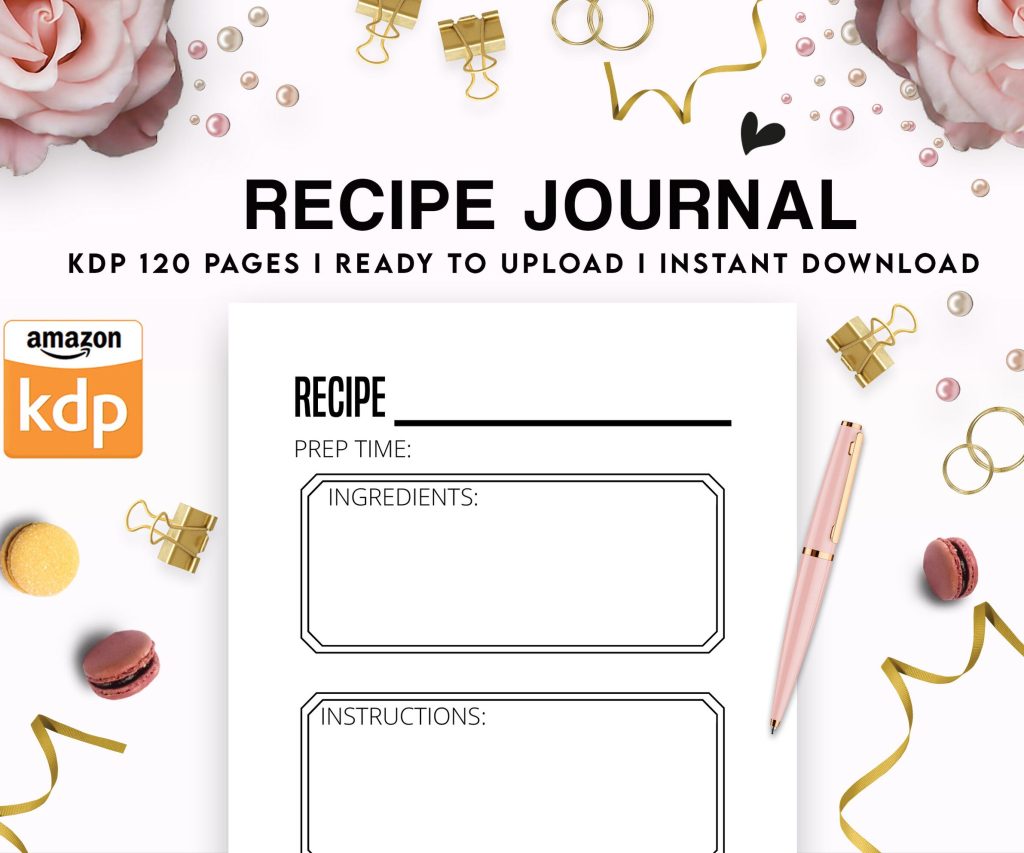 Recipe Journal Template - Editable Recipe Book Template, 120 Pages - Amazon KDP Interior
1 × $0.00
Recipe Journal Template - Editable Recipe Book Template, 120 Pages - Amazon KDP Interior
1 × $0.00
Subtotal: $0.00
 Recipe Journal Template - Editable Recipe Book Template, 120 Pages - Amazon KDP Interior
1 × $0.00
Recipe Journal Template - Editable Recipe Book Template, 120 Pages - Amazon KDP Interior
1 × $0.00 Subtotal: $0.00
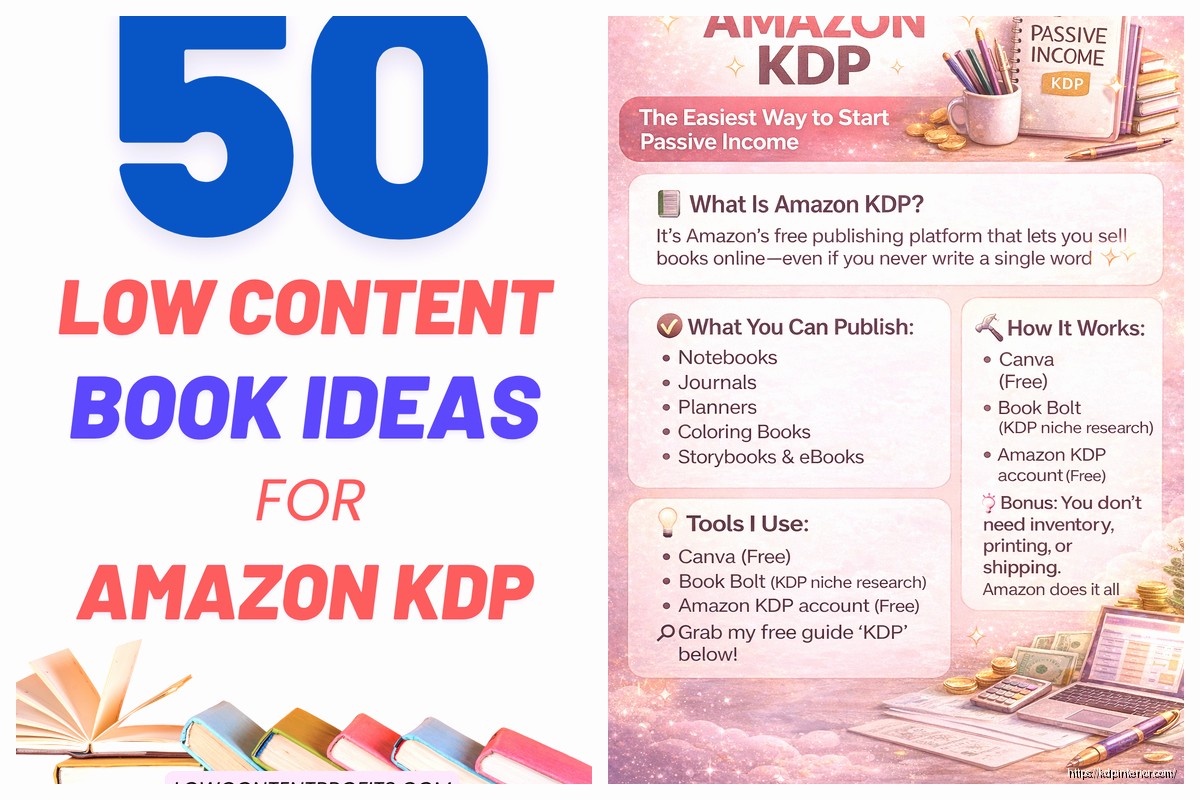
Okay so here’s the deal with self-publishing on KDP – I literally just walked someone through this yesterday and they made their first sale within 3 days, so lemme break down what actually works versus all the BS you’ll read in forums.
First thing, you’re gonna need an Amazon account. Not your regular shopping account – well actually you CAN use that but I always recommend keeping it separate for tax purposes. Head to kdp.amazon.com and sign up. They’ll ask for tax info right away which freaks people out but just have your SSN ready if you’re in the US, or your EIN if you set up an LLC (which honestly you don’t need right away, I didn’t get one until year 3).
The tax interview thing is straightforward. W-9 for US folks, W-8 for international. Takes maybe 10 minutes and yeah you gotta do it before publishing anything. Amazon’s really strict about this because… well, money.
So there’s basically three routes here and I’ve done all of them:
Most people start with ebooks because there’s zero upfront cost. No ISBN needed, no nothing. Just upload a file and you’re done. But honestly? Low-content books are where I made my first real money because the competition was way less intense back in 2018… it’s tougher now but still viable.
Look, everyone’s gonna tell you to write this amazing manuscript but let’s be practical. If you’re doing low-content, you need:
Interior file: This is the pages inside your book. For a notebook, that’s literally just lined pages. I use Canva for simple stuff or Book Bolt if I’m doing something more complex. You can also use PowerPoint which sounds ridiculous but it works – I made my first 20 books in PowerPoint while watching The Office reruns.
Cover: This is what sells your book, not gonna lie. Your cover needs to pop in a tiny thumbnail. I spend way more time on covers than interiors. Use Canva (paid version is worth it), or hire someone on Fiverr for like $15-30. Don’t cheap out here.
Manuscript file for ebooks: Word doc works fine. Export as DOCX and upload. Amazon converts it. Sometimes it looks weird so always preview it in their previewer tool.
Wait I forgot to mention – dimensions matter A LOT. For paperbacks, the most common sizes are:
Your interior page count affects your spine width which affects your cover dimensions. KDP has a cover calculator but honestly Book Bolt does this automatically which is why I use it.
Okay so you’re in your KDP dashboard. Click “Create New Title” and you’ll see Kindle eBook or Paperback. Let’s do paperback because it’s more complicated.
Paperback Details Section:
You’ll enter your title, subtitle (optional but helps with keywords), author name, description. The description is HTML-formatted which threw me off at first. You can bold things with text tags. Keep it under 4000 characters.
Categories – you get two. Pick wisely. I usually go super niche. Instead of “Self-Help” I’ll do “Self-Help > Journal Writing” or something specific. Less competition.
Keywords – you get seven. Use all seven. Think about what people actually TYPE into Amazon search. “Gratitude journal for women” not just “journal.”
Content Section:
Upload your interior PDF. It needs to be print-ready, meaning no security settings, correct dimensions, bleed if you’re doing full-color pages to the edge (bleed is 0.125 inches on all sides btw).
Upload your cover PDF. This is ONE file with front cover, spine, and back cover all connected. The template they provide shows you exactly where to put stuff.
Choose your paper type – white or cream. Cream looks more professional for text-heavy books, white is better for color interiors or workbooks.
Oh and another thing – the preview tool they have is actually pretty good now. Use it. I’ve caught so many formatting errors there.
This is where people mess up. Amazon has this royalty calculator right there on the pricing page – use it.
For paperbacks, your production cost depends on page count and whether it’s black/white or color. A 120-page black/white paperback costs Amazon like $2.50 to print. If you price it at $6.99, you make about $1.50 per sale after Amazon’s cut.
For ebooks, you choose between 35% or 70% royalty. The 70% option requires:
I usually do $2.99-$4.99 for ebooks and calculate backwards from what royalty I want.
Amazon’s search algorithm (A9 or A10 now? They keep changing it) looks at your title, subtitle, description, and those seven keyword fields. But here’s what matters MORE – sales velocity and conversion rate.
A book that sells consistently ranks higher than a book with perfect keywords but no sales. So your launch strategy matters.
I use Helium 10 or Publisher Rocket to research keywords. You’re looking for:
Something like “daily planner 2025” has huge volume but insane competition. “Daily planner for nurses 2025” is way more specific and winnable.
So you’ve filled everything out, previewed your book seventeen times, and you’re ready. Hit publish.
For ebooks – live within 24-72 hours usually
For paperbacks – takes longer, sometimes up to 5 days for review
They’re checking for content violations, formatting issues, cover problems. I’ve had books rejected for the dumbest things – once because my back cover blurb mentioned another book title and they thought I was infringing copyright (I wasn’t).
If rejected, they tell you why. Fix it and resubmit. Don’t panic.
When you publish a paperback, there’s this checkbox for “Expanded Distribution.” This puts your book in libraries, academic institutions, bookstores. Sounds great but your royalty drops SIGNIFICANTLY. I only enable it for books I know won’t sell much anyway, just for the extra exposure.
You can also publish the same book on other platforms – Draft2Digital, IngramSpark, Barnes & Noble Press. I do this for ebooks but honestly Amazon is like 80% of my income so… priorities.
Test your cover at thumbnail size before publishing. Like literally shrink it down to 150 pixels wide and see if you can read the title. If not, your font’s too small. I’ve redone covers after publishing because they looked great full-size but terrible as thumbnails where people actually see them.
Okay so your book is live. Now what? Amazon ads are pretty much essential now. The organic reach is terrible unless you get lucky.
Amazon Ads basics:
Start with Sponsored Products campaigns. You bid on keywords. When someone searches that keyword, your book might show up as an ad.
I usually start with:
Let it run for a week, check your reports, see what keywords got clicks and sales. Then create manual campaigns targeting those specific keywords.
Product display ads are newer and work well for targeting competitor books directly. Like if there’s a bestselling gratitude journal, you can show your ad on that book’s page.
Wait I forgot to mention – your ACoS (Advertising Cost of Sale) should ideally be under 50% when starting. So if you spend $5 on ads and make $10 in sales, that’s 50% ACoS. Anything under that is profit.
Here’s what nobody tells you – KDP gives you complete control but also complete responsibility. You’re handling:
I spend about 60% of my time creating new books, 30% on ads and optimization, 10% on everything else. Some months I launch 10 new books, other months just 2-3. It’s completely up to you.
The independence means you can pivot FAST. See a trending topic? Create a book in 2 days and publish. Can’t do that with traditional publishing.
My dog just knocked over my coffee which is perfect timing because I need a break anyway but lemme cover a few more critical things…
Not checking the preview file: Seriously, Amazon’s preview catches like 90% of formatting issues. Use it.
Copying other books exactly: You’ll get banned. Take inspiration, sure, but create original content. Amazon’s getting really strict about this.
Ignoring your KDP reports: The dashboard shows you sales, royalties, pages read (for KDP Select books). Check it weekly minimum.
Pricing too low or too high: Research your competition. Don’t be the $2.99 book when everyone else is $6.99, and vice versa.
Not enrolling in KDP Select: This is Amazon’s exclusive program. Your ebook can’t be sold anywhere else, but you get access to Kindle Unlimited (readers pay monthly and read unlimited books, you get paid per page read). For most genres, this is worth it. I make about 40% of my ebook income from KU page reads.
One book won’t make you rich. I’ve got about 200 books published and maybe 20 of them generate 80% of my income. It’s a numbers game initially.
My strategy: Publish consistently, track what sells, create more in those niches, kill the books that don’t perform after 6 months.
Some people go wide (all platforms), some go deep on Amazon. I’m deep on Amazon because that’s where the money is for me, but test what works for you.
You don’t NEED all these starting out. Canva free version and Amazon’s own tools can get you your first few books live.
The real cost is time and maybe outsourcing. I hire cover designers from Fiverr for books I think will be winners ($30-50 per cover). Everything else I do myself or use templates.
Look, KDP isn’t passive income despite what YouTube gurus tell you. It’s a real business. But it’s also one where you can start tonight, publish your first book this week, and potentially make your first sale before the month ends. That’s the independence part – no gatekeepers, no waiting for approval from publishers, just you and Amazon’s platform.
The learning curve is real but not impossible. My first book took me 3 weeks to create and publish because I didn’t know what I was doing. Now I can do one in an afternoon if needed. You’ll get faster and better with each one.
DISCOVER OUR FREE BEST SELLING PRODUCTS
Editable Canva Lined Journal: Express Your Thoughts – KDP Template
Lined Pages Journal 120 pages Ready to Upload PDF Commercial Use KDP Template 6×9 8.5×11 5×8 for Notebooks, Diaries, Low Content
Lined Pages Journal 120 pages Ready to Upload PDF Commercial Use KDP Template 6×9 8.5×11 5×8 for Notebooks, Diaries, Low Content
Cute Dogs Coloring Book for Kids | Activity Book | KDP Ready-To-Upload
Daily Planner Diary : Diary Planners for Everyday Productivity, 120 pages, 6×9 Size | Amazon KDP Interior
Wolf Coloring KDP interior For Adults, Used as Low Content Book, PDF Template Ready To Upload COMMERCIAL Use 8.5×11"
Coloring Animals Head Book for Kids, Perfect for ages 2-4, 4-8 | 8.5×11 PDF
Printable Blank Comic Book Pages PDF : Create Your Own Comics – 3 Available Sizes
Notes KDP interior Ready To Upload, Sizes 8.5×11 6×9 5×8 inch PDF FILE Used as Amazon KDP Paperback Low Content Book, journal, Notebook, Planner, COMMERCIAL Use
Black Lined Journal: 120 Pages of Black Lined Paper Perfect for Journaling, KDP Notebook Template – 6×9
Student Planner Journal 120 pages Ready to Upload PDF Commercial Use KDP Template 6×9" 8.5×11" for Low Content book
Recipe Journal Template – Editable Recipe Book Template, 120 Pages – Amazon KDP Interior