-
×
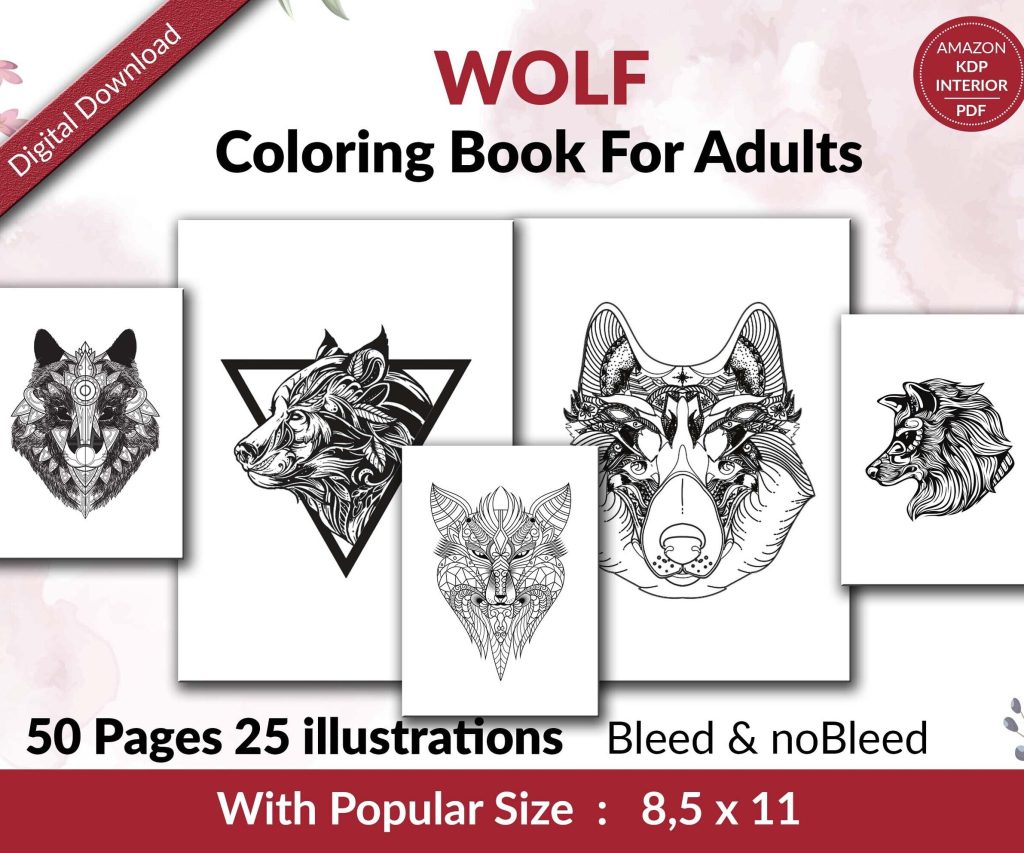 Wolf Coloring KDP interior For Adults, Used as Low Content Book, PDF Template Ready To Upload COMMERCIAL Use 8.5x11"
1 × $0.00
Wolf Coloring KDP interior For Adults, Used as Low Content Book, PDF Template Ready To Upload COMMERCIAL Use 8.5x11"
1 × $0.00
Subtotal: $0.00

I literally just finished uploading three new ebooks to KDP last night while watching some terrible reality show, and honestly Canva has become my main tool for this stuff. Not because it’s perfect but because it’s fast and I don’t have to mess around with InDesign anymore.
So first thing – you gotta understand that Canva has these ebook templates but like half of them are actually designed for lead magnets or PDFs people give away for email lists. Not actual ebooks you’re gonna sell on Amazon. The dimensions are wrong, the page counts are weird. I learned this the hard way about two years ago when I uploaded something and the formatting was just… off.
When you open Canva, ignore the “ebook” template section for now. Go to custom dimensions instead. For KDP, you want your trim size to match what Amazon offers. Most of my ebooks are 6×9 inches because that’s the standard size readers expect. In Canva, you’d set that up as a custom document.
Here’s what I do: Custom size, 6 inches width, 9 inches height. Set it to inches not pixels. Then here’s the important part – you need to think about how many pages. Canva lets you add pages as you go but I usually start with like 50 blank pages if I’m doing a proper ebook. If it’s a shorter guide maybe 30.
The resolution thing – Canva exports at 96 DPI by default for free users, but if you have Canva Pro (which you should if you’re doing this seriously), you can bump it to 300 DPI on export. Amazon recommends at least 300 DPI for print but for ebooks the 96 DPI usually works fine. I still use 300 though because sometimes I repurpose the content for print versions.
This is gonna sound boring but it matters. You can’t use every fancy font in Canva for body text. I made an entire ebook once with this beautiful script font and it was completely unreadable on a Kindle. Like my cat walked across my keyboard and it would’ve been more legible.
Stick with serif fonts for body text. I use Libre Baskerville, Merriweather, or even just regular old Georgia. These are easy to read on screens. For headings you can get more creative – I like Bebas Neue or Montserrat Bold for chapter titles.
Font size matters too. Body text should be at least 11pt, ideally 12pt. Headings can be 18-24pt depending on your style. The thing about Canva is that it doesn’t automatically format your text like Word does with styles, so you gotta be consistent manually. I literally keep a “master page” at the beginning of my document with all my text styles set up, then I copy and paste text boxes from that page when I need them.
Okay so here’s how I actually build the ebook. Start with your cover page – but remember this is just for the interior file. Your actual KDP cover is separate. I usually do a simple title page with the book title, my pen name, and maybe a small graphic.
Copyright page comes next. You can find copyright templates online but basically it’s just: Copyright © 2024, your name, all rights reserved, maybe a disclaimer. Keep it simple.
Then table of contents. Canva doesn’t auto-generate these like Word does, which is annoying. You have to type it out manually. I use dots or dashes between the chapter name and page number. Make sure you actually update the page numbers before you export because I’ve definitely forgotten to do that and had readers email me about it.
Oh and another thing – page numbers. You can add these manually by putting a text box at the bottom of each page. I usually start numbering after the copyright and TOC pages. So like page 1 is actually the 4th or 5th page of the document. Position them consistently – either centered or on the outer edge of each page.
This is where Canva actually shines. The element library is huge. For non-fiction ebooks I use a lot of icons, simple illustrations, photos from their stock library. The free version gives you access to tons of stuff, but Pro unlocks way more.
Important thing about images for KDP: they need to be high quality but not so large that your file size explodes. Amazon has file size limits and they also charge delivery fees based on file size. I try to keep my total ebook under 50MB if possible.
When you add images in Canva, don’t just stretch them to fill space. Think about margins and white space. I usually leave at least 0.5 inches of margin on all sides. This matters more for print but it’s good practice for ebooks too.
So here’s something I tested last week actually. Color looks great in Canva and in the PDF you export, but remember most people read ebooks on e-readers that are black and white. Kindle Paperwhites, basic Kindles – all grayscale.
I usually design with color because the file works fine, but I make sure my design still looks good in grayscale. You can check this by downloading your PDF and converting it to grayscale in a PDF editor. If your colored boxes or graphics disappear or look muddy, redesign them.
For coloring books or planners that people print, color matters more obviously. But for regular ebooks, don’t stress about it too much.
Canva treats each text element as a separate box, which is different from Word where text flows automatically. This means you gotta manually break your text across pages. It’s tedious, I’m not gonna lie.
What I do: I write my content in Google Docs first. Get all the editing done there. Then I copy sections into Canva. Each chapter or section gets its own series of text boxes. If a paragraph needs to continue to the next page, I just split it manually.
This sounds like a pain but honestly once you get into a rhythm it goes pretty fast. And the benefit is you have complete control over how everything looks. No weird auto-formatting issues like Word gives you.
You can add hyperlinks in Canva text, which is useful for table of contents or if you reference URLs. Just select the text and click the link icon. But here’s the thing – when you export as PDF for KDP, sometimes these links don’t work properly.
I’ve had mixed results. Internal links (like TOC to chapters) usually work. External links to websites are hit or miss. Amazon’s conversion process sometimes strips them out. So don’t rely too heavily on interactive elements unless you test thoroughly.
Alright so you’ve finished your design, everything looks good. Now you gotta export it correctly. Click the Download button, choose PDF Print for best quality. If you have Pro, make sure you select 300 DPI and flatten the PDF.
Flattening is important because it converts everything to a static image basically, which prevents formatting issues when Amazon processes your file. It also reduces file size usually.
Wait I forgot to mention – before you export, go through every single page and check for text boxes that might be overlapping or elements hanging off the page. Canva lets you zoom out to see all pages at once, which helps. I catch so many mistakes this way.
Once you have your PDF, log into KDP and create a new ebook. Fill out all the metadata – title, description, keywords, categories. This isn’t really Canva-related but it matters for sales obviously.
When you get to the content upload section, upload your PDF as the manuscript file. Amazon will convert it to their format. The previewer tool lets you see how it’ll look on different devices. Check this carefully.
Common issues I see: margins too small, text too close to page edges, images that look pixelated, weird page breaks. If you see problems, go back to Canva, fix them, export again, reupload.
Use Canva folders to organize your projects. I have folders for different pen names, different niches. Keeps everything from becoming a mess.
Brand Kit feature in Pro is clutch. You can save your fonts, colors, logos. Makes it easy to keep all your books looking consistent if you’re building a series.
Templates are great as starting points but customize them. I’ve seen so many ebooks on Amazon that use the exact same Canva template without changing anything. It looks lazy and readers notice.
Oh this is gonna sound weird but I keep a swipe file of designs I like. Screenshots from other ebooks, Pinterest pins, whatever. When I’m stuck on layout ideas I flip through that for inspiration.
Canva’s AI background remover is super useful if you have Pro. I use it to clean up images for my covers and interior graphics. Saves time compared to using Photoshop.
Look, I love Canva for most of my ebooks but it has limitations. If you’re doing a complex novel with hundreds of pages, Word or Vellum is better. The manual text box thing gets old fast with really long content.
Also if you need advanced formatting like footnotes, endnotes, complex tables – Canva struggles. It’s designed for visual content, not academic or technical documents.
And the collaboration features are meh compared to Google Docs. If you’re working with an editor or co-author, you might want to do your writing elsewhere and just use Canva for layout.
Quick thing about file sizes since this affects your royalty. Amazon charges a delivery fee for ebooks based on file size. If your Canva ebook is loaded with high-res images and ends up being like 100MB, you’re gonna pay more in delivery fees, which cuts into your profit.
I aim for under 20MB for most of my ebooks. You can reduce file size by compressing images before adding them to Canva, or by using smaller dimensions for graphics that don’t need to be huge.
There’s online tools for PDF compression too but be careful – compress too much and your images look terrible. It’s a balance.
Just to give you a real example of how I do this now. I’m working on a series of guided journals. I write the prompts and structure in Google Docs. Then I open Canva, set up my 6×9 document, create a template page with my fonts and colors saved.
I copy text from Docs into Canva, add decorative elements, borders, maybe some stock photos that fit the theme. Each journal is about 100 pages. Takes me maybe 3-4 hours to layout in Canva once the content is written.
Export as PDF, upload to KDP, check the previewer, publish. I price these at $6.99 usually, and with Canva Pro costing $120/year, the investment pays for itself after selling like 20 books. Everything after that is profit essentially.
The beauty of this system is I can pump out content pretty quick. I’m not saying rush or put out garbage, but once you have templates and a workflow, you can be productive. Last month I published 8 new titles, all designed in Canva.
If Canva doesn’t work for you, other options exist. Affinity Publisher is good if you want more control and don’t mind a learning curve. Vellum is popular for fiction but it’s Mac only and kinda expensive. Atticus is newer, does both ebooks and print formatting.
But honestly for most KDP publishers doing non-fiction, planners, journals, workbooks – Canva hits the sweet spot of easy to use and professional-looking results. You don’t need to be a designer to make stuff that sells.
My dog just knocked over my water bottle so I gotta go clean that up, but yeah that’s basically everything I know about using Canva for ebooks. It’s not perfect but it works and it’s way faster than learning traditional publishing software. Test stuff, see what works for your niche, and don’t be afraid to experiment with layouts and designs. Some of my best-selling books started as me just messing around with different Canva elements at midnight.
DISCOVER OUR FREE BEST SELLING PRODUCTS
Editable Canva Lined Journal: Express Your Thoughts – KDP Template
Lined Pages Journal 120 pages Ready to Upload PDF Commercial Use KDP Template 6×9 8.5×11 5×8 for Notebooks, Diaries, Low Content
Lined Pages Journal 120 pages Ready to Upload PDF Commercial Use KDP Template 6×9 8.5×11 5×8 for Notebooks, Diaries, Low Content
Cute Dogs Coloring Book for Kids | Activity Book | KDP Ready-To-Upload
Daily Planner Diary : Diary Planners for Everyday Productivity, 120 pages, 6×9 Size | Amazon KDP Interior
Wolf Coloring KDP interior For Adults, Used as Low Content Book, PDF Template Ready To Upload COMMERCIAL Use 8.5×11"
Coloring Animals Head Book for Kids, Perfect for ages 2-4, 4-8 | 8.5×11 PDF
Printable Blank Comic Book Pages PDF : Create Your Own Comics – 3 Available Sizes
Notes KDP interior Ready To Upload, Sizes 8.5×11 6×9 5×8 inch PDF FILE Used as Amazon KDP Paperback Low Content Book, journal, Notebook, Planner, COMMERCIAL Use
Black Lined Journal: 120 Pages of Black Lined Paper Perfect for Journaling, KDP Notebook Template – 6×9
Student Planner Journal 120 pages Ready to Upload PDF Commercial Use KDP Template 6×9" 8.5×11" for Low Content book
Recipe Journal Template – Editable Recipe Book Template, 120 Pages – Amazon KDP Interior