Okay so here’s what you gotta know about ebook formats because I literally just walked someone through this yesterday and they were so confused about EPUB vs MOBI vs PDF…
The main formats you’re dealing with are EPUB, MOBI (which Amazon is phasing out but hold on), PDF, and now KF8/AZW3. Each one does different things and honestly some of them are gonna make your life harder than others.
EPUB Is Your Universal Format
EPUB is like the standard everyone uses except Amazon because Amazon does whatever they want. It’s basically a web page wrapped up in a zip file – seriously, you can rename an EPUB to .zip and extract it and you’ll see HTML files, CSS, images, all that stuff.
When you’re creating an EPUB, you need to think about reflowable vs fixed layout. Reflowable is what most novels and text-heavy books use because the text adapts to whatever screen size someone’s reading on. Fixed layout is for cookbooks, children’s books, anything where you need images and text to stay in exact positions.
I use Calibre for most conversions because it’s free and does like 90% of what I need. But wait I forgot to mention – if you’re starting from scratch, you want your source file to be as clean as possible. I always start with a Word doc or Google Doc that has proper heading styles applied, no weird formatting, no tabs or multiple spaces.
The Word Doc Setup
Your Word document needs to be structured right or everything downstream gets messy. Use Heading 1 for chapter titles, Heading 2 for sections if you have them. Don’t just make text bigger and bold – actually use the heading styles from the styles menu.
Page breaks between chapters, not just hitting Enter a bunch of times. Trust me on this because I’ve seen files where someone hit Enter like 15 times and it looks fine in Word but completely breaks in EPUB.
Remove headers and footers entirely. Page numbers don’t mean anything in an ebook and they’ll just show up as random numbers floating around.
MOBI and Amazon’s Weird Format Evolution
So Amazon used MOBI forever and everyone learned how to make MOBI files and then Amazon was like “actually we’re moving to KF8/AZW3” and now it’s this transition period where… honestly just upload an EPUB to KDP and let Amazon convert it. Their converter has gotten way better.
I spent like three years using Kindle Previewer and KindleGen to create perfect MOBI files and now Amazon basically doesn’t want them anymore. They want EPUB or Word docs and they’ll handle the conversion to whatever format each Kindle device needs.
KDP’s Conversion Process
When you upload to KDP, you can give them EPUB, DOC, DOCX, HTML, or even a PDF (but don’t do PDF for reflowable books, it’s terrible). The system converts everything to their proprietary format.
One thing that trips people up – Amazon’s previewer will show you how your book looks but it might look different on actual devices. I always send the book to my own Kindle before publishing to check it on real hardware. Found so many weird spacing issues that way.
Oh and another thing – the table of contents. Amazon wants both a logical TOC (the one that’s built into the file structure) and an HTML TOC (an actual page in your book). It’s annoying but you need both or you might not pass their quality checks.
PDF Format for When You Need It
PDFs are not great for most ebooks because they don’t reflow. The text is stuck at whatever size and layout you created. But for workbooks, journals, planners, anything low-content – PDF is actually what you want.
I create PDFs differently depending on whether it’s for Amazon or for direct sales. Amazon KDP Print uses PDFs obviously, but their specs are super specific about bleed, margins, color profiles…
For digital-only PDFs, I usually design in Canva or Adobe InDesign and export as PDF. Make sure to embed all fonts or they’ll get substituted with system fonts and look completely different on someone else’s computer.
PDF Mistakes I See All The Time
People export PDFs at like 10MB per page because they don’t compress images first. Your PDF should be under 200MB total for KDP, ideally much smaller. Use JPEG compression for photos, reduce DPI to 300 or even 150 for interior images.
Wrong color space – if you’re doing print, you need CMYK not RGB. Digital only can be RGB. I always forget this and have to redo files.
Not checking how it looks on mobile. PDFs on phones are rough because people have to zoom and scroll. If your book is gonna be read on phones, maybe PDF isn’t the right choice.
Fixed Layout EPUBs for Special Cases
Okay so funny story, I tried to do a children’s book in fixed layout EPUB last year and it was way harder than I expected. You’re basically creating each page as its own entity with absolute positioning for everything.
You need to specify the viewport dimensions, usually based on iPad size or a standard like 1600×2400 pixels. Every text box, every image gets positioned with specific coordinates.
The benefit is your book looks exactly how you designed it on any device. The downside is it doesn’t scale well to really small screens and the file sizes get huge because you’re including high-res images for every page.
I only recommend fixed layout for comics, graphic novels, coffee table books, children’s books with essential illustrations. For everything else, reflowable is better.
AZW3 and KF8 Technical Stuff
AZW3 is Amazon’s format that supports better typography, embedded fonts, complex layouts. KF8 is the rendering engine. You don’t create these directly anymore – Amazon generates them from your EPUB or Word doc.
But you can influence how they turn out by using good HTML structure in your EPUB. Things like proper and tags instead of just styling text italic or bold. Semantic HTML makes Amazon’s converter work better.
Testing Across Formats
This is gonna sound weird but I have like five different e-readers just for testing. Kindle Paperwhite, Kobo, iPad with Apple Books, my phone, and a old Nook I got at a yard sale.
Same EPUB looks different on each one. Apple Books renders fonts beautifully but ignores some CSS. Kobo is pretty standard. Kindle… well you don’t send EPUB to Kindle directly anyway.
I test by loading the EPUB onto each device through Calibre or by emailing it to my Kindle email address for Amazon. Takes like an hour but I’ve caught so many issues this way – weird page breaks, images not scaling, fonts not loading.
Creating Templates That Actually Work
You want templates that are clean and don’t rely on complex formatting. I have a Word template that’s literally just:
- Title page with title and author name
- Copyright page
- Table of contents (I let Calibre auto-generate this)
- Chapter heading style
- Body text style
- About the author page
That’s it. No fancy fonts, no weird spacing, no text boxes or columns. The simpler your template, the fewer conversion problems you’ll have.
For non-fiction I add a Heading 2 style for sections within chapters. Maybe a blockquote style for pull quotes or important points.
Styling Considerations
First line indents – you can do these with paragraph formatting in Word or with CSS in your EPUB. Don’t use tabs or spaces. Set the first line indent to 0.3 inches or about 0.75em.
Line spacing should be 1.15 to 1.5 for body text. Single spacing looks cramped, double spacing wastes space.
Margins get added by the e-reader automatically so don’t go crazy with margins in your source file. Like 1 inch all around is fine for Word docs.
Font choice – okay so your readers can override whatever font you pick on most devices, but you should still choose something readable for those who don’t change it. Georgia, Garamond, Bookerly (Amazon’s font), Palatino, all good choices for body text.
Images in Ebooks
Images need to be under 5MB each for KDP but honestly keep them under 1MB each. Size them appropriately – if your book displays at 600 pixels wide, your image doesn’t need to be 3000 pixels wide.
JPEG for photos and complex images, PNG for graphics with text or transparent backgrounds. GIF works but why would you use GIF in 2024.
In Word, insert images as inline with text, not wrapped or floating. Floating images break in EPUB conversion.
In your EPUB, images should be in their own paragraph, centered usually. You can add captions by putting text immediately after the image.
Oh wait I forgot to mention – always include alt text for images. It’s good for accessibility and Amazon’s quality check looks for it sometimes.
The Conversion Workflow I Actually Use
Start with Word doc, properly formatted with styles. Run it through a spell check, grammar check, have someone else read it because you’ll miss your own typos.
Save as DOCX. Open in Calibre, convert to EPUB using the default settings mostly, but I customize:
- Table of contents detection – I tell it to use Heading 1 for chapter breaks
- Look and feel – I enable “Remove spacing between paragraphs” and “Insert blank line between paragraphs” depending on the book style
- EPUB output – I enable “Don’t split on page breaks” so chapters stay as single files
Then I open the EPUB in Calibre’s editor to check the code and make sure nothing weird happened. Fix any issues directly in the HTML if needed.
Test the EPUB in Apple Books, Kobo desktop app, Adobe Digital Editions. If it looks good everywhere, it’ll probably look good on actual devices.
For Amazon, I upload the EPUB directly to KDP and use their previewer. Make adjustments if needed, reupload, repeat until it’s right.
My cat just jumped on my keyboard sorry – anyway the whole process from finished Word doc to uploaded on all platforms takes me maybe 2-3 hours now, but when I started it would take days because I didn’t understand what I was doing.
Common Problems and Quick Fixes
Weird spacing between paragraphs – usually caused by mixing
tags with
tags or having margins set in multiple places. Clean up your HTML or restart from a cleaner Word doc.
Images not displaying – check file paths in the EPUB, make sure images are actually in the images folder. I’ve uploaded EPUBs where I forgot to include the images folder entirely.
Table of contents not working – Amazon needs the toc.ncx file and an HTML TOC page. Calibre creates both but sometimes you need to manually edit the toc.ncx to add all chapters.
Font not displaying – embedded fonts might not be properly referenced in the CSS. Check the @font-face declarations and make sure the font files are in the right folder.
Formatting looks different on device than in previewer – yeah this just happens sometimes. The device’s software version, font size settings, orientation all affect rendering. Test on actual hardware when possible.
Distribution Format Strategy
For wide distribution (Amazon, Apple, Kobo, Google Play, etc.), create one master EPUB that works everywhere. Upload that same file to each platform through Draft2Digital or PublishDrive if you don’t wanna manually upload everywhere.
For Amazon specifically, I sometimes create a separate version with Amazon affiliate links in the back matter or formatting tweaked for Kindle devices, but honestly it’s usually not necessary.
PDF is only for direct sales on your own website or for print books. Don’t distribute PDFs as your primary ebook format unless you have a specific reason.
The whole landscape keeps changing too – Amazon keeps updating their requirements, Apple just overhauled Apple Books, Kobo does whatever Kobo does. You gotta stay current by checking the help docs every few months.
Anyway that’s basically everything I know about ebook formats and templates. It seems complicated but once you do it a few times it becomes automatic. Start simple, test everything, and don’t overthink the technical stuff until you actually run into problems.

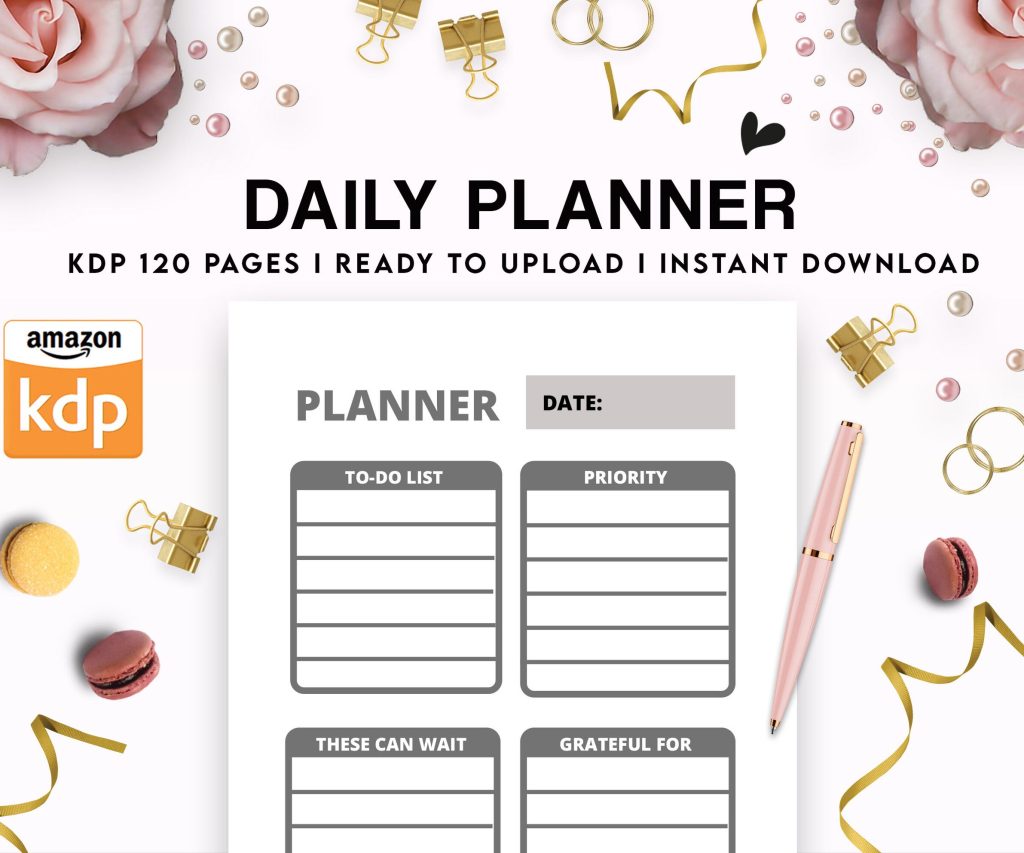 Daily Planner Diary : Diary Planners for Everyday Productivity, 120 pages, 6×9 Size | Amazon KDP Interior
1 × $0.00
Daily Planner Diary : Diary Planners for Everyday Productivity, 120 pages, 6×9 Size | Amazon KDP Interior
1 × $0.00 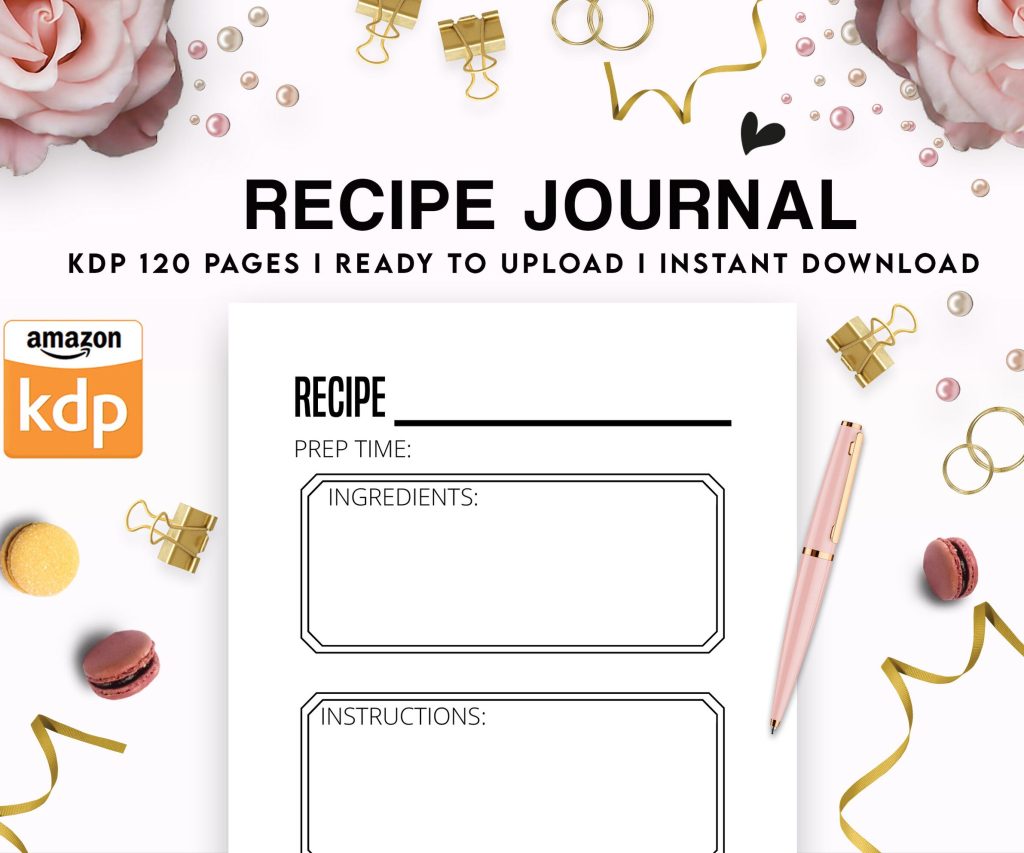 Recipe Journal Template - Editable Recipe Book Template, 120 Pages - Amazon KDP Interior
1 × $0.00
Recipe Journal Template - Editable Recipe Book Template, 120 Pages - Amazon KDP Interior
1 × $0.00 
DISCOVER OUR FREE BEST SELLING PRODUCTS
Editable Canva Lined Journal: Express Your Thoughts – KDP Template
Lined Pages Journal 120 pages Ready to Upload PDF Commercial Use KDP Template 6×9 8.5×11 5×8 for Notebooks, Diaries, Low Content
Lined Pages Journal 120 pages Ready to Upload PDF Commercial Use KDP Template 6×9 8.5×11 5×8 for Notebooks, Diaries, Low Content
Cute Dogs Coloring Book for Kids | Activity Book | KDP Ready-To-Upload
Daily Planner Diary : Diary Planners for Everyday Productivity, 120 pages, 6×9 Size | Amazon KDP Interior
Wolf Coloring KDP interior For Adults, Used as Low Content Book, PDF Template Ready To Upload COMMERCIAL Use 8.5×11"
Coloring Animals Head Book for Kids, Perfect for ages 2-4, 4-8 | 8.5×11 PDF
Printable Blank Comic Book Pages PDF : Create Your Own Comics – 3 Available Sizes
Notes KDP interior Ready To Upload, Sizes 8.5×11 6×9 5×8 inch PDF FILE Used as Amazon KDP Paperback Low Content Book, journal, Notebook, Planner, COMMERCIAL Use
Black Lined Journal: 120 Pages of Black Lined Paper Perfect for Journaling, KDP Notebook Template – 6×9
Student Planner Journal 120 pages Ready to Upload PDF Commercial Use KDP Template 6×9" 8.5×11" for Low Content book
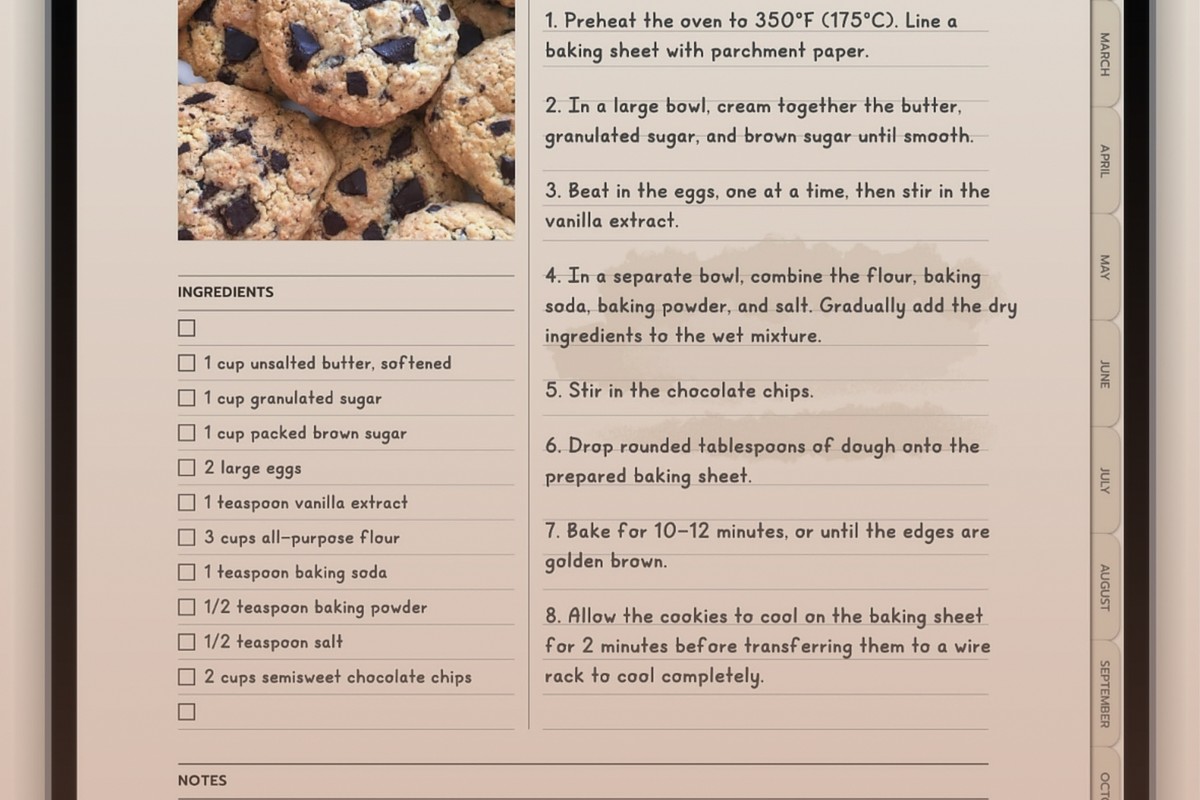
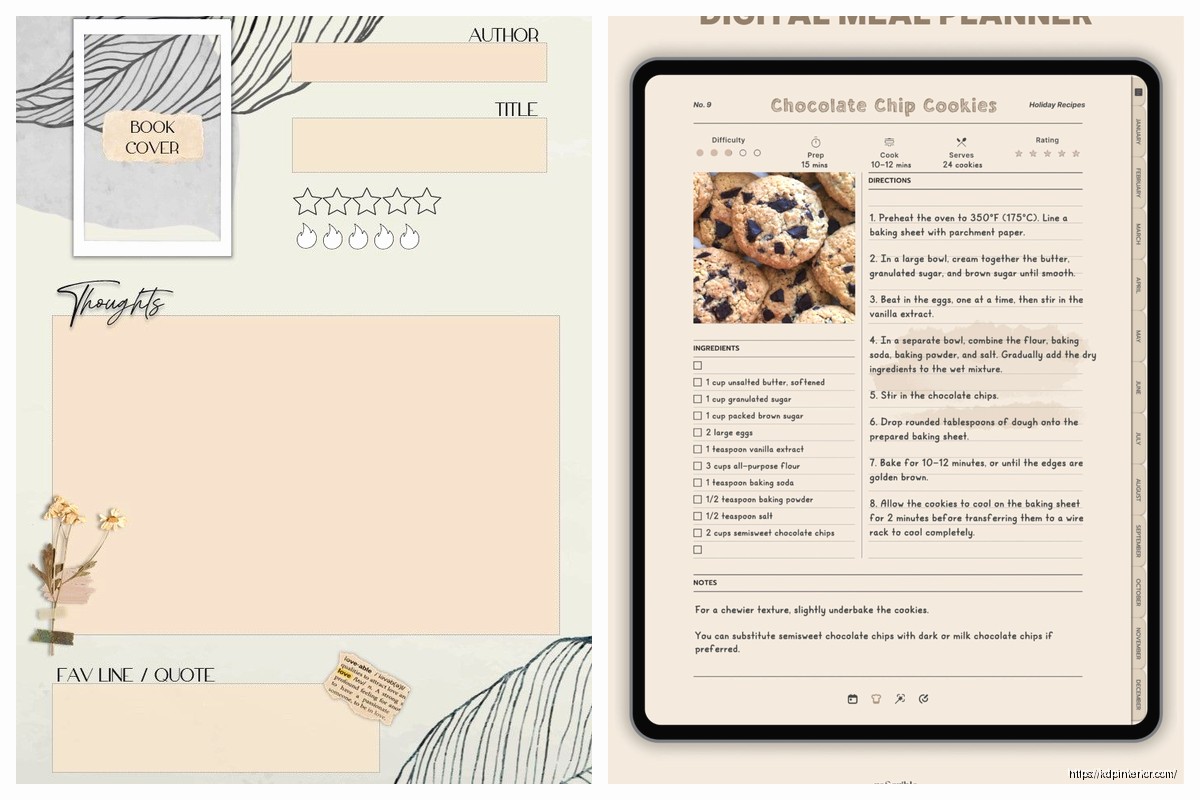
Recipe Journal Template – Editable Recipe Book Template, 120 Pages – Amazon KDP Interior