Okay so here’s the thing about making journals for Amazon, I literally just walked someone through this last Tuesday and they’re already uploaded, so it’s fresh in my head.
First Figure Out What Kind of Journal You’re Actually Making
You can’t just decide “I’m making a journal” because that’s way too broad. Like, are we talking lined pages? Dotted? Prompted journals where every page has a question? Gratitude journals? This matters because it changes everything about your approach.
I usually tell people to start with simple lined or dotted journals first because honestly they’re the easiest to produce and there’s always demand. But if you wanna stand out, prompted journals do really well – like “Daily Reflection Journal” or “Fitness Tracking Journal” with specific fields on each page.
The Interior is Where Most People Screw Up
So you need software to create the actual pages. I use a mix of things depending on my mood and what I’m making that day. Canva works fine for simple stuff, but their templates can look samey if you’re not careful. I also use Book Bolt sometimes, which has journal creation tools built in, or honestly just Microsoft Word with the page size set to 6×9 or whatever trim size you’re doing.
Here’s what you gotta remember about the interior:
- Bleed settings – Amazon KDP needs 0.125 inches on all sides for bleed if you want full-page designs
- Margins – keep text and important stuff at least 0.375 inches from the trim edge
- Page count – needs to be between 24-828 pages, but realistically for journals you want 100-120 pages minimum
- It needs to be a PDF when you upload
Oh and another thing, make sure your pages are actually usable. I see people create journals with margins so small you can’t write in them when the book is bound. The gutter (the inside margin) needs to be bigger than your outside margins because of how the binding works.
Creating Lined Pages From Scratch
If you’re doing this in Word or Canva, you basically need to create one master page and then duplicate it. For lined journals, I usually set lines about 0.25 to 0.3 inches apart. In Word you can use the table function and just make a one-column table with a bunch of rows, then adjust the row height.
In Canva it’s easier honestly – just use the line tool and duplicate. Or find a template that’s already done. My cat literally walked across my keyboard last week while I was spacing lines and somehow made them perfect, so… there’s that method too I guess.
Prompted Journal Pages
These take more work but they sell better in my experience. You need to actually write prompts or create fields. Like for a gratitude journal, each page might have “Today I’m grateful for:” followed by lines, then “What made today special:” with more lines.
The trick is making it repetitive enough that you can reuse page designs but varied enough that it doesn’t feel boring. I usually create 3-5 different page layouts and rotate them throughout the book.
The Cover is Its Own Beast
You need a front cover, back cover, and spine. KDP has a cover calculator that tells you the exact dimensions based on your page count and paper type. Don’t skip this step or your cover won’t fit right.
For making covers, Canva works great. Book Bolt has cover creators. You can hire someone on Fiverr for like $15-50. Or use KDP’s cover creator which is free but kinda basic looking.
What actually sells journals though? The cover needs to clearly show what it is. If it’s a daily planner, it should say that. If it’s for writers, show that. I tested this last month with two identical interiors but different covers – the one with clear text describing what it was outsold the “aesthetic but vague” one by 3 to 1.
Cover Design Tips That Actually Matter
- Use colors that stand out in thumbnail view
- Make text readable when the image is tiny
- Don’t use more than 2-3 fonts
- The spine needs text if your book is over 100 pages usually
Wait I forgot to mention – your cover file needs to be a single PDF or image file with the back cover, spine, and front cover all laid out flat. KDP’s template shows you exactly where everything goes.
Uploading to KDP
Okay so once you have your interior PDF and cover file, you go to kdp.amazon.com and create a new paperback. The process is pretty straightforward:
- Enter your title, author name (can be a pen name), and description
- Choose your categories – you get two, pick ones that are relevant but not insanely competitive
- Add 7 keywords – these are important for being found
- Upload your interior PDF
- Choose your paper type (white or cream) and finish (matte or glossy)
- Upload your cover
- Preview everything using their previewer tool
- Set your price
Pricing Strategy
This is gonna sound weird but don’t underprice journals. I see people selling 120-page journals for $5.99 and making like $0.40 per sale. Price them at $8.99-12.99 depending on what your production cost is and what competitors are charging.
KDP shows you your printing cost based on page count. You need to price above that to make money. I usually aim for at least $3-4 profit per book.
Keywords and Categories Actually Matter More Than You Think
Your 7 keywords need to be phrases people actually search for. Not single words. Think “daily gratitude journal for women” or “fitness tracking journal” instead of just “journal” or “notebook”.
I use Publisher Rocket to research keywords but you can also just search on Amazon and see what autocompletes. My client canceled last week so I spent like 3 hours just comparing different journal keywords and honestly the specific ones (like “sobriety journal” or “prayer journal with prompts”) have way less competition than generic “journal” searches.
Categories
You only get two from the dropdown menu, but you can email KDP support and ask to be added to more specific categories. They’ll usually do it. Like instead of just “Self-Help > Journals” you might get into “Self-Help > Motivational > Journal Writing”.
The Publishing Process
After you submit everything, KDP reviews it. Usually takes 24-72 hours. They’re checking for quality issues, copyright problems, stuff like that. Once approved, your journal is live on Amazon.
One thing – order a proof copy first if you can. It costs you just the printing + shipping but you’ll see exactly how it looks in person. I’ve caught so many margin issues and color problems this way.
Common Mistakes I See All the Time
People make their interiors too complicated. A journal doesn’t need fancy graphics on every page – it needs to be functional. The person buying it wants to write in it, not look at it.
Wrong trim size choices. Most journals are 6×9 or 8.5×11. Using a weird size just makes your production costs higher and looks odd on shelves.
Not checking bleed. If you have color or images that go to the edge of the page, you need bleed. Otherwise you’ll get white borders where you don’t want them.
Forgetting about the gutter margin. Seriously, make that inside margin bigger. When someone opens the journal, they need to be able to actually use the whole page without breaking the spine.
Bad cover text. Make it big enough to read in thumbnail view. Test this by looking at your cover image at like 100×100 pixels.
What Happens After It’s Live
Your journal just sits there on Amazon. You need to drive traffic to it somehow – Amazon ads, social media, whatever. Or you need enough journals in your catalog that they start showing up in searches and recommendations.
I usually create journals in series. Like if I make a gratitude journal that sells okay, I’ll make similar ones with different covers and slight variations. Or I’ll make versions targeted at different audiences (gratitude journal for men, for teens, for Christians, etc).
The first few sales are the hardest. Once you get reviews and some sales history, Amazon’s algorithm starts working for you. But initially you’re basically invisible unless you’re in a really specific niche or you’re promoting it yourself.
Oh and track what sells. I use a spreadsheet with all my books and check sales every week or so. Some journals just flop, some surprise you. I had this random meal planning journal that I threw together in like 2 hours that outsells stuff I spent days on. You never really know.

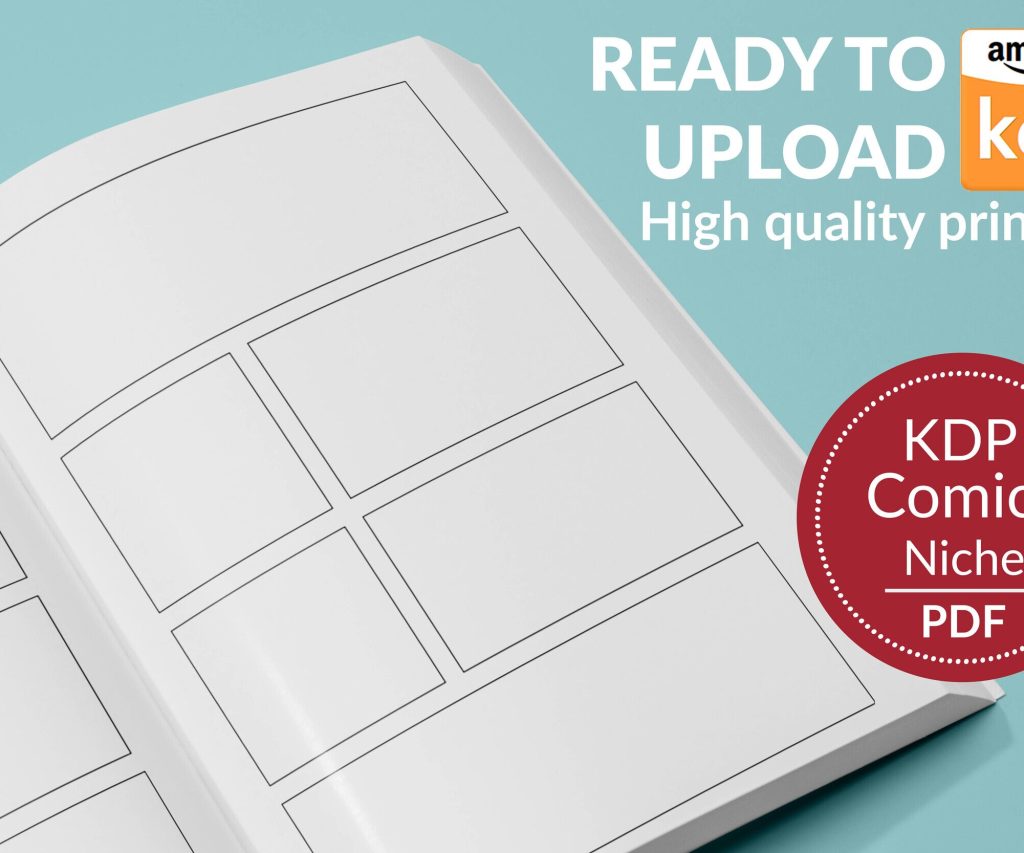 Printable Blank Comic Book Pages PDF : Create Your Own Comics - 3 Available Sizes
1 × $0.00
Printable Blank Comic Book Pages PDF : Create Your Own Comics - 3 Available Sizes
1 × $0.00 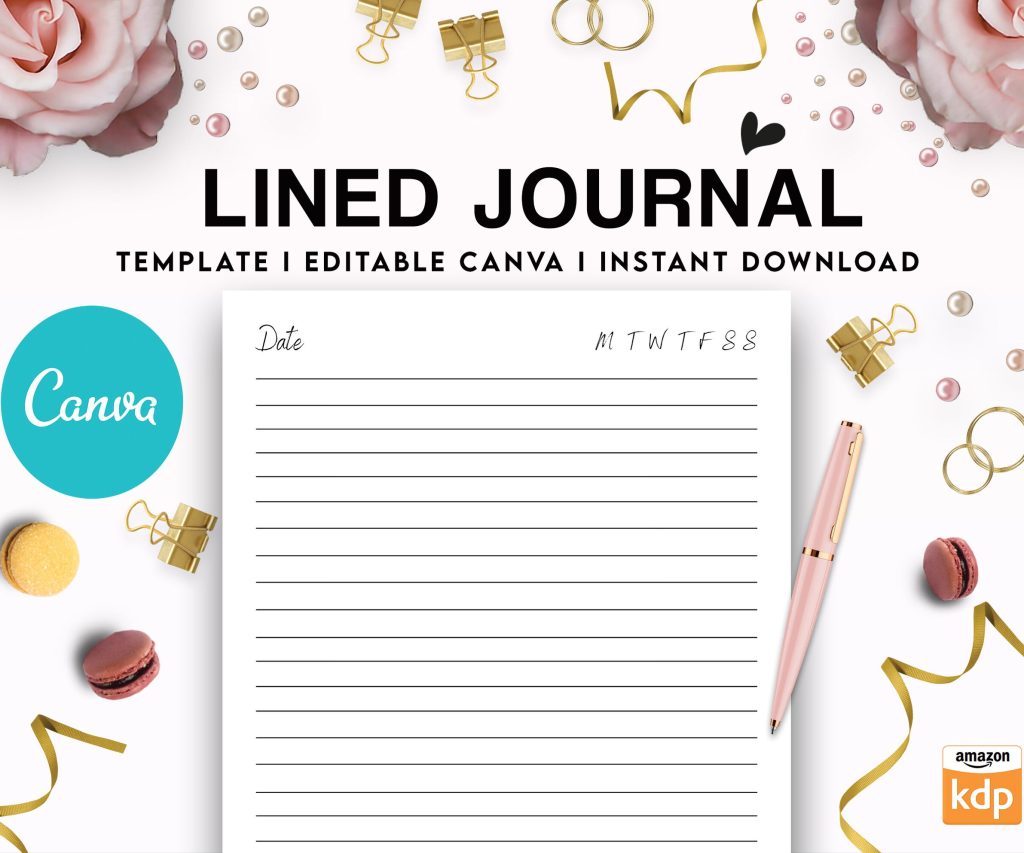 Editable Canva Lined Journal: Express Your Thoughts - KDP Template
1 × $0.00
Editable Canva Lined Journal: Express Your Thoughts - KDP Template
1 × $0.00 
DISCOVER OUR FREE BEST SELLING PRODUCTS
Editable Canva Lined Journal: Express Your Thoughts – KDP Template
Lined Pages Journal 120 pages Ready to Upload PDF Commercial Use KDP Template 6×9 8.5×11 5×8 for Notebooks, Diaries, Low Content
Lined Pages Journal 120 pages Ready to Upload PDF Commercial Use KDP Template 6×9 8.5×11 5×8 for Notebooks, Diaries, Low Content
Cute Dogs Coloring Book for Kids | Activity Book | KDP Ready-To-Upload
Daily Planner Diary : Diary Planners for Everyday Productivity, 120 pages, 6×9 Size | Amazon KDP Interior
Wolf Coloring KDP interior For Adults, Used as Low Content Book, PDF Template Ready To Upload COMMERCIAL Use 8.5×11"
Coloring Animals Head Book for Kids, Perfect for ages 2-4, 4-8 | 8.5×11 PDF
Printable Blank Comic Book Pages PDF : Create Your Own Comics – 3 Available Sizes
Notes KDP interior Ready To Upload, Sizes 8.5×11 6×9 5×8 inch PDF FILE Used as Amazon KDP Paperback Low Content Book, journal, Notebook, Planner, COMMERCIAL Use
Black Lined Journal: 120 Pages of Black Lined Paper Perfect for Journaling, KDP Notebook Template – 6×9
Student Planner Journal 120 pages Ready to Upload PDF Commercial Use KDP Template 6×9" 8.5×11" for Low Content book
Recipe Journal Template – Editable Recipe Book Template, 120 Pages – Amazon KDP Interior